Assistant
The assistant answers questions about Typograph in your own words, finds your templates, projects and teams, and, when you let it, makes changes for you. It works for you, with your own rights, in every organization you belong to, as a member or as a guest, and it shows a plan before it changes anything. You never pick an organization to start: it follows from the work.
The assistant is in beta, and open to some organizations only. If you don't see the Assistant button, it isn't available to you yet.
Opening the Assistant
Click Assistant next to Search at the top of the Portal, or press Ctrl+J (⌘+J on a Mac).

The assistant opens as a panel on the right. On a wide screen the page moves aside, so you can keep working next to it; on a phone it fills the screen. The panel stays open, with the same conversation, when you go to another page. Press Esc or click × to close it.
The top line of the panel holds the credits chip, which names the organization whose AI credits this turn uses, and the panel's buttons: Conversations (the clock), + for a new conversation, the ⋮ menu and ×. Under the field at the bottom are the Act for me switch and Beta · AI can make mistakes, which links to The AI Behind the Assistant.
The First Time
The first time you open the assistant, one screen says what it does: it sees what you see in the portal, in all your organizations; it does only what you may, always after a plan you confirm; and you turn off Act for me to have it only answer. Click Start.
There is nothing to allow or choose, and no question per organization: the assistant is part of the portal and works with your own rights. What it may do in an organization is decided by that organization's owners and admins (see What It Can Reach).
What It Can Reach
The assistant sees what you see in the portal: the teams, projects, templates, media, fonts and trash of every organization you are a member of, and of every organization where you are a guest, someone with a role on a team, project or template there. Ask "What is in the trash?" and it looks in all of them, as the portal's trash does.
When you belong to more than one organization, every item it lists names its organization, and an organization where you are a guest carries the sidebar's External label.
Each organization's owners and admins decide what the assistant may do there, for everyone who works there (AI Assistant Settings):
- Read and edit, the default: it reads, and changes things after a plan you confirm.
- Read only: it reads. Ask it to change something there and it says that you make that change in the portal yourself, without proposing a plan.
- Off: it reads and changes nothing there.
The assistant never skips an organization in silence. When it searched your organizations and left one out, because the assistant is off there or not open to it yet, a line under the answer names it, such as The assistant is off in Press Room. I did not search there; see the trash in the portal.
When owners or admins change this setting, it takes effect within a minute. A plan you confirm is checked again when it runs: if the organization has meanwhile become read only, the plan stops with that explanation, and nothing is changed.
Who Pays a Turn
Every question and the work behind it, a turn, is paid in AI credits by one organization. The chip at the top of the panel names it. The assistant picks it when you send your question:
- The organization you picked in the chip, if it can pay for this work.
- Otherwise the organization of the work: the team, project or template open on the page, when you are an editor or admin there.
- Otherwise an organization of your own: of the organizations where you are a member and an editor or admin, the one with the most credits left this month. Every person has one, since signing up creates it.
An organization pays only for work in itself. Viewers and commenters never spend an organization's credits: as a viewer somewhere, your own organization pays, and the assistant can't change anything there for you anyway. As a guest, a host organization pays only when its owners and admins let guests use its credits for work there, which is off by default; otherwise your own organization pays.
The Chip
The chip shows the paying organization and a bar with how much of its credits for today are used, in percent, turning orange from 80%.
- Point at the bar, or tab to it, to see the details of the paying organization: what is left today and when the day starts again, and for an organization you are a member of also its plan and what is left this month. The reset times are in your time zone, such as Resets tomorrow at 01:00.
- Click the chip to open Your organizations: every organization you belong to, each with its own day bar, and a check at the one paying. You can pick the organization of the work and your own organizations. The others are greyed out with the reason: You are a viewer there, The assistant is off there, The assistant is not open there yet, Guests use their own credits there, or Only for work in this organization. On a phone, the list is also where you find the details.
As a guest, you see a host organization's day bar, not its plan or its month.
When the Paying Organization Changes
A plan names the organization its changes land in, and which organization pays (Credits from …). When you run a plan in another organization than the one paying, and you may pay with that organization, it pays from then on: a quiet line in the chat says Credits now from …, and the chip follows. No dialog asks you first: the plan you confirmed said so.
Asking a Question
Type your question in the field at the bottom and press Enter, or click one of the suggestions. Ask in your own language.
To ask an earlier question again, press ↑ in the empty field: your questions come back one by one, the newest first, to send as they are or change first. ↓ goes back to newer ones and then to what you were typing. The assistant remembers the questions you sent in this browser tab, in every conversation, until you close the tab.
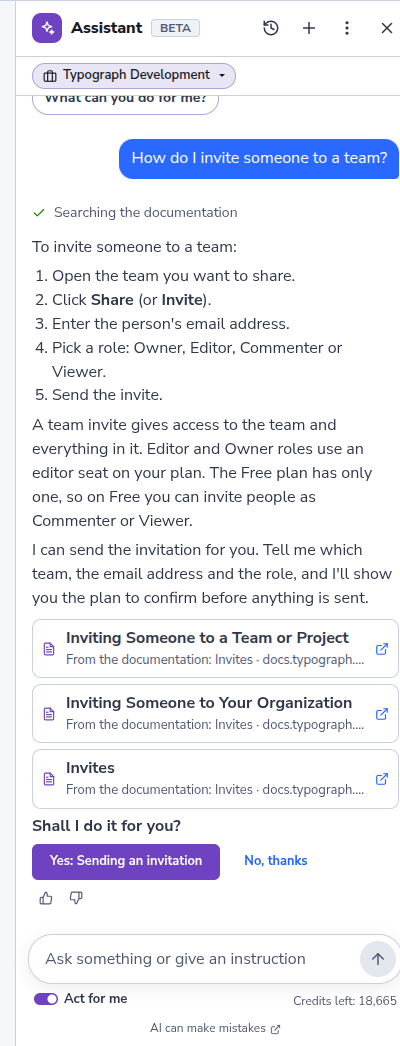
For a how do I… question, the assistant searches this documentation and answers with the steps. The pages it used appear under the answer as cards; click one to read the whole page. When it can do the task for you, it offers to: click Yes to let it, or No, thanks.
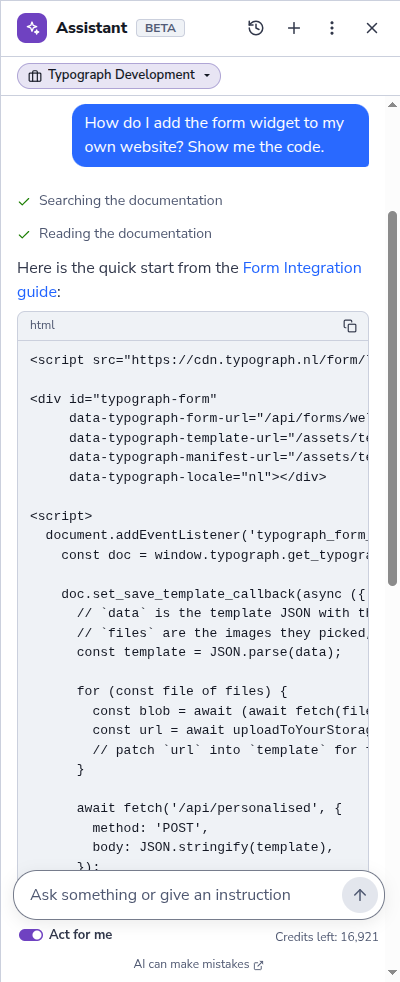
An answer can hold a table, to compare a few things side by side, and links to a section of this documentation, which open in a new tab. Ask how to build something, such as adding the form widget to your website, and it shows the code from the documentation in a code block. A wide table or a long line of code scrolls sideways. Click the copy button above a code block, or tab to it and press Enter, to copy the code; a check confirms it.
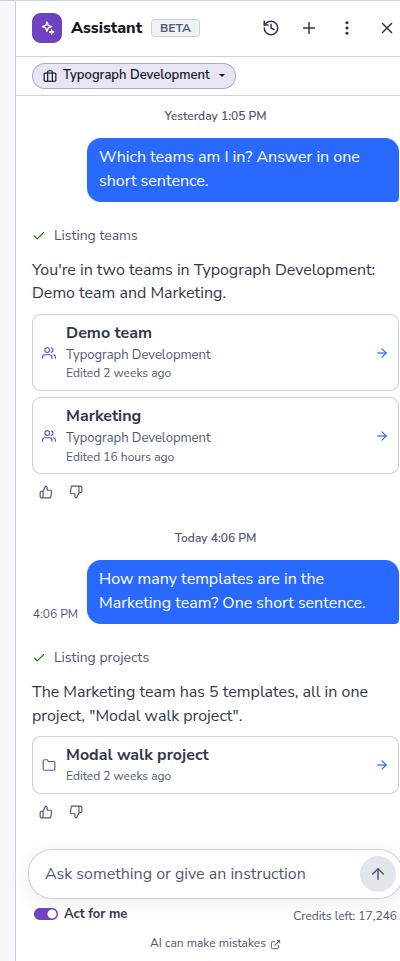
It also finds your work: Which templates did I change this week? lists the templates as cards that open them. Every step it takes shows as a short line, such as Searching the documentation or Listing teams.
Ask who is in your organization, or who has access to a team, project or template, and the people appear as cards too: their picture, or their initial when they have none, their name, their e-mail address and their role. A role on a team, project or template reads as in the Share dialog (Can view, Can comment, Can edit or Admin, see Your Own Access), a role in the organization as on its Members page (Owner, Admin or Member, see User Roles). Someone who has not accepted an invitation yet is marked Invited. To change who has access, open the Share dialog, or ask the assistant to invite someone.
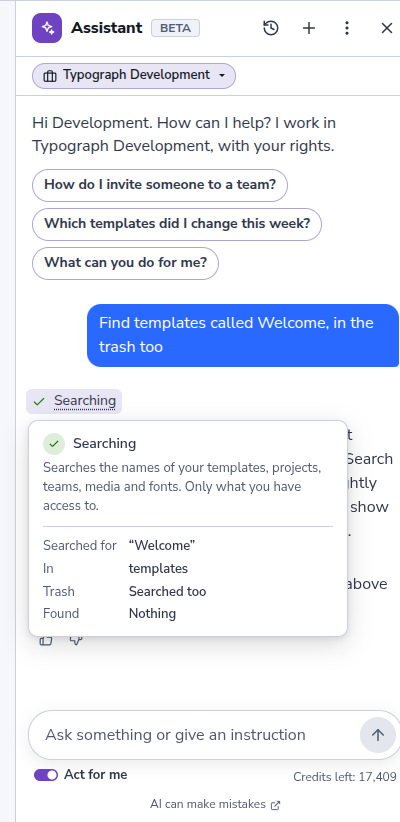
To see what a step did, point at its line, tab to it, or tap it on a phone. A card opens with what that kind of step does and what this one did: what it searched for and where, whether it looked in the trash too, the name it gave something, and how many results it found. A step that did not work says so, and a step that changed something says it ran only once you said so. Press Esc, or tap elsewhere, to close it.
Rate an answer with the thumbs under it. Conversations (the clock) lists your earlier conversations; + starts a new one.
A line above your first question shows when the conversation started, such as Today 2:05 PM. When you go on with it on a later day, a new line marks that day: Yesterday, the day of the week within the last week, or else the date. To see when a question or an answer was sent, point at it: its time appears beside the question, or after the thumbs of the answer. Point at the time for the full date. With the keyboard, tab into the conversation and every time shows; on a phone the times always show.
Long Conversations
With every question, the assistant reads the conversation back: the last ten questions and their answers, or fewer when they were long. Beyond that it no longer takes the oldest messages into account, so it may forget what you said at the start. The first time that happens in a conversation, a line says so, with New conversation. For a new topic, start a new conversation: the assistant then has nothing old in the way, and it reads back less, which costs fewer AI credits.
Short Code Examples Only
The assistant writes short code for working with Typograph: an API call with the client-credentials flow, a webhook receiver that checks the signature, embedding a widget, or the settings to connect your own AI assistant over MCP. It bases the code on this documentation and links the page it comes from. It doesn't write complete programs or client libraries, general programming help, or code that has nothing to do with Typograph.
When the code in an answer gets longer than such an example, the answer stops there. The code so far stays, with its copy button, and a line under it points to the API reference.
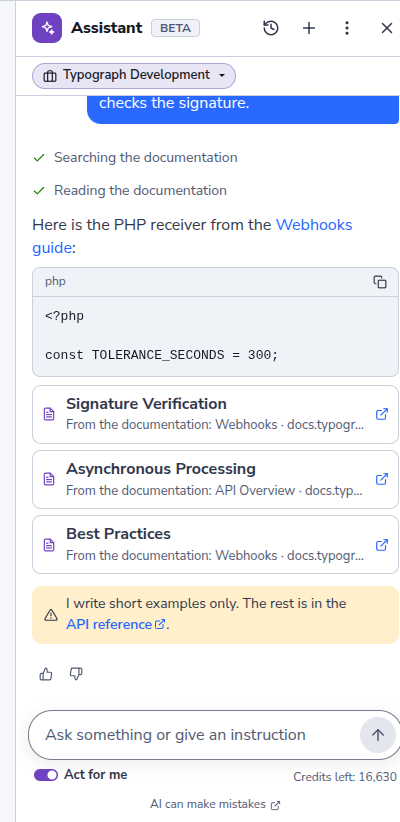
For a complete integration, start from the API reference, or let your own AI assistant build it with the MCP server.
Pasting a Token or Key
Don't paste passwords, access tokens, client secrets or other keys into a question. If you do, the assistant masks anything shaped like a Typograph access token, refresh token or client secret before it reads your question, and a line under your question says so. Not every key has a shape it can recognise, so don't rely on it. The masked part isn't saved with the conversation either: in your list of conversations it shows as [masked]. Code the assistant writes never holds a real key, only a placeholder such as YOUR_CLIENT_SECRET.
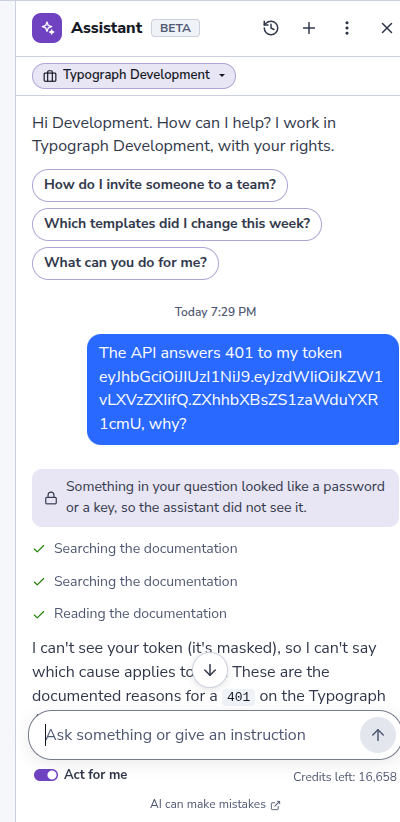
If you did paste a real key, treat it as exposed: revoke it and create a new one.
Letting the Assistant Do It for You
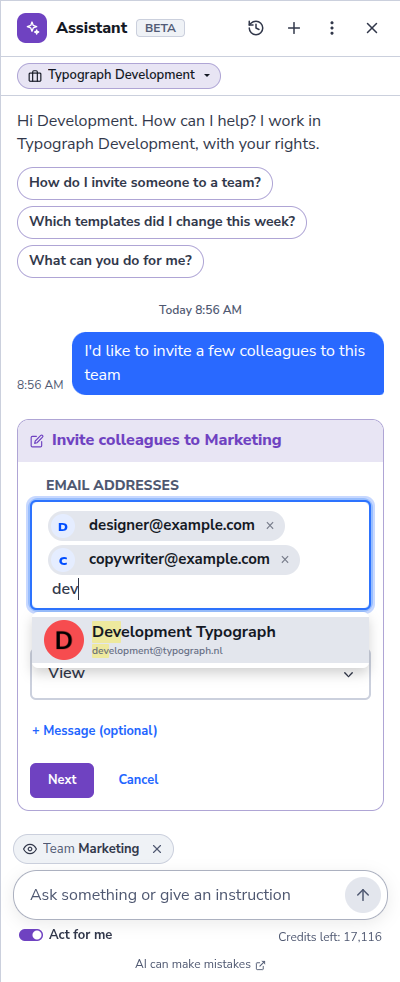
When the assistant needs details, it asks for them in a small form in the chat instead of a string of questions. Choices come from your own work, such as your teams.
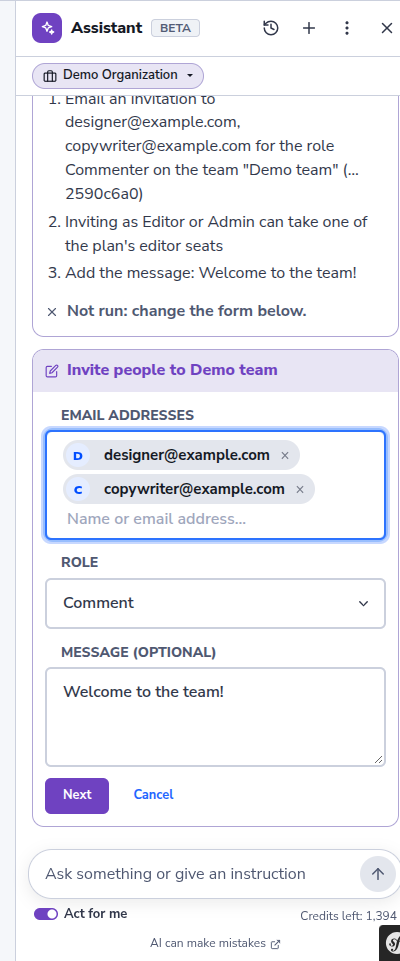
To invite people, the form works like the share dialog: search the people of the team by name or email address, or type an address, and each one becomes a tag. You can invite up to 20 people at once with the same role, and add a message for all of them with + Message (optional). An address that isn't a valid email address stays in the field with a note, so you can correct it.
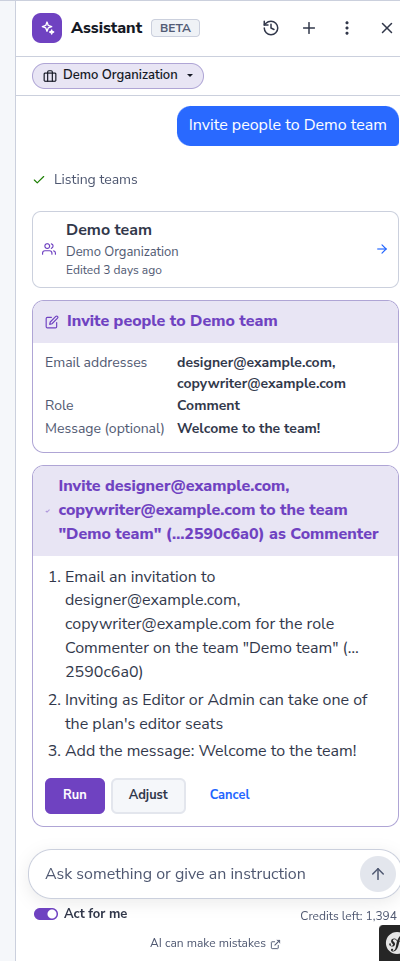
Before it changes anything, the assistant shows a plan: what it will do, the team and organization every change lands in, and at its foot which organization's credits it uses (Credits from …). A plan changes things in one organization. Nothing happens until you choose:
- Run carries out the plan.
- Adjust leaves it unrun. A plan that came from a form opens that form again below it, filled in with what you gave, the tags and the message included: change what you want and click Next for a new plan. For any other plan, say in the field below what to change, and the assistant shows a new plan.
- Cancel drops it. Nothing is changed.
A Plan in Another Organization
The organizations in a plan come from the items themselves, never from the text the AI wrote. When a change lands in another organization than the one the conversation's work started in, an orange line on the plan says so: This change lands in Example Print Co., not in the organization this turn started in. Check it before you click Run: a text in one organization, such as a template or file name, could try to steer the assistant into changing another. The same goes for a step marked because it invites an address from outside the organization, sends an invitation message, or uses a name you did not type yourself.
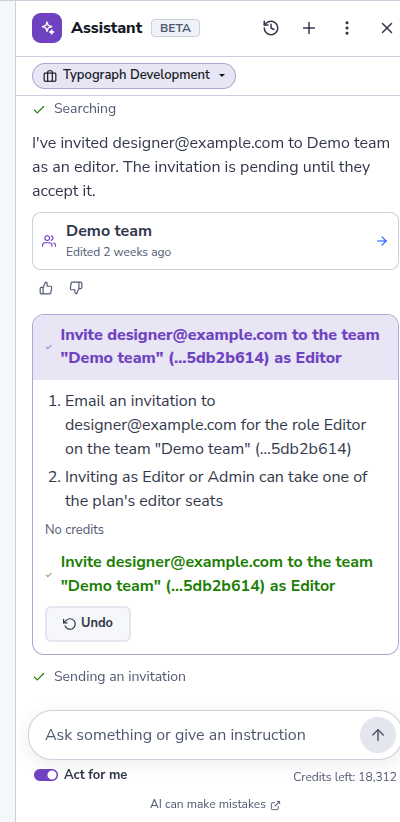
After the plan has run, the assistant says it is done. Where the change can be taken back, the plan shows Undo. Undoing an invitation to several people revokes every invitation it sent.
When your organization's plan allows no more of something, the assistant says so before it asks for any details. On Free, which allows one team, asking it for a new team shows no form: it checks your plan's limits, says that the plan allows no more teams, and offers View usage, where you can request another plan. Or move a team to the trash first: a team in the trash doesn't count. Inviting someone to your organization works the same way when your plan's members are all there: an open invitation holds a place too, so you can also revoke one, or remove a member, first.
Editor seats are different: someone who already edits anywhere in your organization keeps their seat, so inviting them with edit rights always works. When all your plan's seats are taken, the assistant says so, and a plan to invite with edit rights carries a line under it that says the same. Anyone in it without a seat is refused edit rights when the plan runs, and the plan says why. Inviting to view or comment always works. Projects and templates have no limit on any plan.
A plan that doesn't go through stops with why, such as a limit of your plan, or a role that doesn't allow the change, and nothing is changed. The step's line says the same when you point at it.
The Act for Me Switch
Act for me, under the field, is your one switch. Off, the assistant only explains and finds things, and changes nothing, in any organization. Ask it to change something and it says that Act for me is off, gives the steps to do it yourself, and offers to do it once you switch it on.
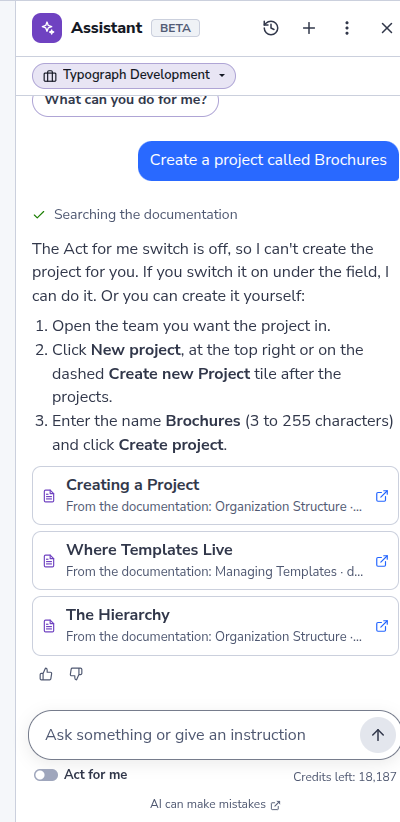
The switch is on for everyone who starts with the assistant, and it remembers your choice. If you used the assistant before it worked across organizations, the switch starts where you left it: off if you had it only look along in any organization, had taken back its permission, or had never given one. On, the assistant still does only what you may do, and only where the organization's setting is Read and edit.
What the Assistant Never Does
- Anything you can't do yourself. It works with your rights in each organization, and never touches what a template locks. Where an organization lets it only read, or turned it off, it changes nothing there.
- A change without a plan. Every change is shown first and waits for Run. Deleting, inviting and anything that costs credits always need your go-ahead.
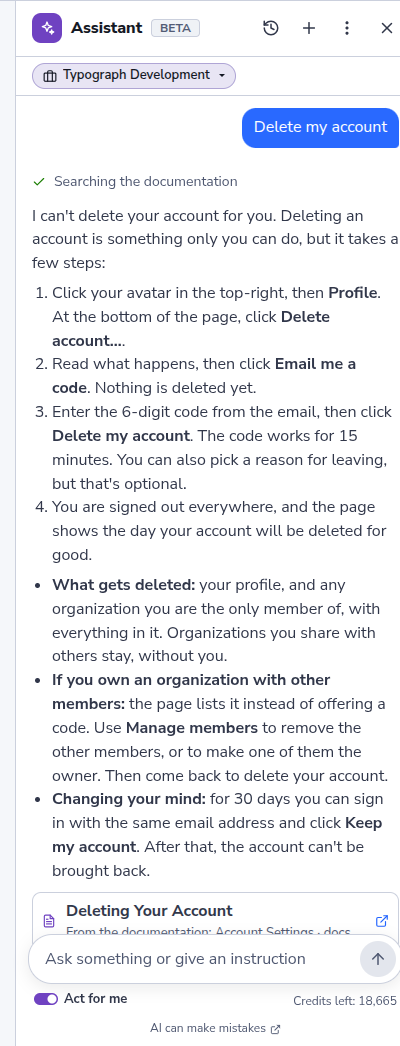
- What stays with people. Signing in and security, your account (such as deleting it), the subscription, and creating or changing apps. Ask for one of these and it says where you do it yourself.
- Changing your organization's members or settings. It invites people to an organization and revokes an invitation when you are an owner or admin there, but changing a member's role, removing a member and changing the organization's details you do yourself, on the organization's Members and Settings pages.
The assistant is an AI: its answers can contain mistakes. What it wants to change, you always see first. How to check an answer, and what to do when one is wrong: When the Assistant Is Wrong.
AI Credits
What the assistant does is paid with AI credits, a monthly allowance that comes with an organization's plan. Each turn uses the credits of one organization, as Who Pays a Turn explains; the chip at the top of the panel names it and shows how much of its day is used. The organization's usage page shows how many it used this month, and who used them. There is no limit per person: someone alone in an organization can use its whole day.
Every answer costs credits. How many depends on the work behind it: a short answer from what the assistant knows costs little, and a question for which it searches the documentation or your work, or makes a plan, costs more. A longer answer costs more too. Follow-up questions in the same conversation are cheaper, because the assistant reuses its instructions instead of reading them again for every question. A question that isn't answered because of a limit below costs nothing.
Credits per Plan
| Plan | AI credits per month | Extra credits |
|---|---|---|
| Free | 500 | No: upgrade the plan |
| Pro | 5,000 | Credit bundles, on request |
| Enterprise | 20,000 | Credit bundles, on request |
Every plan gets the whole assistant, acting for you included; the plans differ only in how many credits they have. The credits start again on the first day of every month. Credits left at the end of a month don't carry over.
At Most a Quarter per Day
An organization can use at most a quarter of its month's credits in one day: 125 on Free, 1,250 on Pro and 5,000 on Enterprise. So one busy day, or one runaway conversation, never uses up the whole month. Credit bundles count as well: a bundle added to the month raises the day's limit at once. The day starts at midnight UTC; the chip's details say when that is in your time zone, such as Resets tomorrow at 01:00.
When Credits Run Low
Once the paying organization has used 80% of the month's credits, a line in the conversation says how much is left and when new credits come. The assistant goes on answering. It says so once per conversation. Its owners and admins also get an email, once a month, that names who used the most, so colleagues can agree who does what before the credits run out.
When Credits Are Used Up
When the paying organization's credits for the day or the month are used up, the assistant stops answering, and a message above the field says which it is and when you can go on: when none of the organizations you may pay with has credits left, the earliest moment one of them starts again. The chip shows it too. When another organization of yours may pay for this work, the message also offers Use another organization's credits, which opens the chip's list to pick it. A question that was refused stays in the conversation, marked Not answered, and goes back into the field, so you can send it again later. What you can do depends on your role in the paying organization and its plan:
- For the day: you can go on tomorrow. An owner or admin on Pro or Enterprise can also request extra credits, and on Free choose Upgrade plan. Anyone else sees View usage.
- For the month: new credits come on the first of the next month. An owner or admin on Pro or Enterprise sees Request credits, and on Free Upgrade plan, which opens the plan comparison. Anyone else is asked to turn to an owner or admin of that organization, and sees View usage.
When credits are available again, the message is gone and you can ask your question.
Requesting Extra Credits
On Pro and Enterprise, an owner or admin can add a credit bundle to the month:
| Bundle | Price |
|---|---|
| 5,000 AI credits | €39 |
| 15,000 AI credits | €90 |
A bundle counts for the month it is added in, on top of the plan's credits, and raises the day's limit at once. Credits of a bundle that are left at the end of the month don't carry over.
The portal doesn't sell bundles itself yet: you request one from us by email.
- Click Request credits in the message at a credits limit. Your email program opens a message to sales@typograph.nl with your organization's ID and both bundles filled in.
- Delete the bundle you don't want, change How many if you want more than one, and send the message.
We add the bundle to your organization. Without the button at hand, email sales@typograph.nl yourself and name your organization. On Free there are no bundles: change the plan instead.
Speed Limits
Apart from credits, the assistant has two speed limits per person. Someone working normally never meets them; they stop a script or a hijacked account from using up the organization's credits in a few minutes. Your question stays in the field while you wait.
-
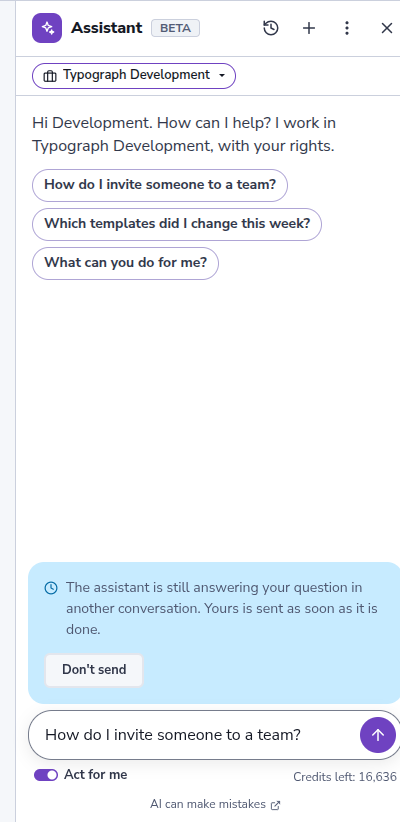
One question at a time. While the assistant is still answering a question of yours in another conversation, also in another browser tab, a new question waits. A message says so, and the question is sent by itself as soon as the other one is done. Click Don't send to keep it in the field instead. A plan or form that waits for you doesn't hold up a new question.
-
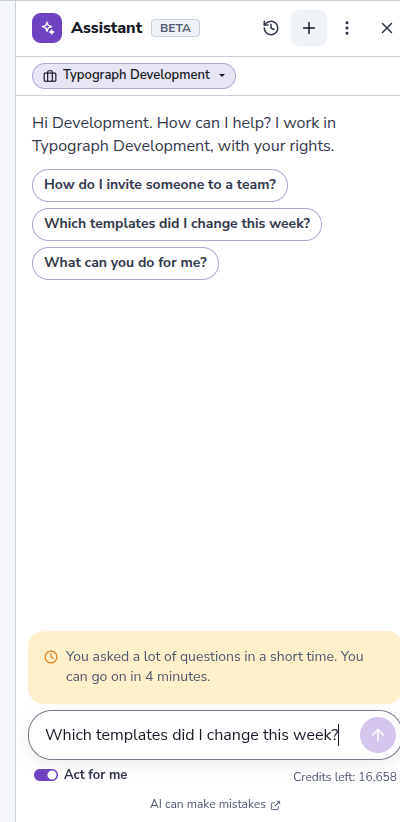
A pause after many questions in a short time. The message says when you can go on and counts down. Then Send works again by itself.
When the Assistant Is Unavailable
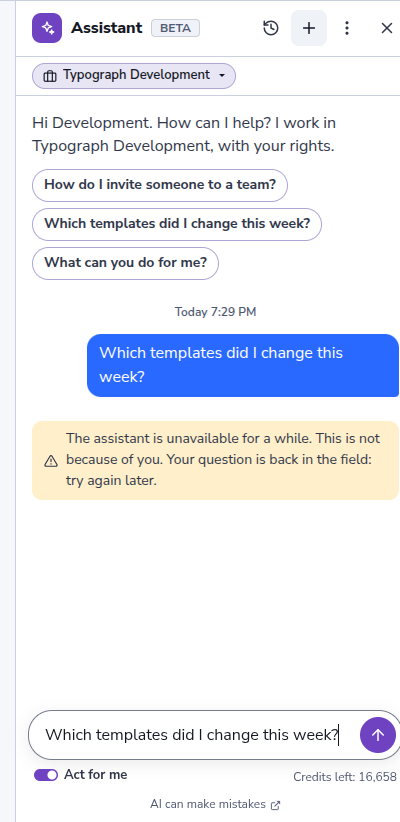
Rarely, the assistant pauses for everyone for a while. The message says it isn't because of you, and your question goes back into the field. Try again later; there is no countdown, and no credits are spent.
The AI Behind the Assistant
The assistant is in beta. Its AI is Anthropic · Claude: what the assistant reads and writes for you is processed there. Each organization's owners and admins see this in their AI Assistant Settings, with how we process data, and decide whether the assistant may read their organization at all.
Related
- When the Assistant Is Wrong — why an answer can be wrong, and what to do about it
- Search — find templates, projects, teams, media and fonts by name
- AI Assistant Settings — what the assistant may do in an organization, and whether guests may use its credits
- Invites — inviting people yourself
- MCP server — connect your own AI assistant, such as Claude, to Typograph