Subscription & Usage
Every organization is on a plan — Free, Pro, or Enterprise — that determines how much you can use Typograph before hitting a limit.
Viewing Your Plan
- Go to Organizations → {Your Org} → Subscription.
You'll see the organization's current plan and what it includes.
Changing Your Plan
Free costs nothing. Pro and Enterprise are on request: they have no published price, and you change to them by asking.
- From the Subscription page, click Change plan.
- Compare the plans.
- Choose Ask for Pro on Pro, or Talk to an expert on Enterprise, fill in the form, and send it.
The sales team gets back to you, agrees the change and its price with you, and then moves your organization to the new plan. Nothing changes until then.
Any member of the organization can send the request. Add-ons and cancelling remain the Owner's: see User Roles.
One Free Organization per Person
Every organization on the Free plan has limits of its own, so you own one organization on the Free plan. A new organization starts on Free, so while you own a free one, creating another is refused, and the page names the organization you have. To create another:
- move the organization you have to a paid plan, from its Change plan page, or
- ask us to set up the new organization on a paid plan.
Only the organizations you own count, not the ones you were invited to. On the Free plan, publishing and converting also count per person, across every free organization you work in, so working in several free organizations does not raise your limits.
Which Organization Your Work Counts For
- In the portal, browsing, editing, sharing and the rest of your work count toward none of your request limits. Of the requests, publisher and converter work counts, for the organization that owns the project or template. That holds also when someone from another organization does it, in a team you invited them to: give them a lower role if they should not. Apart from that, the files you store count toward the organization's Storage, and the assistant counts its requests in the
aicategory and is paid from AI credits: each turn by one organization, the one of the work when the person is an editor or admin there, as Who Pays a Turn explains. - Through the API and the MCP server, every request counts for the organization the app's token was granted for: the one chosen when signing in to the app, or the one that owns the app. An app that someone from another organization connects only reads in your organization, if you allow it at all (Apps of guests), so it never counts for yours.
Teams and editor seats
Each plan sets how many teams the organization can have, and how many people can edit in it (its editor seats). The Change plan page lists both for every plan:
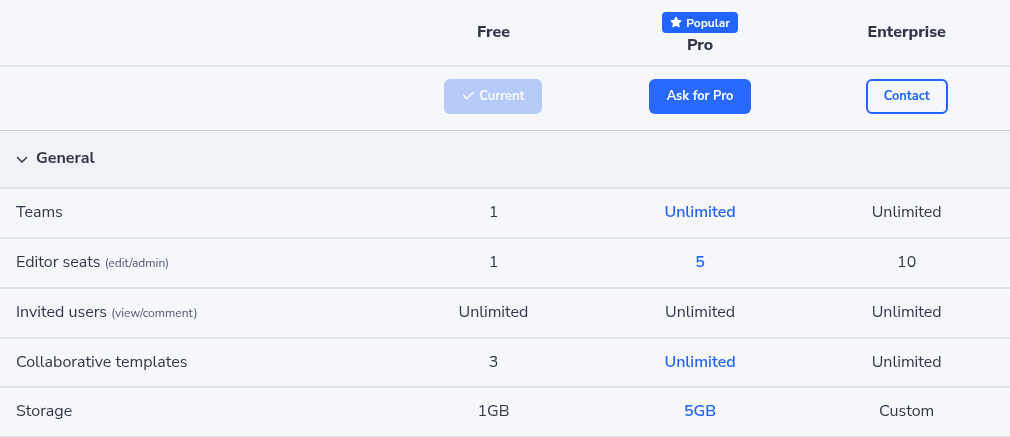
| Plan | Teams | Editor seats |
|---|---|---|
| Free | 1 | 1, the owner's |
| Pro | No limit | 5 |
| Enterprise | No limit | 10 |
People who can only view or comment don't take a seat, on any plan. Your organization's own numbers are on its Teams and Members pages; once they are all in use, the portal says so where you would add a team or someone who edits, and offers the way on.
Checking Your Usage
- Go to Organizations → {Your Org} → Usage.
You'll see your consumption broken down by category, each measured against your plan's limit:
| Category | Covers |
|---|---|
| General | Overall activity |
| File | Working with projects, templates, and media |
| Publisher | Publishing and exporting templates |
| Converter | Converting files between formats |
| Storage | The files stored across the organization: each image at its largest version, fonts, templates and clips. An image counts at its original or its print version, whichever is larger, which for a photo is usually the original; its screen version and thumbnail do not count |
| Trash | The files in the trash, next to their allowance; see Storage and the trash |
| Webhooks | Webhook notifications sent |
| AI credits | What the assistant used this month, against the plan's AI credits plus any credit bundle, and when they start again; and who used them, see AI credits per person |
A category nearing its limit is highlighted, and the page offers Upgrade plan, which opens the plan change. A category that's reached its limit blocks further use in that category until it resets or you switch to a bigger plan.
AI credits per person
The AI credits card also shows what is left this month and today, and who used how many credits this month:
- Owners and admins see everyone, with guests listed apart: people with a role on your teams who are not members, who use your credits only when your AI Assistant Settings let them.
- Other members see their own credits and the organization's total.
There is no limit per person: anyone who may use the organization's credits can use its whole day. Once 80% of the month is used, the card says who used the most, and the owner and admins get one email about it that month, so you can agree who does what, or add a credit bundle, before the credits run out.
Storage and the trash
Files you delete stay in the trash for 30 days, so they can still be restored. The usage page has a Trash card beside Storage: how much the trash holds, next to its allowance, which is as much as your plan's storage.
- Within the allowance, files in the trash don't count toward your storage. Deleting a file frees its room at once, without anyone having to empty the trash.
- Beyond the allowance, the rest counts toward your storage, and the Trash card says how much.
After 30 days, files in the trash are deleted for good and stop taking up room.
Related
- User Roles — who can view or change billing
- Apps and Webhooks — integrations whose usage counts toward these limits