Search
Search finds the templates, projects, teams, media and fonts you can open, by name, from anywhere in the Portal.
Searching for Something
-
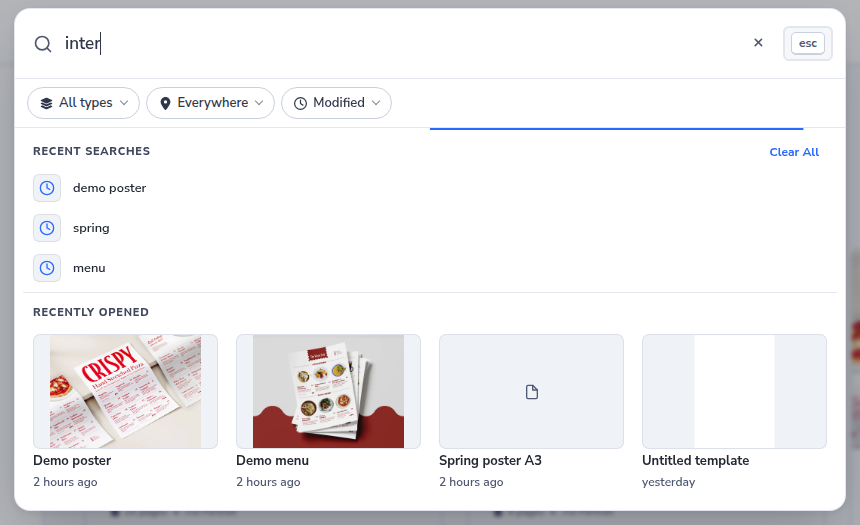
Click Search at the top of the Portal, or press /.
-
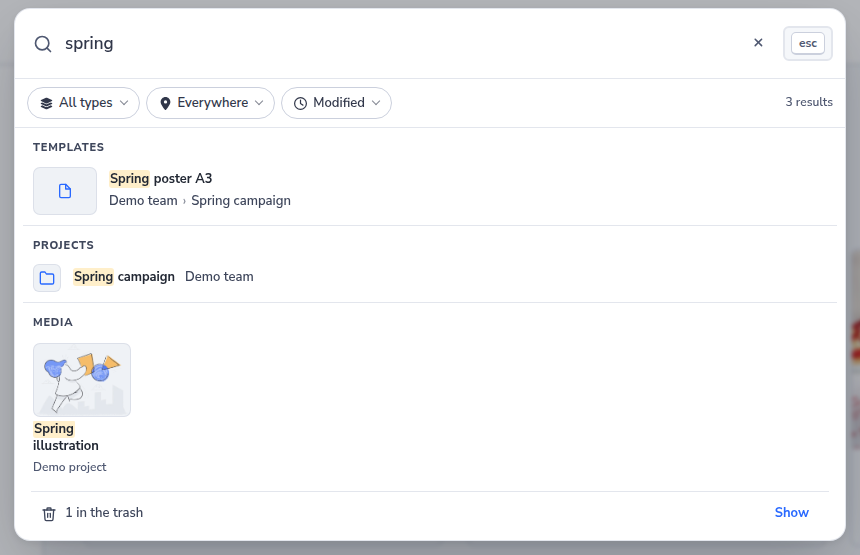
The search panel opens. Type at least 2 characters of what you're looking for.
-
Click a result to jump straight to it.
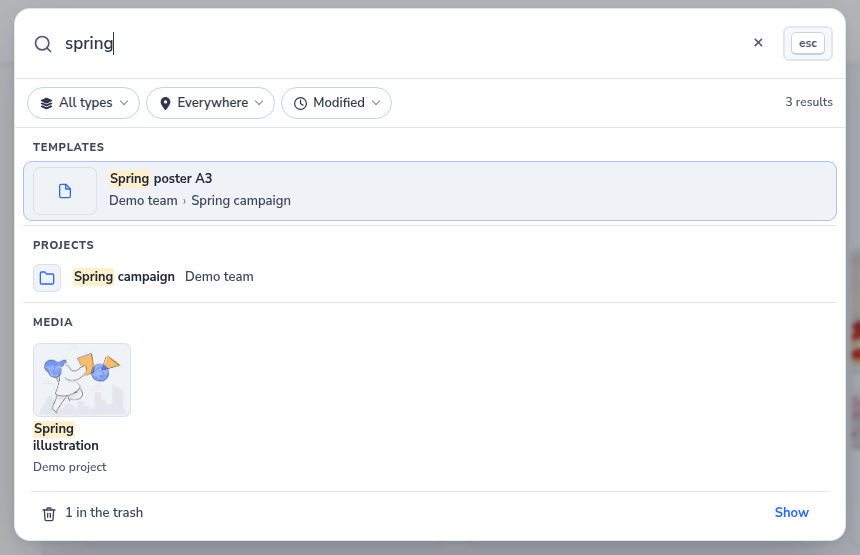
Results are grouped by type:
| Result | Opens |
|---|---|
| Templates | the template in the Editor |
| Projects | the project's template list |
| Media | the Media tab of the project the file is in |
| Fonts | the Fonts tab of the project the font is in |
| Teams | the team's project list |
Templates show a small preview of their design, so you can recognise one at a glance. A template that has no preview yet, such as one you have just created and not saved, shows a template icon instead. Media files show as a picture with the name of their project.
Each result shows its place in the hierarchy (which team, which project), so you can tell two similarly-named templates apart. Click the team or project in that path to go there instead.
When you search all types, each group shows its first few results. Use Show all next to a group's name to see all of that type.
If nothing matches, the panel says so. Check the spelling, or search for part of a name.
Asking the Assistant Instead
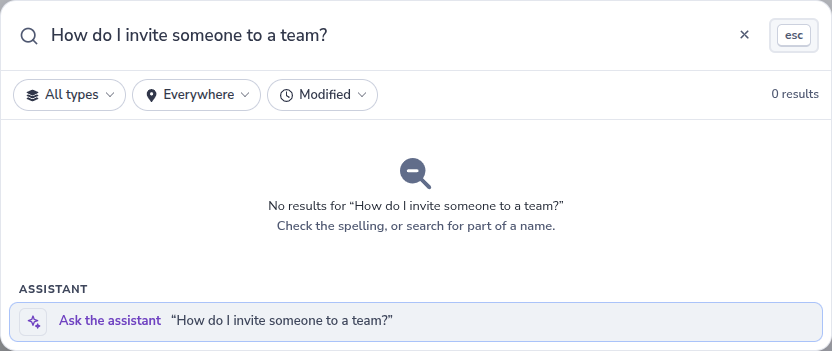
When search finds nothing, or what you type reads like a question (it ends with a question mark, or starts with a word such as how or which), the list ends with Ask the assistant. This row only appears when the assistant is available to you.
-
Type your question in search, for example How do I invite someone to a team?
-
Click Ask the assistant, or reach it with ↓ and press Enter.
-
The assistant opens beside the page with your question filled in. Nothing is sent yet: change the text if you like, then send it.
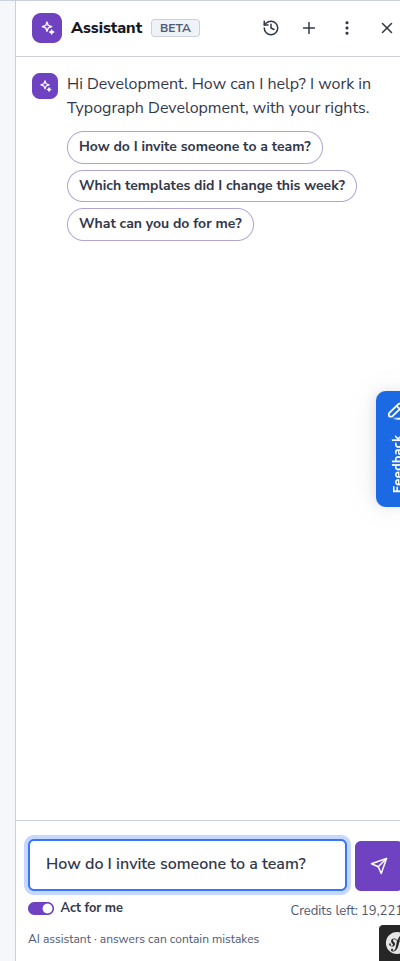
The first time you use the assistant, it first says what it does; your question waits until you click Start.
Narrowing Your Search
Three filters sit under the search field. Each one changes the results as you choose.
By Type
- Click All types.
- Tick the types you want to see. The number next to each type is how many results it holds for what you typed.
- Click Done.
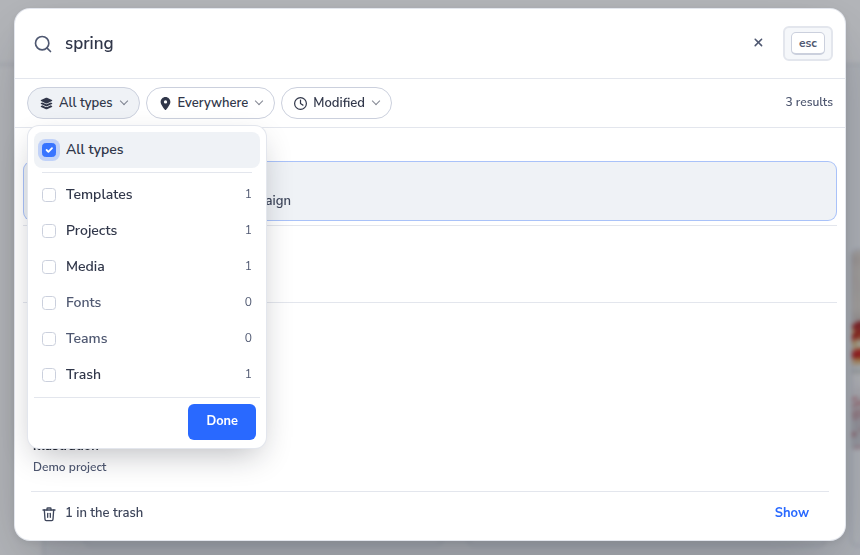
Tick All types again to see every type.
By Team or Project
- Click Everywhere.
- Type part of a team or project name to shorten the list. You only see the teams and projects you can open.
- Tick a team to search all its projects, or tick single projects. You can tick several.
- Click Done.
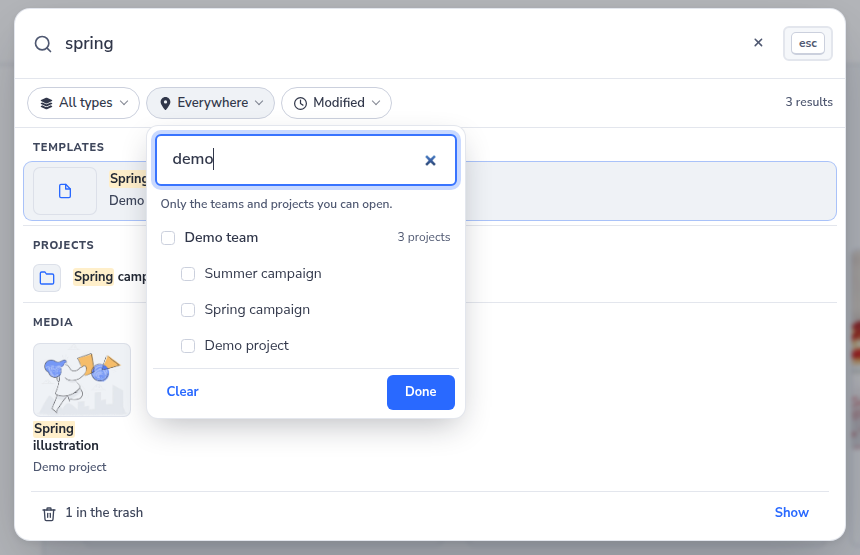
To search everywhere again, open the filter and click Clear.
By When It Was Changed
- Click Modified.
- Choose Today, Last 7 days or Last 30 days.
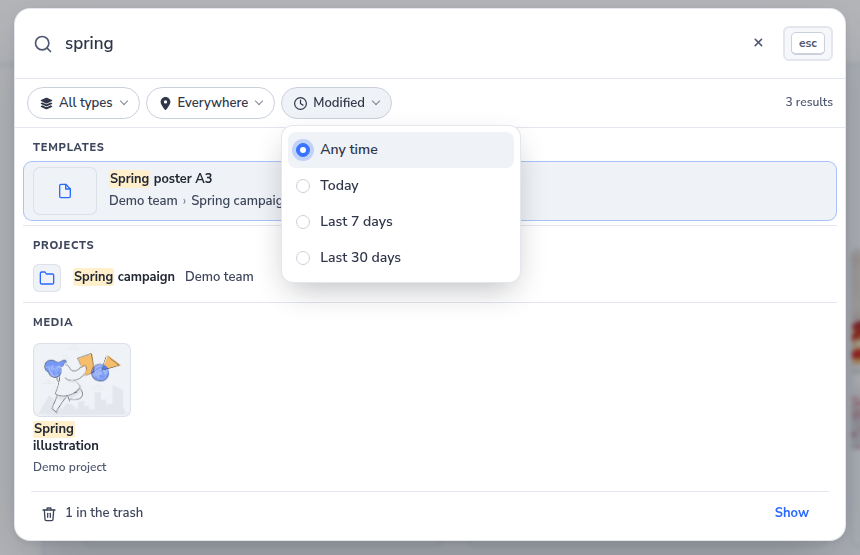
Choose Any time to drop this filter.
If your filters leave nothing to show, the panel says your filters may be hiding what you're looking for, and offers Clear filters.
Finding Fonts and Media
Search finds the media files and fonts in every project you can open. A font opens the Fonts tab of its project, where you can see and manage it.
Finding Something in the Trash
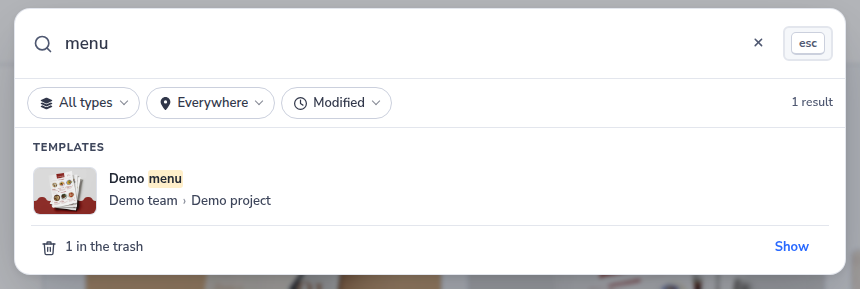
Search also looks in the trash: teams, projects, and templates that were deleted but are still within their 30-day recovery window. When you search all types, they are counted in one line at the bottom of the results.
-
Click Show on the trash line.
-
The results now show only what is in the trash. Click an item to find it in the trash, where you can restore it.
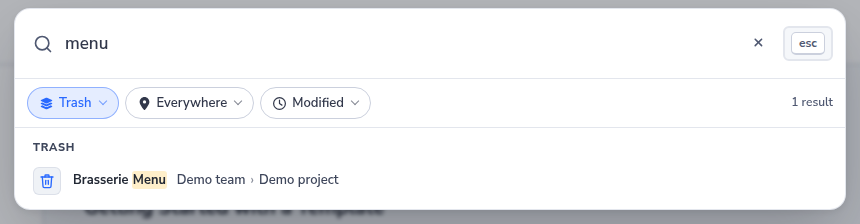
You can also tick Trash in the type filter.
Searching with the Keyboard
- Press / anywhere in the Portal, outside a text field, or Ctrl+K (⌘+K on a Mac), to open search.
- Use ↓ and ↑ to move through the results, and Enter to open the highlighted one.
- Press Tab to reach the filters.
- Press Esc to close an open filter, and again to close search.
Reusing a Recent Search
-
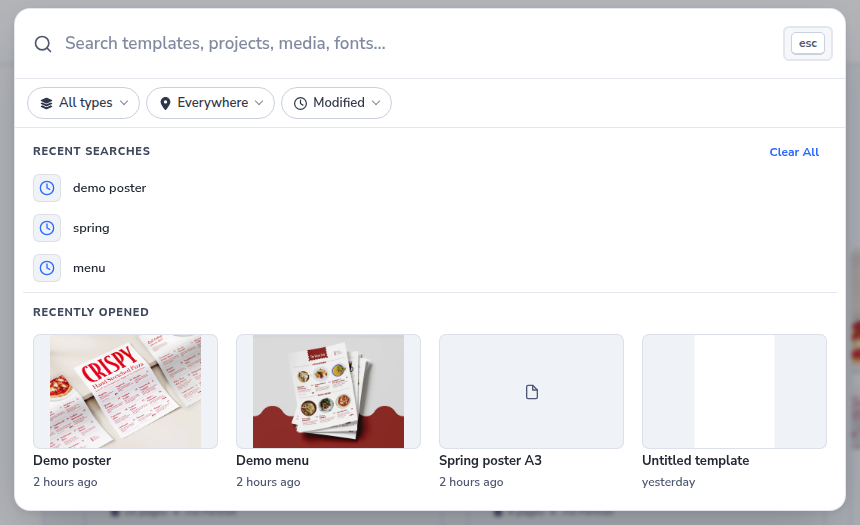
Open search without typing anything. Your last five searches are listed.
-
Pick one to search for it again.
To clear your recent searches, click Clear All.
Going Back to a Template You Opened
Under Recently opened, the search panel shows the last four templates you opened, with their preview and how long ago you opened them. Click one to open it in the Editor, or reach it with ↓ and press Enter.
The list shows as long as you have not typed anything. Clearing your recent searches leaves it as it is. On a phone it shows the last two.
Related
- Organization Structure — what templates, projects, and teams are
- Trash — recovering something search found in the trash
- Assistant — ask in your own words, and let it do the work after a plan you approve