Invites
You can grant access to your work at three different levels — organization, team, and project — and they don't have to match. A single template can be shared too; that is covered in Managing Templates. Someone can be a full member of your organization with no access to a specific project, or the reverse: a guest with no organization role at all, invited into a single project.
Inviting Someone to Your Organization
The owner and admins of an organization invite people into it. The person gets an email with a link; they become a member once they accept. Someone without a Typograph account creates one on the way, with the address you invited.
-
Go to Organizations → {Your Org} → Members.
-
Click Invite.
-
Enter the person's email address. Only an account with this address can accept the invitation.
-
Pick a role:
Role Access Member Works in the teams and projects they are added to Admin Also manages members, apps, webhooks and settings 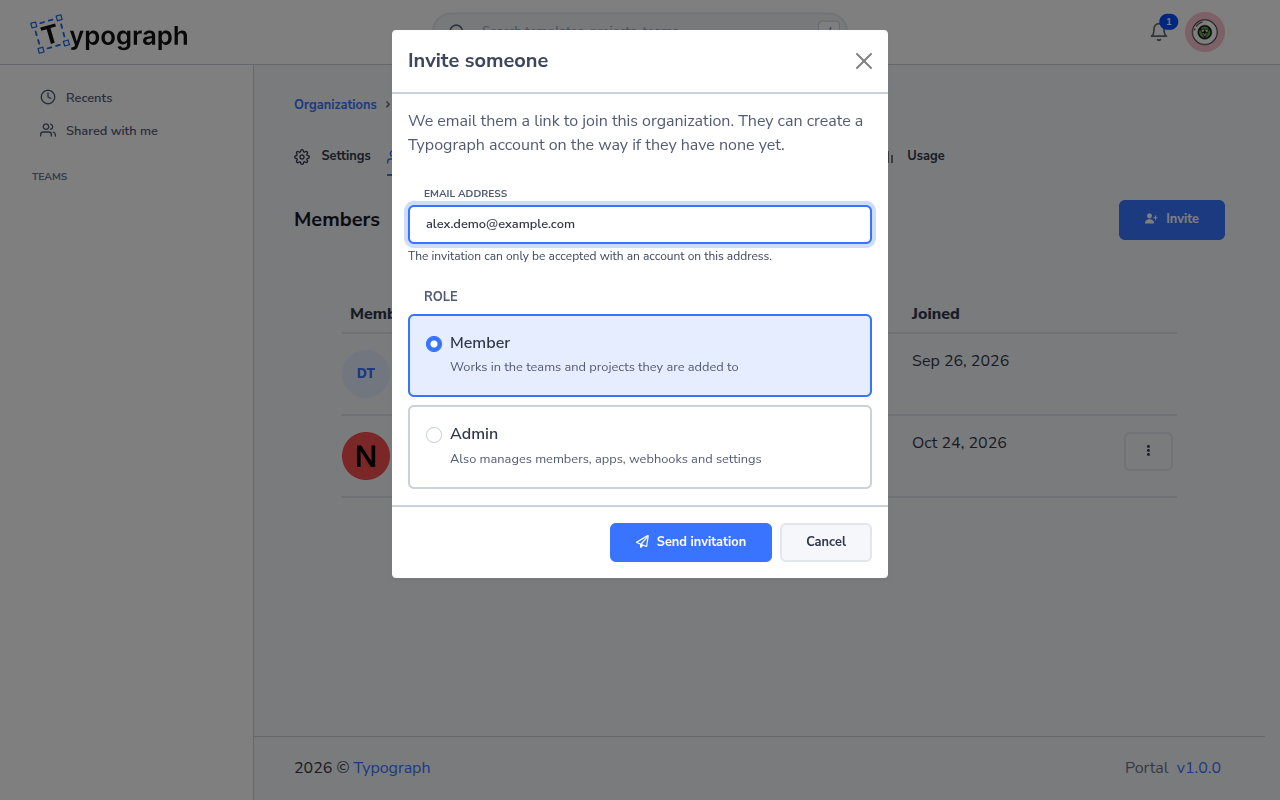
-
Click Send invitation.
A message confirms that the invitation was sent, and the person appears under Pending invitations, below the members. The link in the email works for 7 days.
The assistant can send this invitation for you too, after a plan you approve, when you are an owner or admin of the organization and its assistant setting is Read and edit.
The invite form does not offer the Owner role: an organization has one owner — see User Roles for the full model. To make someone else the owner, invite them as a member first, then transfer ownership to them once they have joined.
An organization invite gives no access to any team or project on its own — that's granted separately, below.
Pending invitations
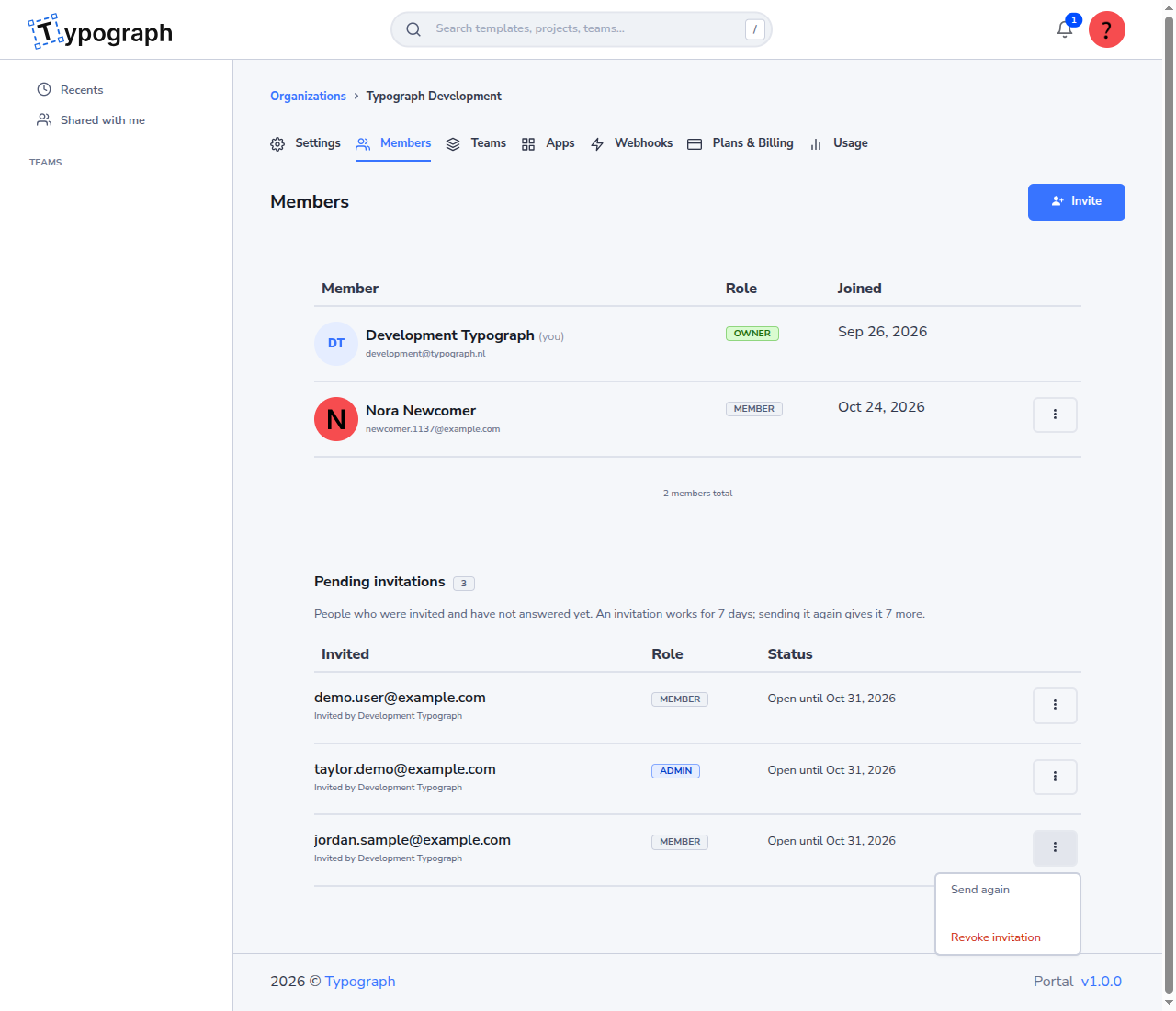
Pending invitations lists everyone who was invited and has not answered yet, with their role and until when their link works. Open the actions menu (⋮) next to an invitation to:
- Send again: email a new link that works for another 7 days. The link in the earlier email stops working. This is also how you renew an invitation marked Expired. An address gets at most one invitation mail a minute from your organization, also after you revoke its invitation, and at most 10 invitation mails a day from all organizations; you can send at most 100 a day.
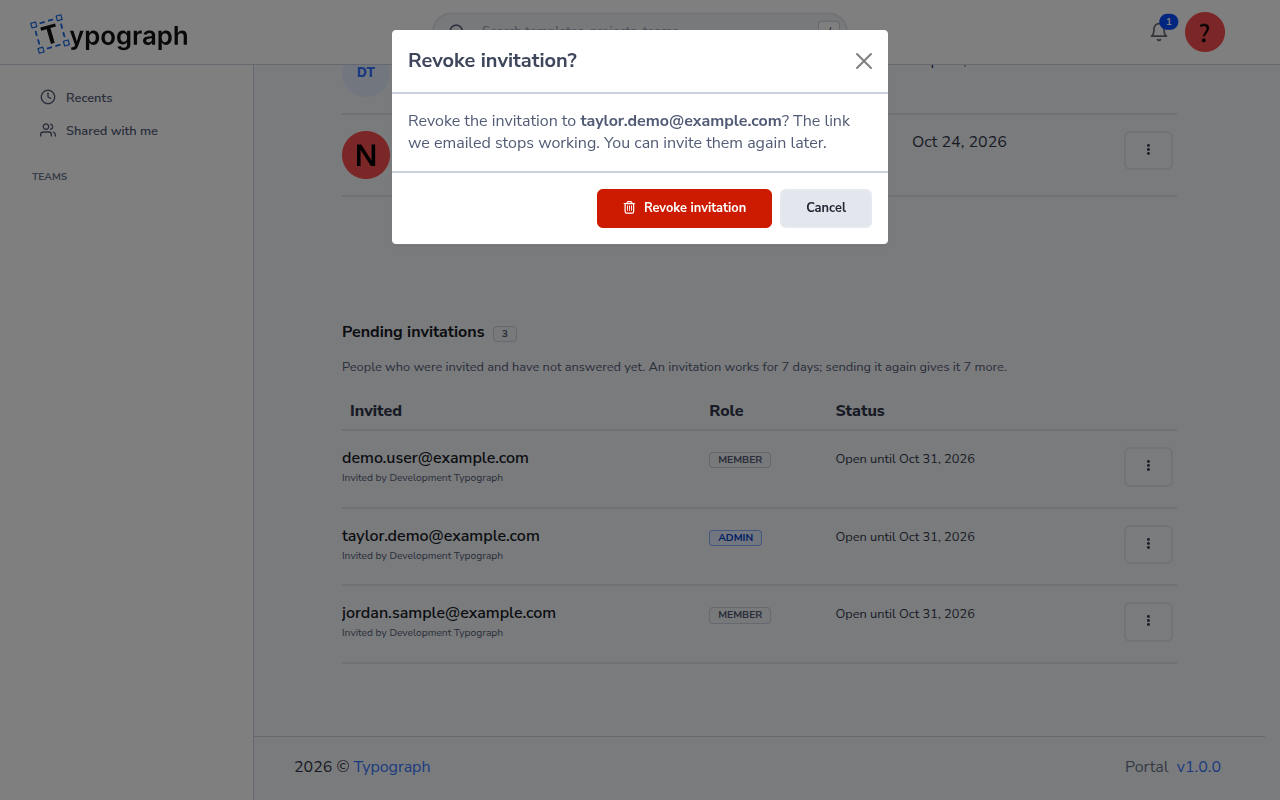
- Revoke invitation: withdraw it. The link stops working at once, and you can invite the person again later.
Revoking asks you to confirm first:
Members see neither the Invite button nor the pending invitations.
When an invitation cannot be sent
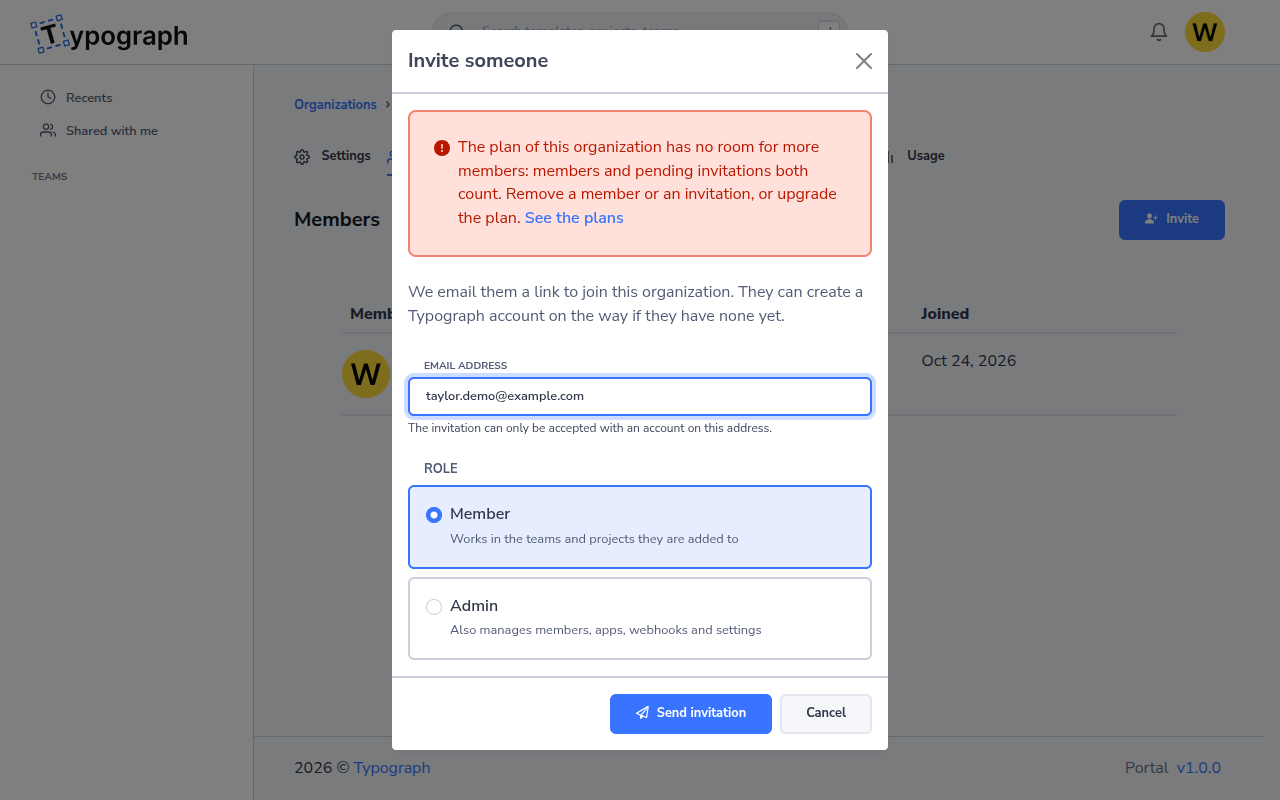
The dialog stays open and says why:
| Message | What to do |
|---|---|
| The address is already a member | Nothing: they are in the organization. |
| The address has been invited already | Open the actions menu of their pending invitation and choose Send again. |
| The plan has no room for more members | Members and pending invitations both count towards your plan's number of team members. Remove a member, revoke an invitation, or upgrade the plan with See the plans. |
| The organization has 50 pending invitations | Revoke one, or wait until people answer. |
| An invitation went to the address a moment ago | Wait a minute, then invite them again. |
| As many invitations as Typograph sends in a day | The address, or you, reached the daily number of invitation mails. Try again tomorrow. |
Joining an Organization You Were Invited To
An invitation to an organization arrives by email. Open the link in it:
- If you are not signed in, sign in with the address the invitation was sent to. Without a Typograph account, choose Sign up and create one with that address. You come back to the invitation afterwards.
- Read who invited you, to which organization, and as which role.
- Click Join to become a member, or Decline to say no.

After Join, the organization's Members page opens with you in it. Your own organizations stay as they are.
Your open invitations also wait on your home page, under Invitations to organizations, with the same Join and Decline buttons:

When the link does not work
| You see | What it means |
|---|---|
| This invitation is for another account | You are signed in with another address than the one the invitation was sent to. Click Switch account and sign in with that address. |
| Your invitation to … expired | The link was older than 7 days. Ask whoever invited you to send it again; you get a new link by email. |
| This invitation link no longer works | The invitation was revoked, answered already, or sent again with a newer link. Look for a newer email, or ask whoever invited you. |


When the organization's plan has filled up since you were invited, joining is refused and the invitation is kept: ask whoever invited you to make room, then try again.
Inviting Someone to a Team or Project
- Open the team or project you want to share.
- Click Share (or Invite).
- Search the people of the team by name or email address, or type an address. Each person becomes a tag; you can invite up to 20 at once.
- Pick a resource role — Owner, Editor, Commenter, or Viewer. Everyone you invite here gets the same role.
- Optionally, choose + Add a message to send a note with the invitation.
- Send the invite.
The assistant can send the same invitations for you.
A team invite gives access to the team and every project inside it. A project invite gives access to just that one project, without touching the rest of the team.
Editor seats
Your plan sets how many people can edit in the organization: its editor seats. Everyone who can edit or manage something in the organization (Can edit or Admin on a team, project or template, or an open invitation for either) takes one seat, however many things they can edit. Everyone who can only view or comment is free, and you can invite as many of them as you like.
| Plan | Editor seats |
|---|---|
| Free | 1: the owner's. Everyone you share with can view or comment. |
| Pro | 5 |
| Enterprise | 10 |
Once the seats are all taken, the Share dialog turns Can edit and Admin off, for whoever you invite and for everyone in Who has access who holds no seat yet. Someone who already edits or manages something else in the organization holds a seat, so for them both stay on: moving them up here takes no new seat. For everyone else they are greyed out with a lock and still say what they allow; point at one to see why you can't choose it. The line under the invite row says what you can do instead:
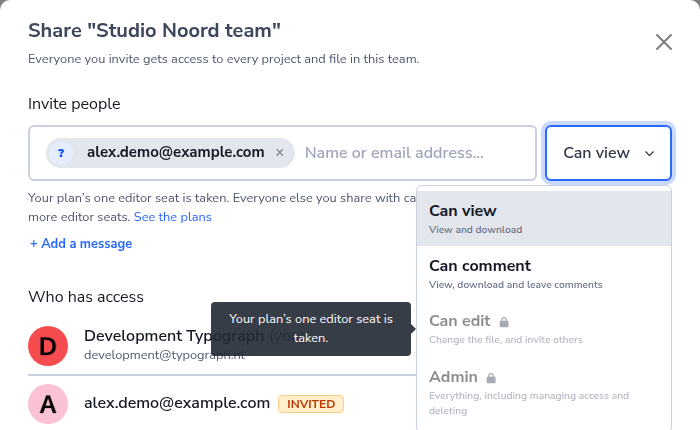
- Invite them to view or comment instead.
- Free a seat: give someone who edits Can view or Can comment, remove them, or revoke an open invitation to edit.
- Click See the plans to ask for another plan.
If the seats were taken by someone else while the dialog was open, sharing is refused with the same message, and nothing is sent.
You can see how many seats are taken on the Members page.
Accepting or Ignoring a Team or Project Invite
- Open your notifications, or go to My Invites.
- Find the invite.
- Click Accept to add the resource to your Portal, or Ignore to dismiss it without granting access.
After Accept on a team invite, the team opens and a message confirms that you joined it. A team of an organization you are not a member of sits in the sidebar under that organization, marked External; the message names where to find it (see Teams of Another Organization).
Once you've accepted or ignored an invite, it can't be re-actioned — it's a one-time decision.
An invitation to edit or manage that was sent before the organization's editor seats were all taken cannot be accepted while they are: the page says so and the invitation stays open. Ask whoever invited you to free a seat, or to invite you to view or comment.
Related
- Organization Structure — how organizations, teams, and projects relate
- User Roles — the full organization and resource role model
- Permissions — the detailed permission model and resource-level sharing