Account Settings
Updating Your Profile
-
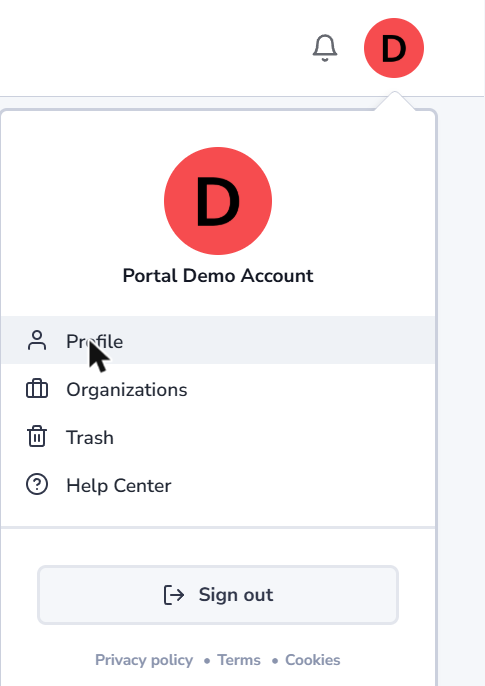
Click your avatar in the top-right, then Profile.
-
Update any of the following:
Field What it's for First name / Last name Shown wherever you're listed as a collaborator — member lists, share dialogs, comments Phone Optional contact number 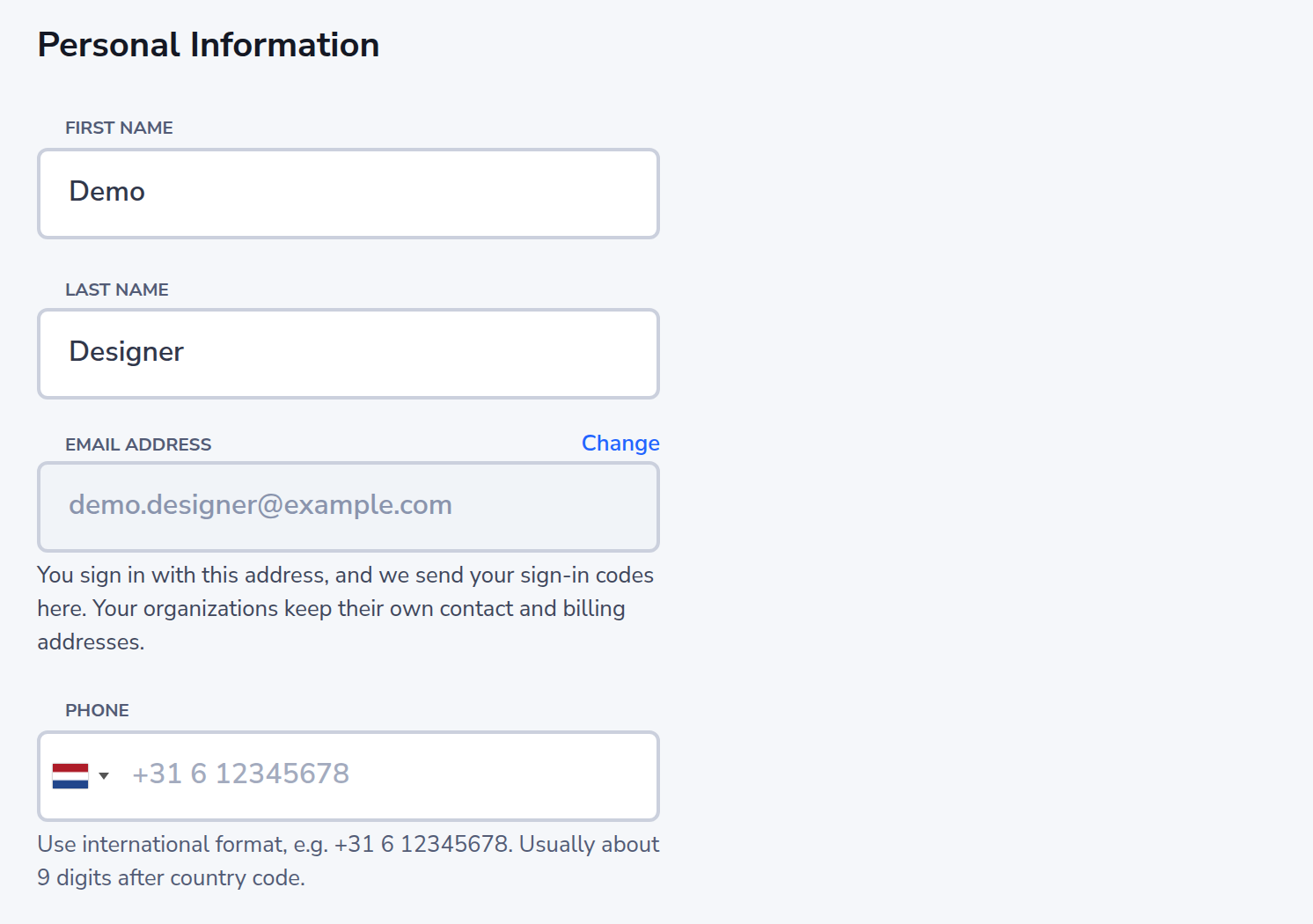
Your email is shown greyed out: it is the address you sign in with and where notifications are sent. To change it, see Changing Your Email Address.
-
Save your changes.
Changing Your Email Address
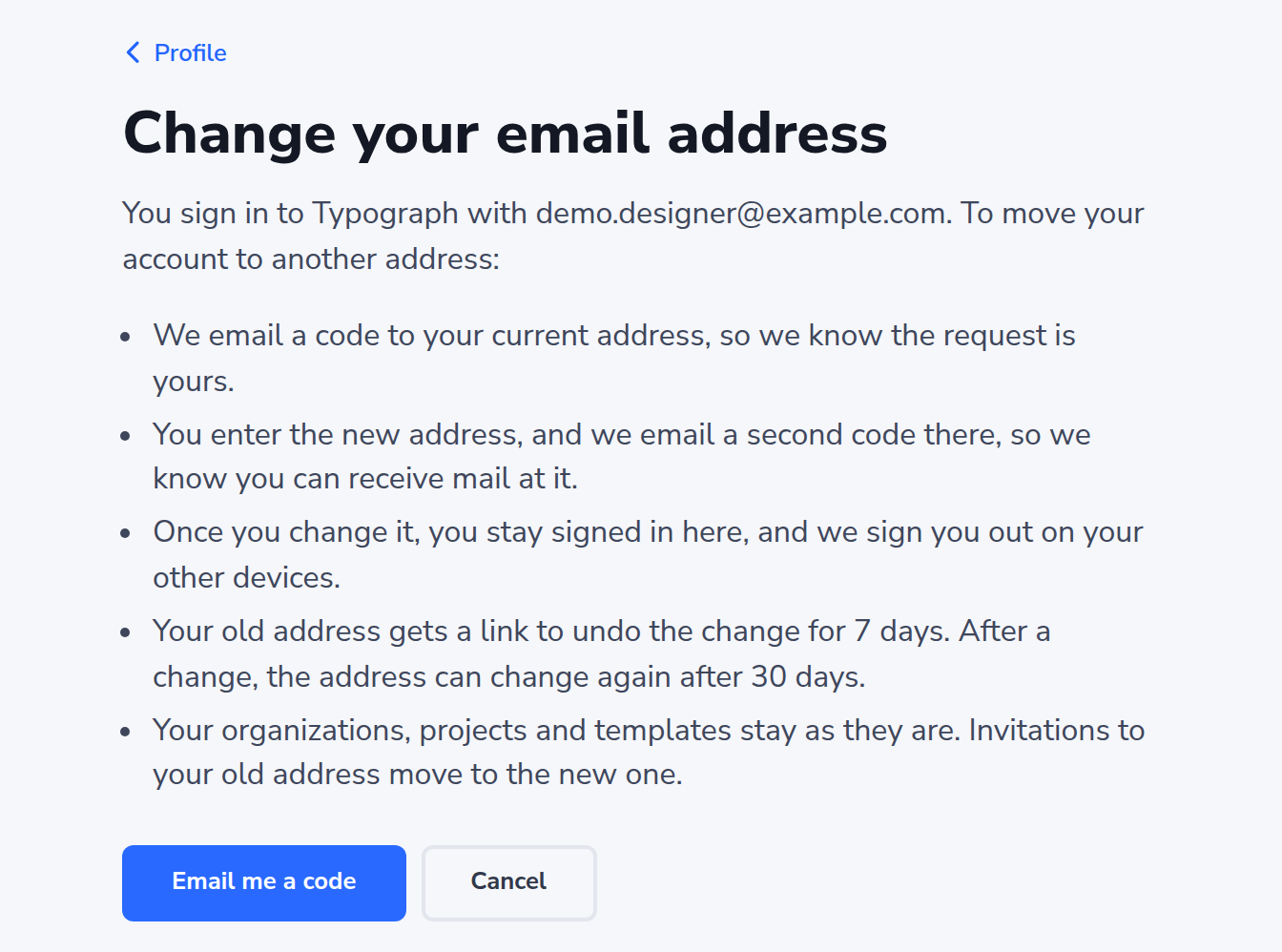
You sign in with your email address, and your sign-in codes and notifications go there. To move your account to another address, you confirm twice: once with a code to your current address, and once with a code to the new one. Your organizations, projects and templates stay as they are, and invitations to your old address move to the new one. An organization's own contact and billing addresses are set in the organization, not here.
-
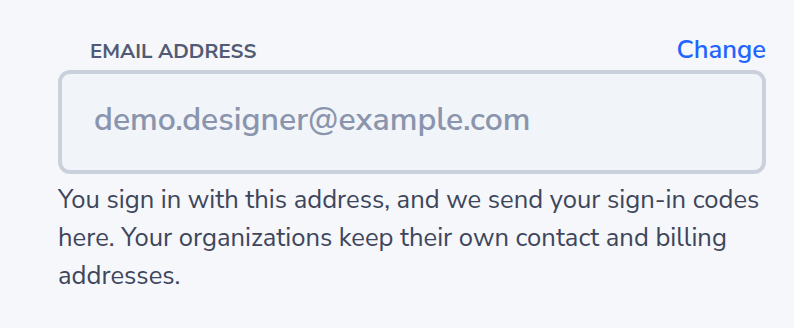
Click your avatar in the top-right, then Profile. Next to Email address, click Change.
-
Read what happens, then click Email me a code. Nothing changes yet.
-
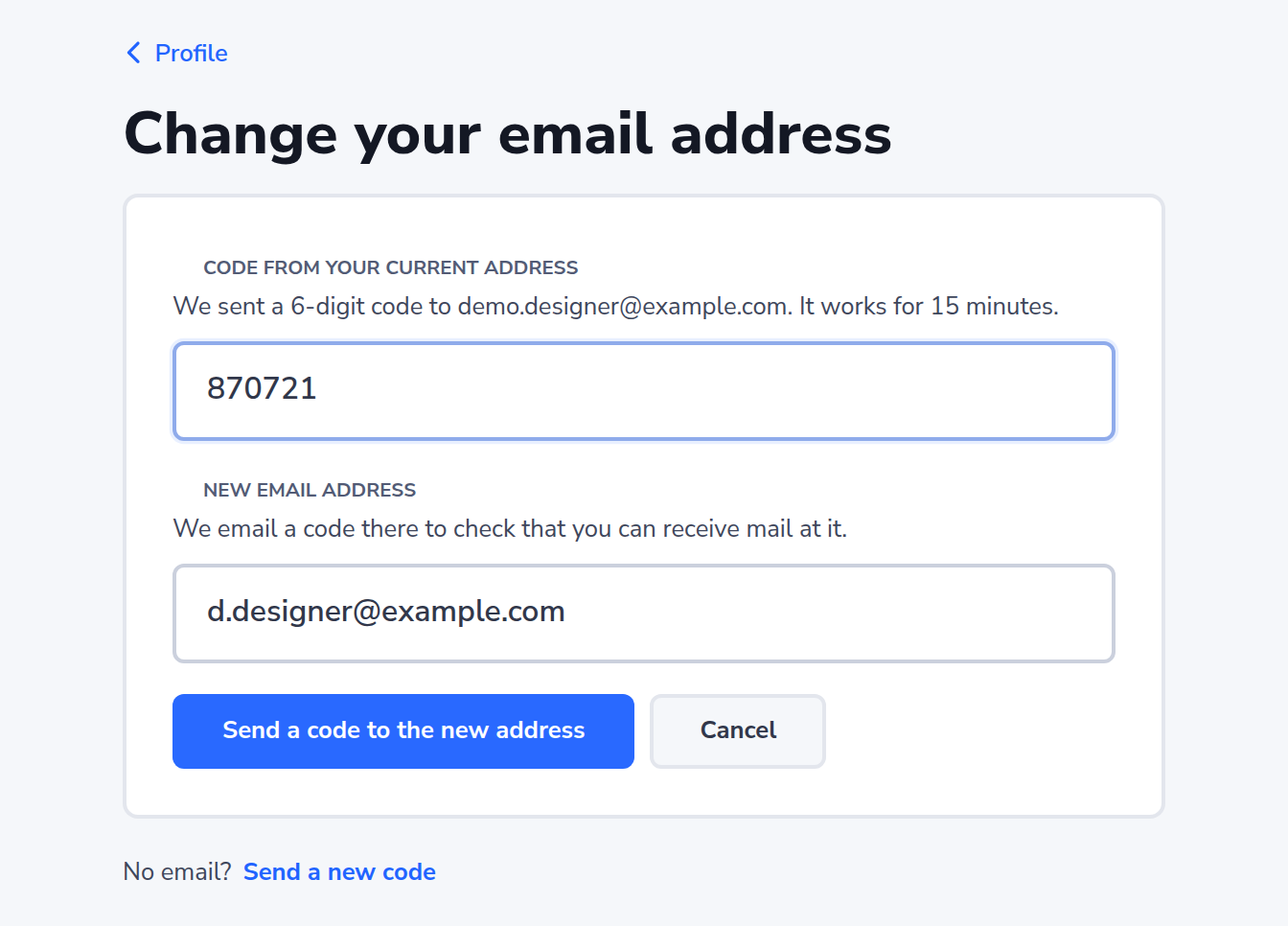
Enter the 6-digit code we sent to your current address, and your new address. Then click Send a code to the new address. The code works for 15 minutes. No email? Click Send a new code: the new code replaces the one before it.
-
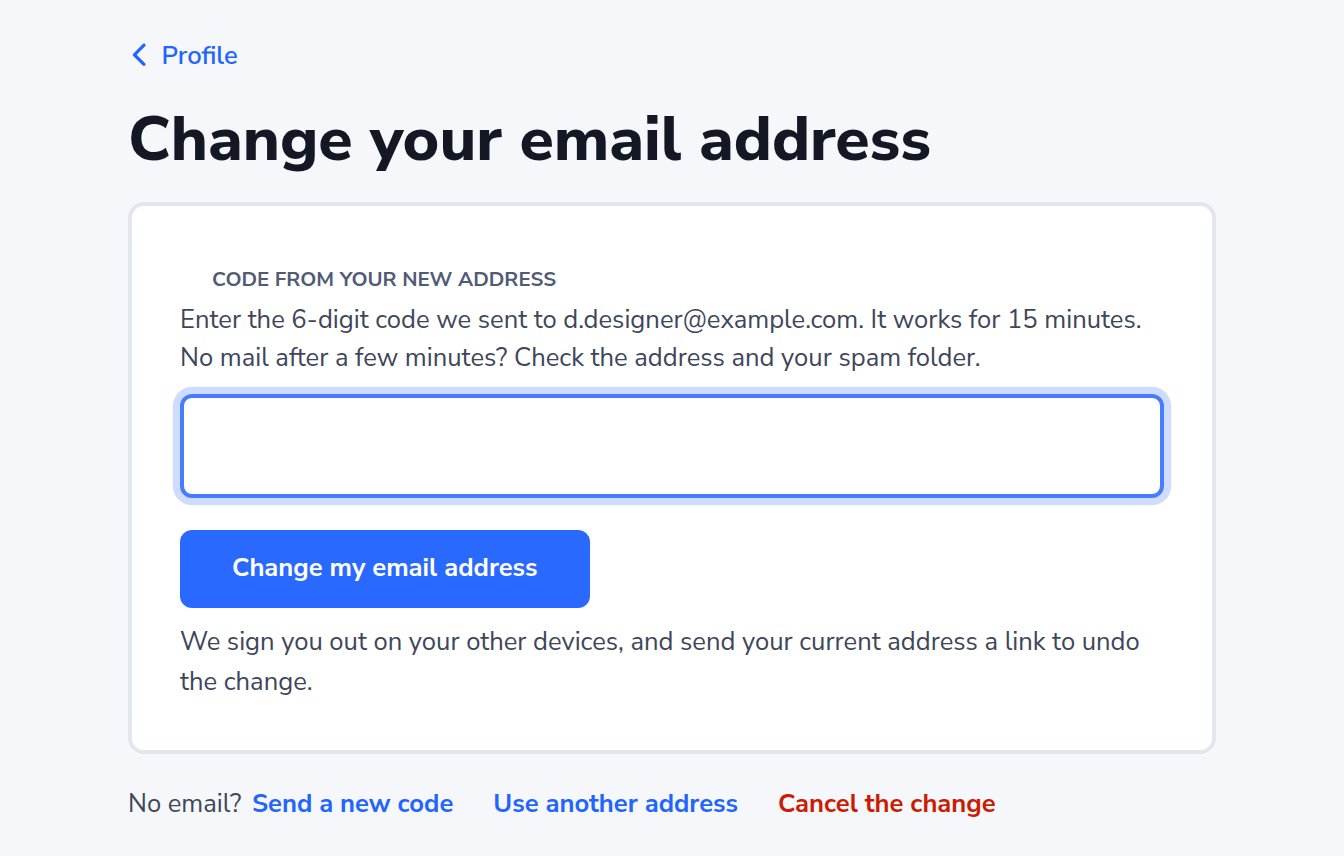
Enter the 6-digit code we sent to your new address, then click Change my email address. This code also works for 15 minutes. Below the code field, you can send it again, use another address, or cancel the change. No email after a few minutes? Check the address and your spam folder. An address that already belongs to another Typograph account gets no code.
-
The profile shows your new address. Sign in with it from now on. You stay signed in where you made the change; on your other devices, and in apps and agents you connected, you sign in again.

Left before entering the second code? The profile reminds you while the change waits for its code. Click Enter the code to continue.

Didn't change it yourself?
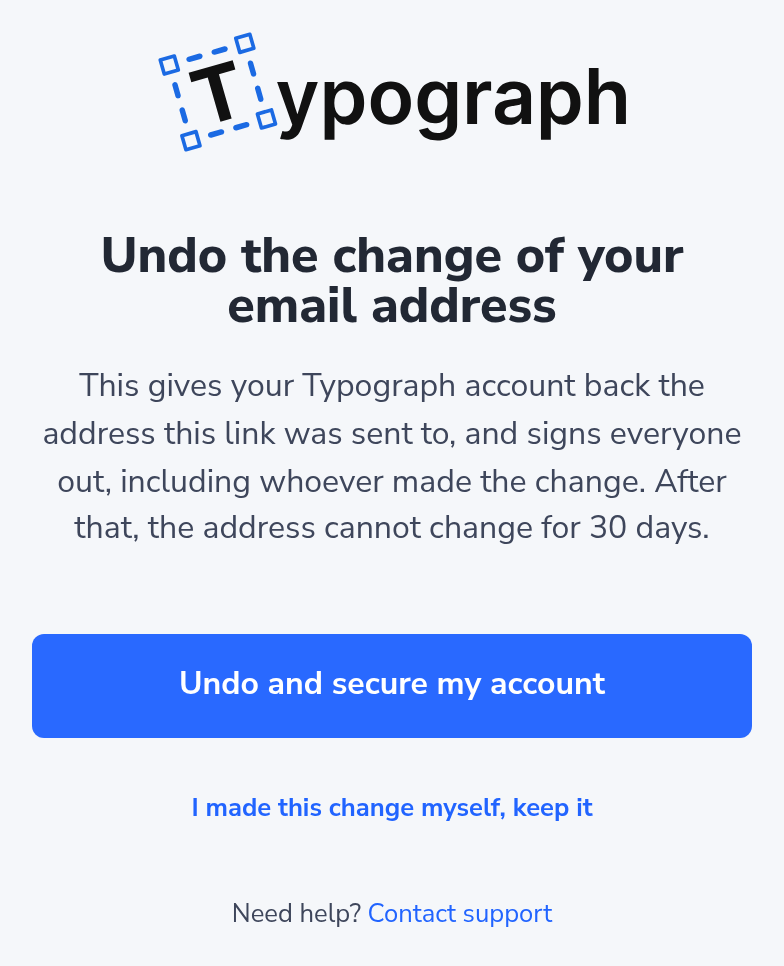
Your old address gets an email about the change, with an Undo the change link that works for 7 days. The link opens a page that explains what undoing does. Click Undo and secure my account: your account gets its old address back, and everyone is signed out, including whoever made the change. That person needed a code from your mailbox, so change your mailbox's password too. Made the change yourself? Click I made this change myself, keep it, or simply ignore the email. While the link works, nobody can create an account with your old address, and signing in with it says that it moved.
Limits
- After a change, or after undoing one, the address can change again after 30 days. Until then, the page says from which day. Need it sooner, for example because you lost access to your mailbox? Contact support.
- You can ask for a code to a new address at most once a minute and 3 times a day.
- After 5 wrong codes for your current address, wait 15 minutes. After 5 wrong codes for your new address, the change is cancelled: start again.
Changing Your Preferences
-
Click your avatar in the top-right, then Profile.
-
In the bottom-left corner, adjust the following settings:
Setting What it does Email notifications Turns notification emails on or off, on top of the in-app notifications Theme Light, Dark or System for the Portal, the editor and the sign-in pages. System follows the setting of your computer or browser, and switches along when that changes, for example when your computer turns dark in the evening. A new account starts on System Language English or Nederlands — sets the language for the whole Portal and your Typograph emails. A new account starts in the language you signed up in Time zone System, or a time zone you choose: the zone every time in the Portal and in your Typograph emails is shown in. See Your Time Zone 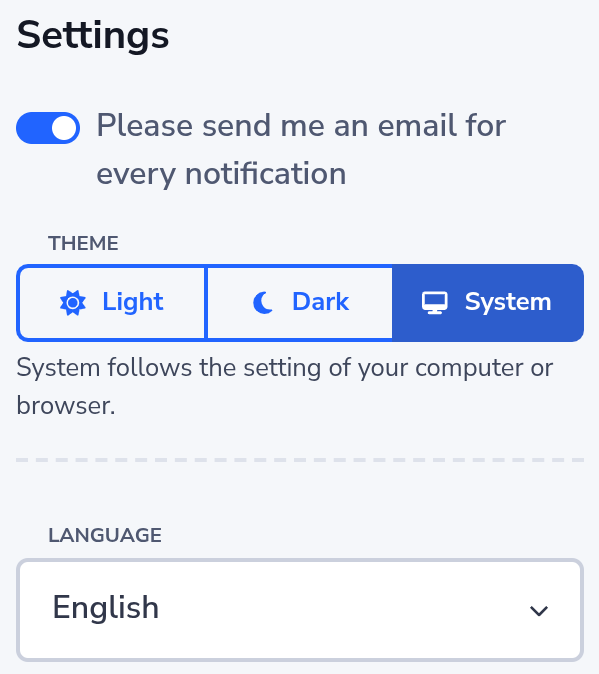
-
Save your changes.
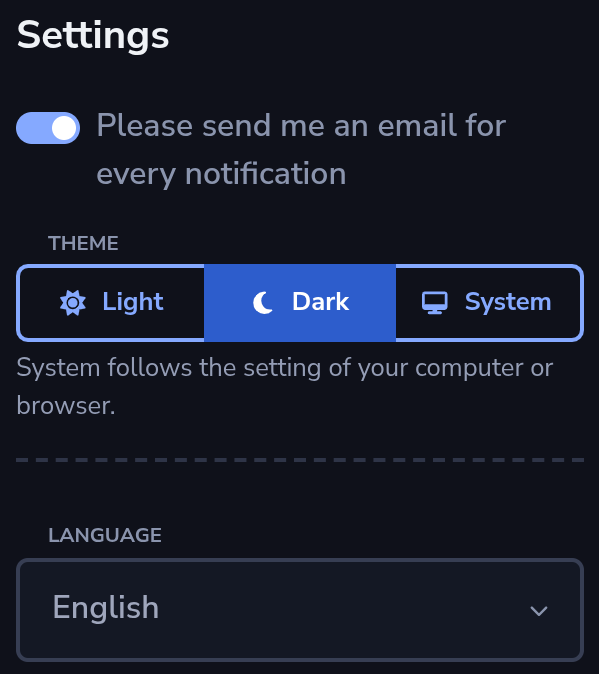
The Portal switches to the theme you chose immediately after saving, here Dark:
Changes here only affect the Portal and how others see you — they don't affect which organizations, teams, or projects you have access to. That's managed through invites instead.
Your Time Zone
Every time the Portal shows you, such as when a template was changed, when a notification came in, or when the assistant's credits start again, is in your time zone. So are the times in your Typograph emails.
- System, the default, follows your browser: the setting shows which zone that is now, with its time. On a laptop you take abroad, the Portal follows along.
- Choose a time zone sets one zone, such as Europe/London, for when your device's zone is not the one you work in.
A day without a time, such as the day a deleted item goes for good, stays that day in every zone. Your emails use the zone you chose; with System, the zone your browser last reported, or else Amsterdam time.
Usage Analytics
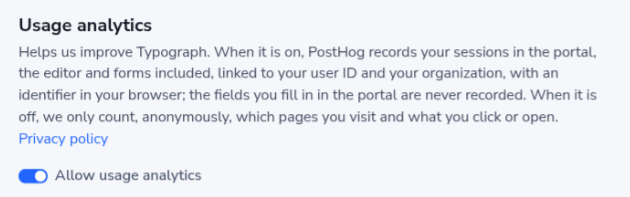
Typograph measures how the Portal is used, to see where it can be clearer. Until you say yes, that is anonymous counting only: nothing is linked to you and no session is recorded. The details are in the privacy policy.
The first time you open the Portal's home page, a dialog asks whether we may see how you use Typograph.
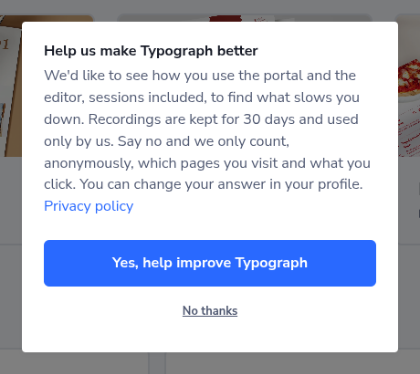
- Yes, help improve Typograph records your sessions in the Portal, the editor and forms included, linked to your user ID and your organization, never to your name or email address, and keeps an identifier in your browser. The fields you fill in in the Portal itself are never recorded. The editor and forms are recorded as you see them, with what you type there and the content of your templates.
- No thanks keeps it anonymous: we only count which pages you visit and what you click or open, and store nothing on your device but your answer.
Your answer is kept with your account, so it follows you to every browser and the dialog does not ask again. Not ready to decide? Press Esc: nothing changes, and the dialog asks again the next time you open the home page.
Changing your answer
-
Click your avatar in the top-right, then Profile.
-
Under Usage analytics, turn Allow usage analytics on or off. The switch saves on its own, straight away: you stay on the page, a message confirms it, and anything you changed in the form above it is still there to save.
Deleting Your Account
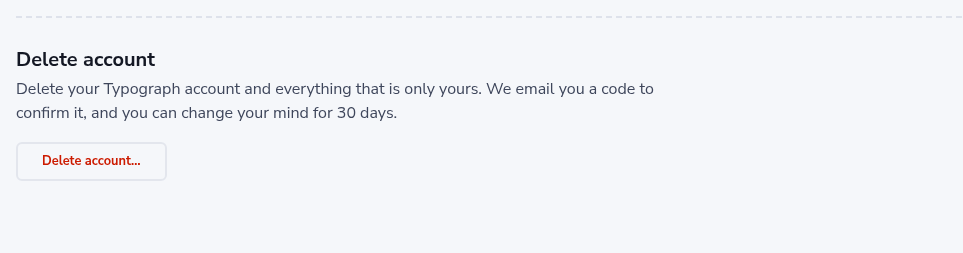
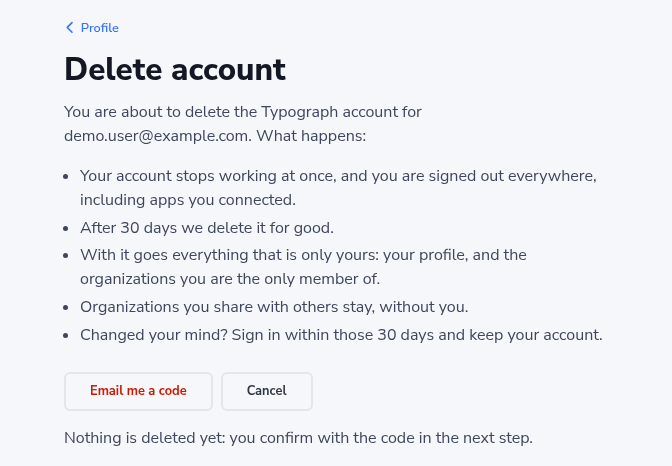
Deleting your account removes everything that is only yours: your profile, and the organizations you are the only member of, with everything in them. Organizations you share with others stay, without you. You confirm with a code we email you, and you can change your mind for 30 days.
-
Click your avatar in the top-right, then Profile. At the bottom of the page, click Delete account….
-
Read what happens, then click Email me a code. Nothing is deleted yet.
-
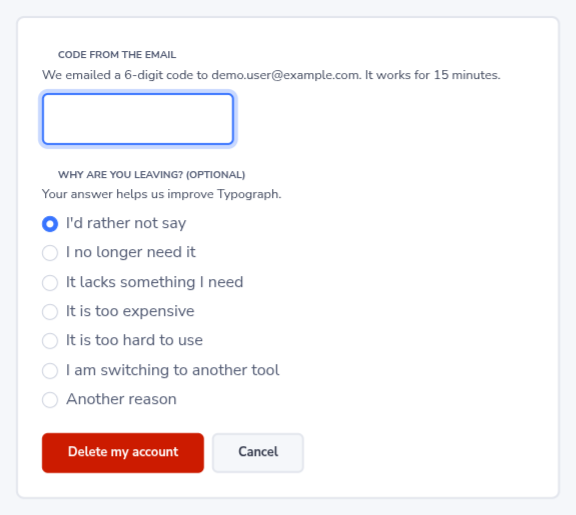
Enter the 6-digit code from the email, then click Delete my account. The code works for 15 minutes. No email? Click Send a new code: the new code replaces the one before it. Below the code you can tell us why you are leaving by picking a reason; that is optional, and I'd rather not say is chosen until you pick another.
-
You are signed out everywhere, including apps you connected, and the page shows the day your account goes for good.
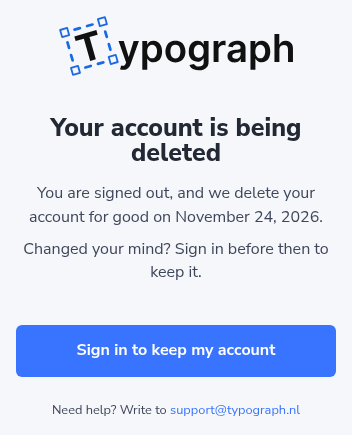
We email you a reminder 7 days and 1 day before that day.
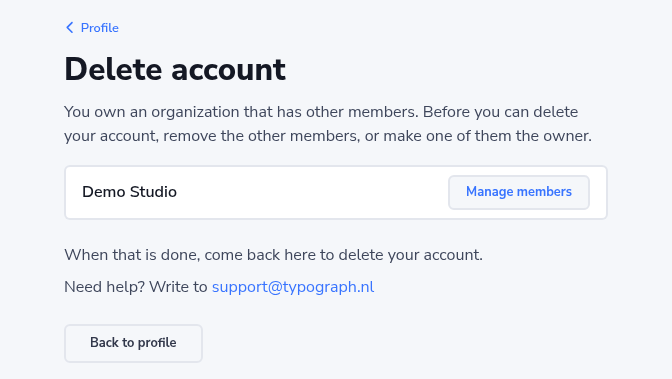
You own an organization with other members
An organization with other members cannot be left without an owner. If you own one, the page lists it instead of offering a code. Use Manage members to remove the other members, or to make one of them the owner (see Transferring Ownership). Then come back to delete your account.
Changed your mind?
Sign in within the 30 days, with the same email address. Typograph asks whether you want to keep your account. Click Keep my account and you carry on where you left off.
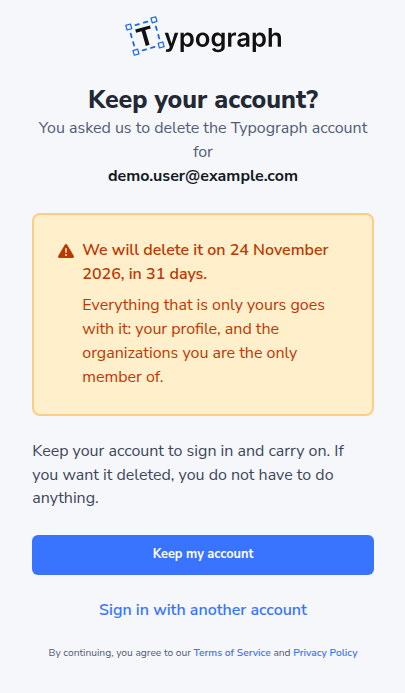
If you do nothing, the account is deleted on the day shown, and it cannot be brought back after that.
Related
- Invites — how you get access to organizations, teams, and projects
- Signing In — the login methods your account can use