Trash
Deleting a team, project, template, clip, media file, or font doesn't remove it right away — it moves to the trash first, where it stays recoverable for 30 days before being purged for good.
| Deleted | Recoverable? |
|---|---|
| Team | ✓ — 30 days |
| Project | ✓ — 30 days |
| Template | ✓ — 30 days |
| Clip | ✓ — 30 days |
| Media / Font | ✓ — 30 days, see Managing Assets |
| Form | ✗ — gone at once, and deleted for good after 30 days with the answers entered in it |
The trash shows what was deleted from the teams you belong to, and the items shared with you directly. Teams, projects and templates can be restored by their admins; clips, media files and fonts by anyone who can edit their project.
Restoring an Item
-
Click Trash in the sidebar, under Shared with me.
-
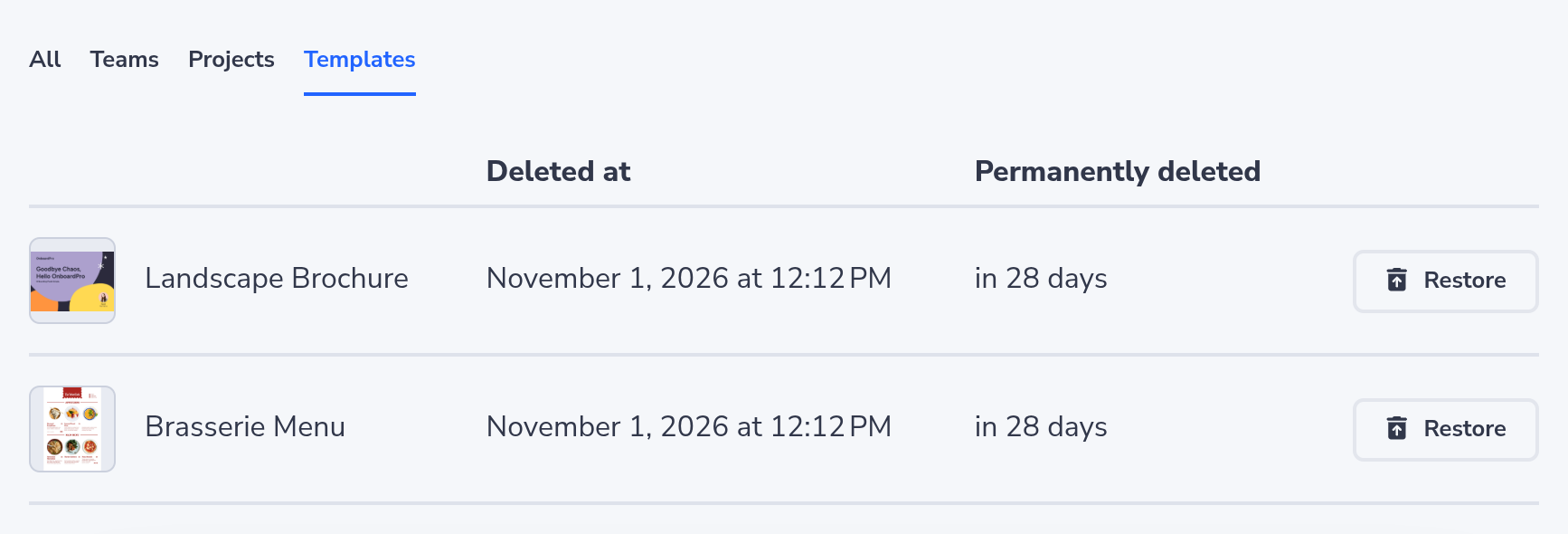
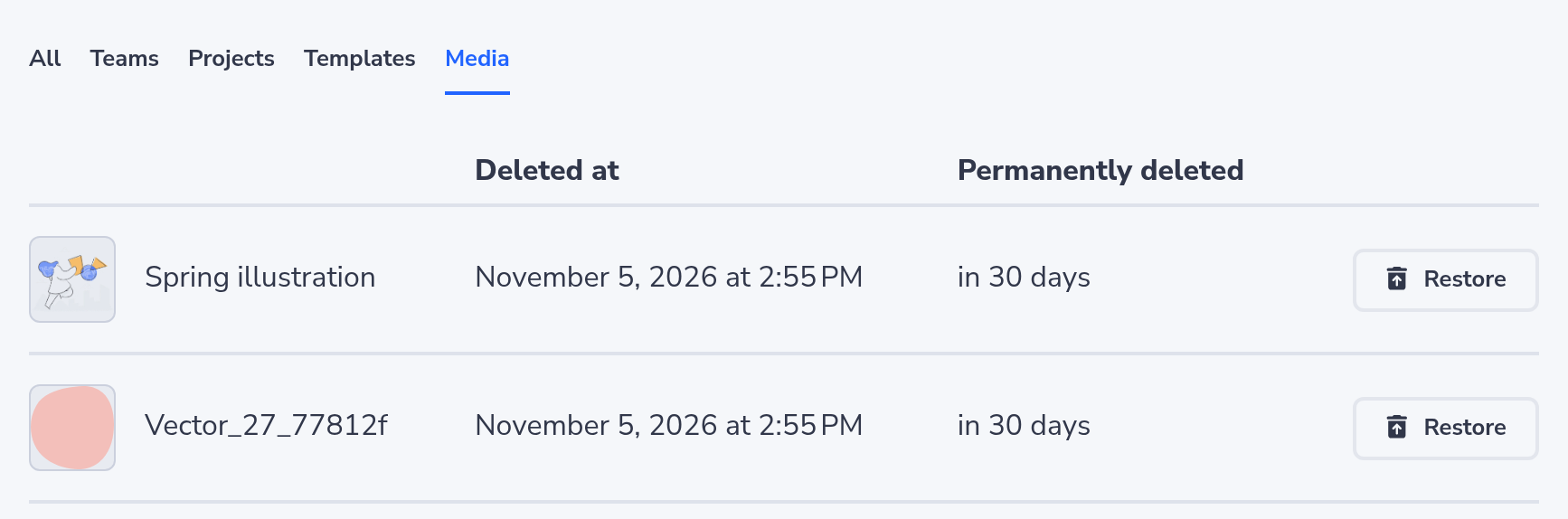
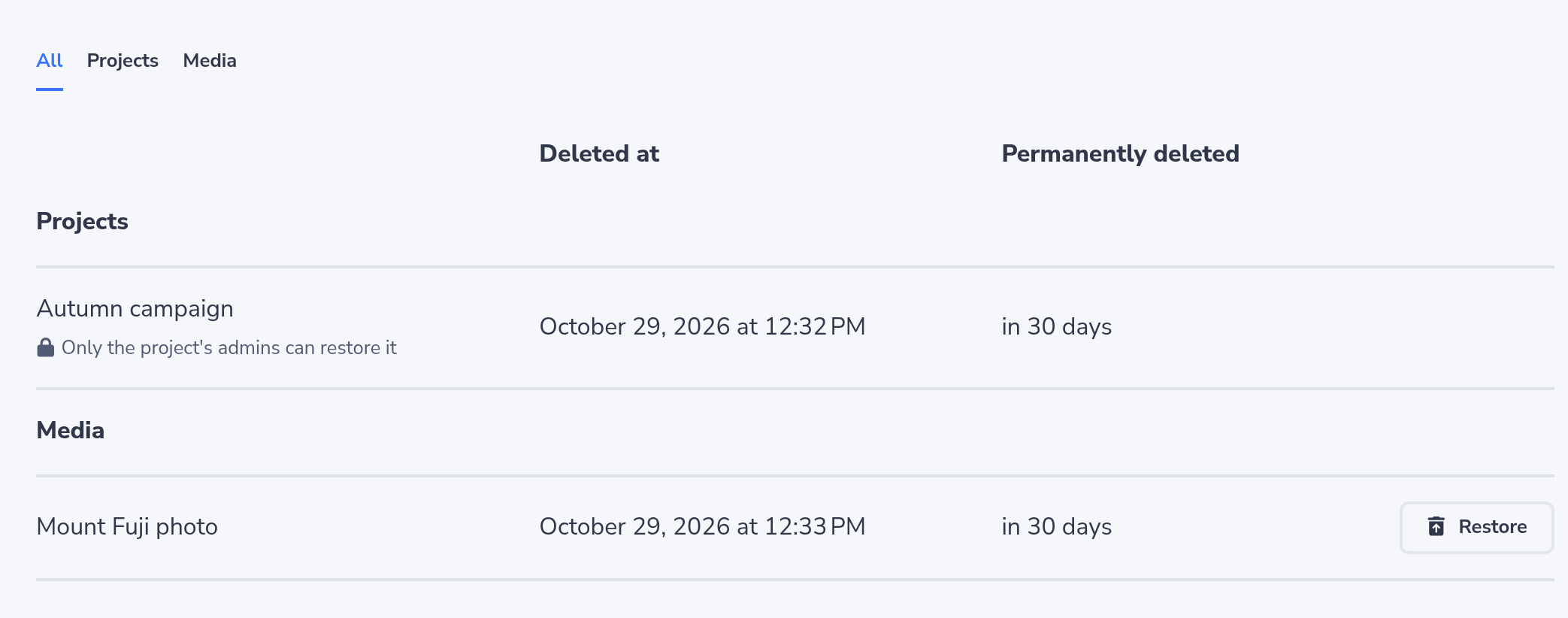
Find the item you want back. The trash groups items by kind (teams, projects, templates, clips, media, fonts), with a tab for each kind it holds. A template or image shows its thumbnail beside its name, so you can see which one it is before you restore it.
-
Click Restore on its row. On a phone the button shows only its icon.
An item you may not restore has no Restore button. Instead, a line under its name says who can: the team's admins, the project's or template's admins, or the people who can edit its project. Ask one of them to restore it.
After restoring, you land where the item lives again: the team, the project, or the project's Templates, Clips, Media, or Fonts tab.
Restoring a team or project brings back everything inside it as it was at the moment of deletion; restoring a single template, clip, media file, or font only brings back that item.
The templates and files of a deleted project aren't listed in the trash on their own — the project is. Restore the project to get them back. Likewise, if an item's parent team or project was also deleted, restore the parent first — you can't restore something into a container that's still in the trash. If you try, the trash says so and names the team or project to restore first, then restore the item.
While Something Is in the Trash
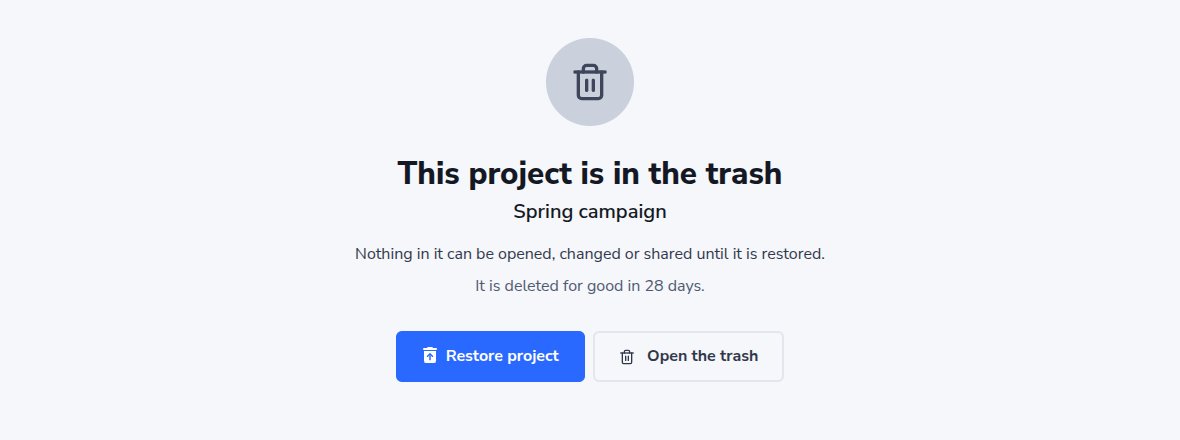
Nothing can be done with an item in the trash, or with anything in a team or project in the trash: it can't be opened, edited, shared, commented on, favorited or moved, and nothing can be added to it.
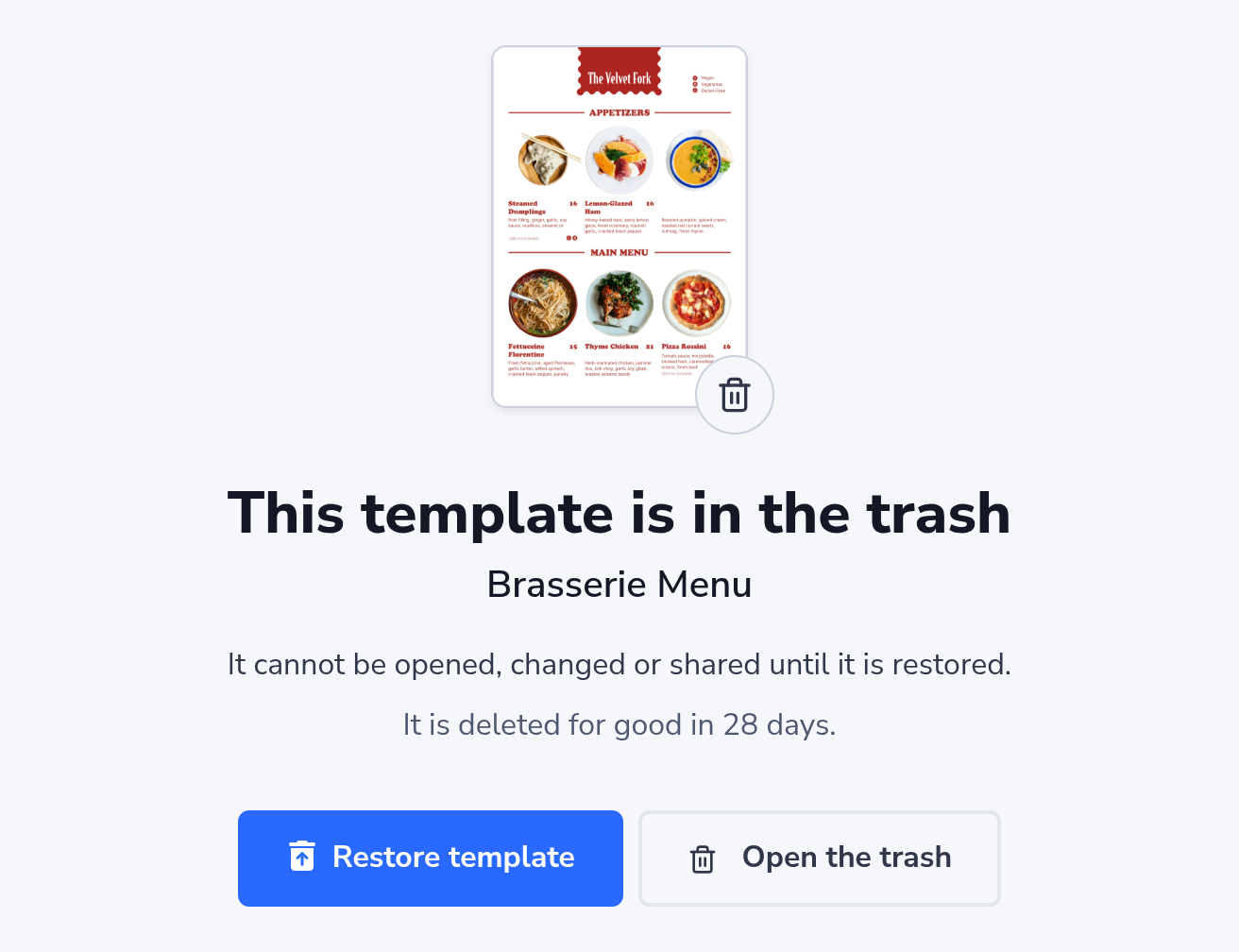
A link to it, from a notification, a bookmark or a colleague, opens a page that names what is in the trash — the item itself, or the team or project it is in — and says when it is deleted for good. For a template, the page shows its thumbnail, so you can see which design the link was for. If you may restore it, the page has a Restore button for it: restoring takes you straight back to the page you were opening. If you may not, the page says who can. Either way, Open the trash takes you to its row in the trash.
A favorite of an item in the trash is hidden until it is restored. A webshop product whose design the shop has already copied stays on sale when the template goes to the trash: the shop sells its own copy, and tells the shopkeeper the design was deleted (see Design changes).
After 30 Days
Once an item's 30-day window passes, it's purged permanently and can no longer be recovered by anyone, including support — so if you need something back, don't wait.
The Permanently deleted column counts the days down to that moment: an item deleted a moment ago shows in 30 days, and one whose 30 days have passed shows today until it is purged.
Trash and Storage
Files in the trash don't count toward your organization's storage, up to as much as the plan's storage; only what the trash holds beyond that does. See Storage and the trash.
Related
- Organization Structure — the Move to trash actions that send teams and projects here
- Managing Assets — moving media and fonts to the trash
- Search — finding a specific item that's currently in the trash