Managing Members
The Members page lists everyone in your organization, with their organization role and when they joined. An owner or admin can invite someone with Invite, give a member another role, or remove them from the organization.
Editor seats
Under Members the page shows how many of your plan's editor seats are taken, such as 3 of 5 editor seats. A seat is taken by everyone who can edit or manage something in the organization; viewers and commenters are free. When they are all taken, the page says so, with a link to the plans:
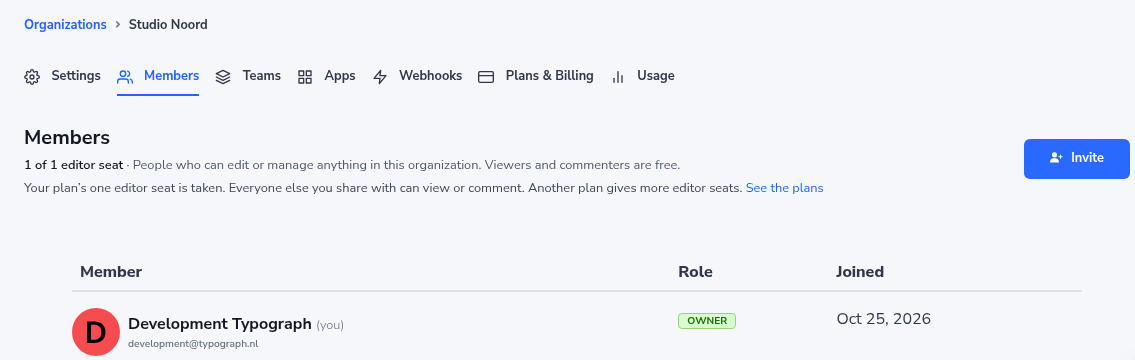
What a seat is, and what to do when they are taken: Invites → Editor seats.
Who can change members
| You are | You can |
|---|---|
| Owner | Change the role of any other member, remove them, and transfer ownership |
| Admin | Change the role of any other member except the owner, and remove them |
| Member | See who is in the organization; there are no actions for you here |
Nobody gets actions on their own row, and nobody gets actions on the owner's row: only a transfer changes who the owner is.
Changing a member's role
-
Go to Organizations → {Your Org} → Members.
-
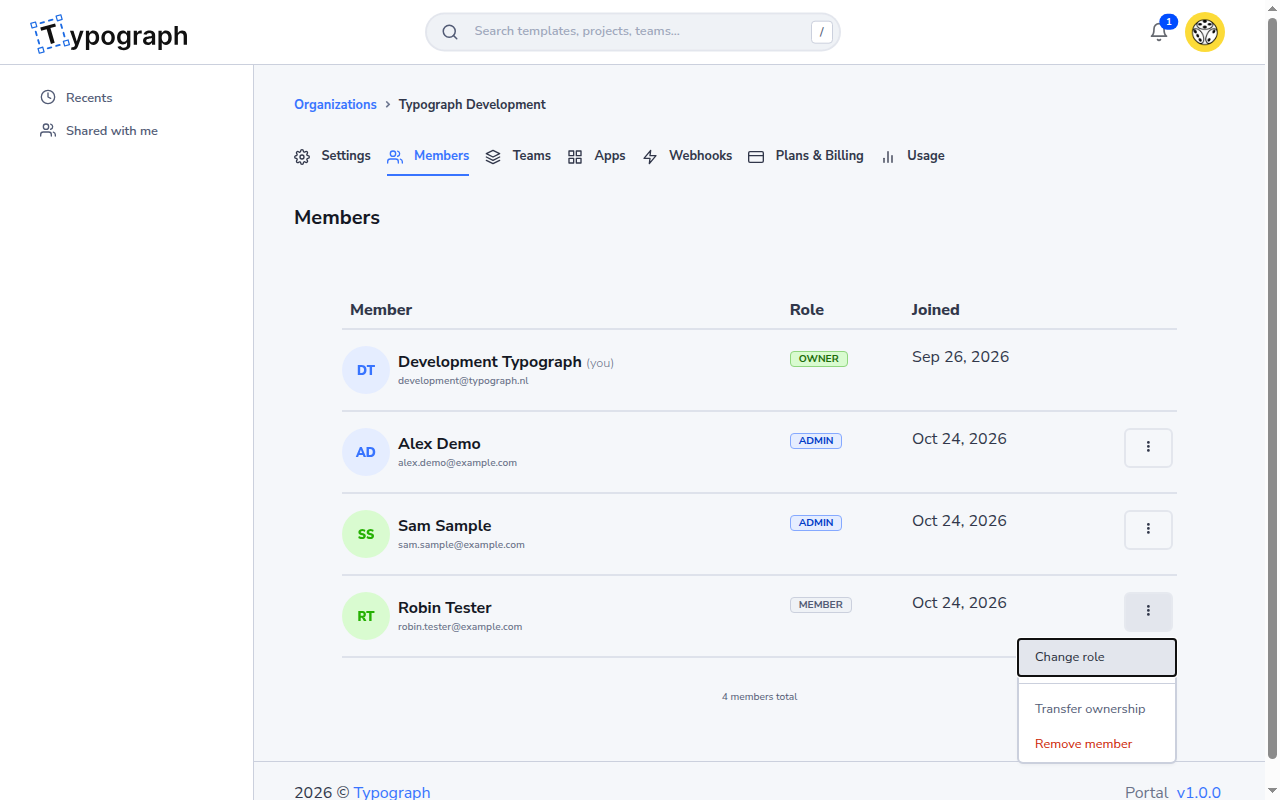
Open the actions menu (⋮) next to the member, and choose Change role.
-
Pick the role. The member's role today is marked Current role.
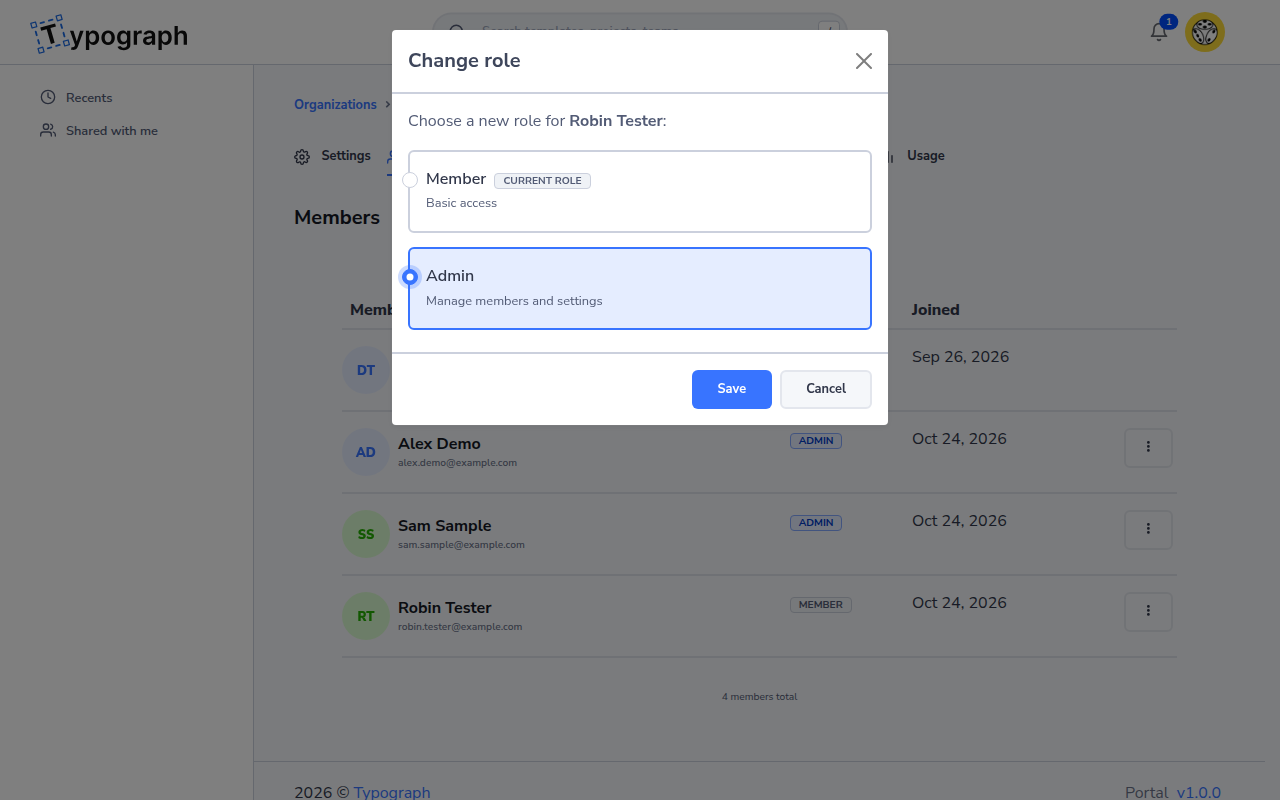
Role What it allows Member Use the teams and projects they have been added to Admin Also manage members, apps, webhooks and settings -
Click Save.
The members list reloads with the new role, and a message confirms the change.
The dialog does not offer Owner: an organization has one owner. To make someone else the owner, transfer ownership to them.
Removing a member
-
Go to Organizations → {Your Org} → Members.
-
Open the actions menu (⋮) next to the member, and choose Remove member.
-
Read the confirmation, then click Remove member, or Cancel to keep them.
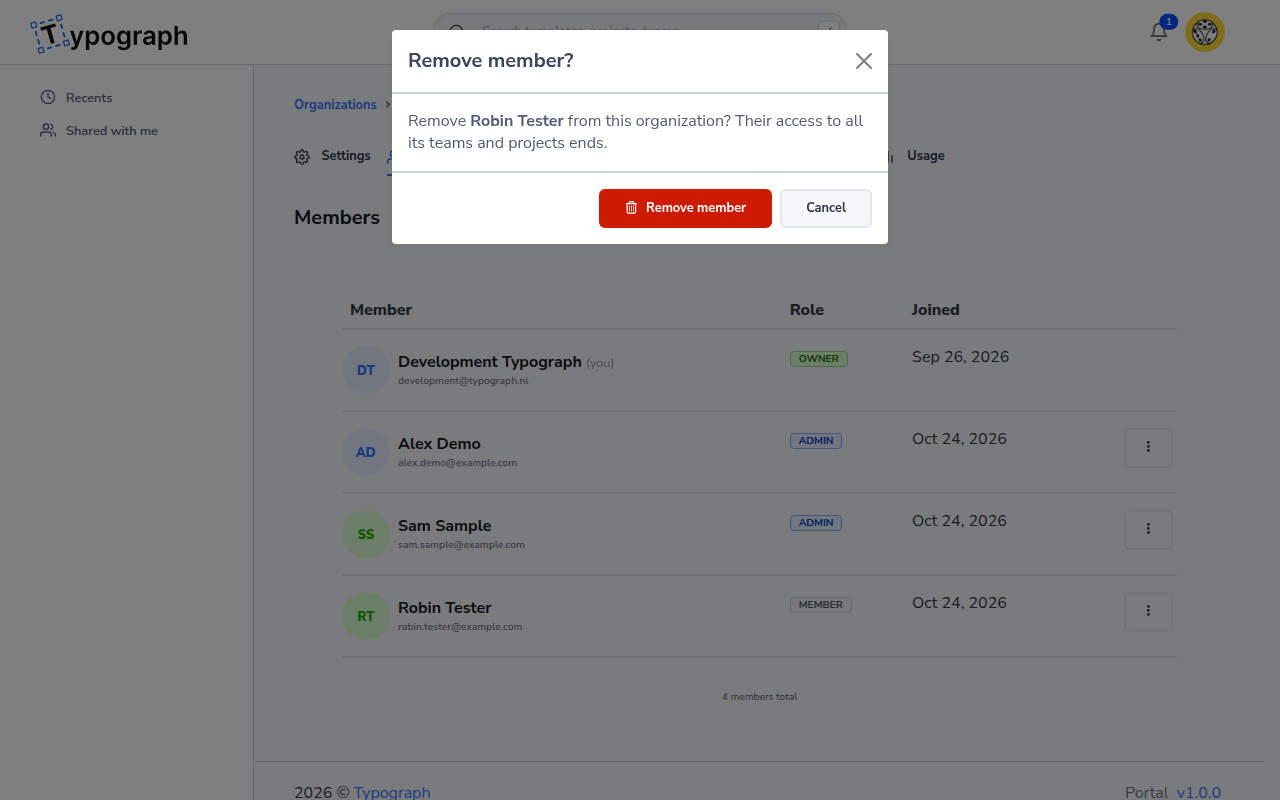
The person loses access to the organization's teams and projects straight away. Their own Typograph account stays.
If someone else removed the member after you opened the page, the list reloads and says the member was already removed.
When a change is refused
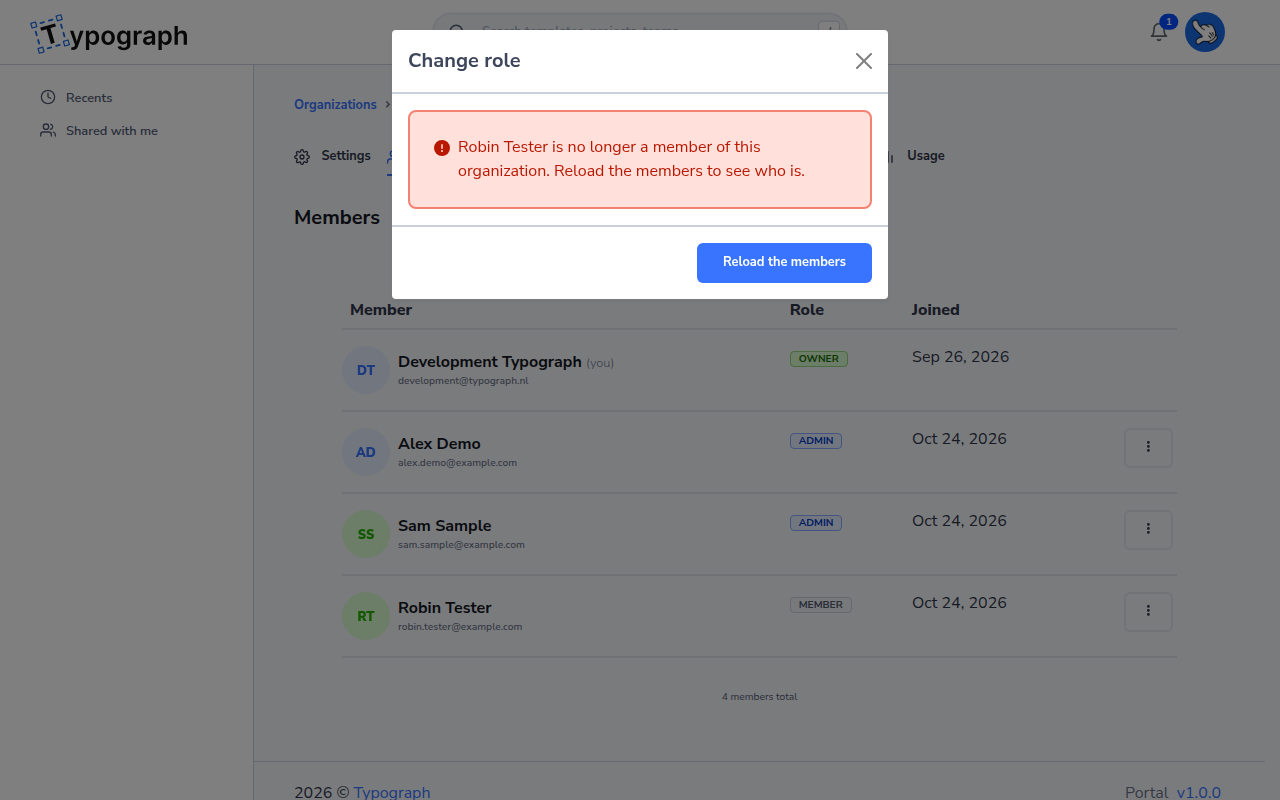
Sometimes the portal cannot make the change, because something changed after you opened the page. The dialog then tells you what happened and offers one way on: Reload the members. Nothing has changed at that point.
| Message | What happened |
|---|---|
| You can no longer change or remove members | Your own role changed: you are no longer an owner or admin. |
| The member is no longer a member of this organization | Someone else removed them. |
| This role cannot be given to the member, or the member cannot be removed | Their role changed; for example, they became the owner. |
Reload the members to see everyone's current role, and try again if the change still applies.
Over the API
Members are invited, changed and removed over the API with the same role rules: see Identity Service → Organization members and Organization invitations. One difference: over the API a member can also remove themselves, which the portal does not offer. Note that the API addresses a member by the membership's id, not by their user ID. An AI agent can change roles and remove members too, with the tools organization_member_update_role and organization_member_remove, when it connects through an app of your organization that holds identity:write.
Related
- User Roles — what an owner, admin and member can do
- Invites — inviting someone into the organization, or to a team or project
- Transferring Ownership — making another member the owner