Favorites
Click the heart on a project or template to pin it under Favorites in the sidebar, so it's one click away instead of buried a few levels down the hierarchy.
Adding a Favorite
-
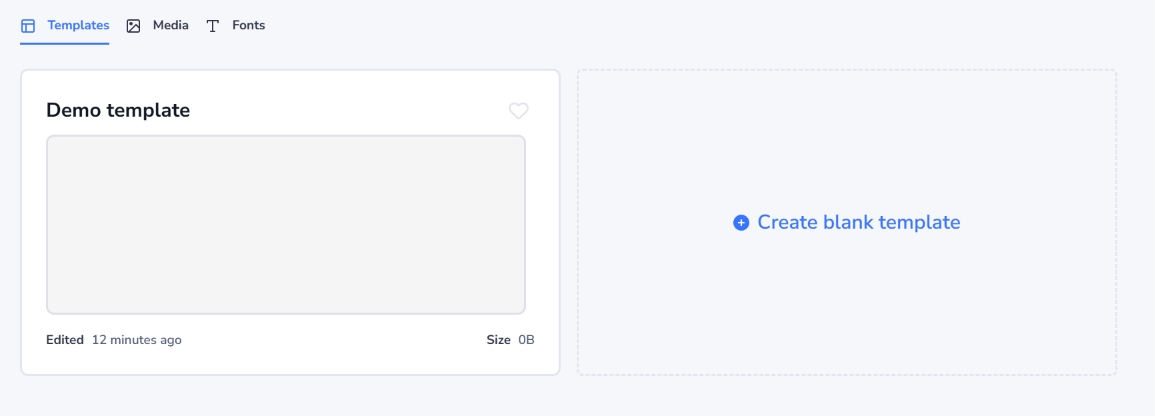
Find the project or template card, or open the item itself.
-
Click its heart icon.
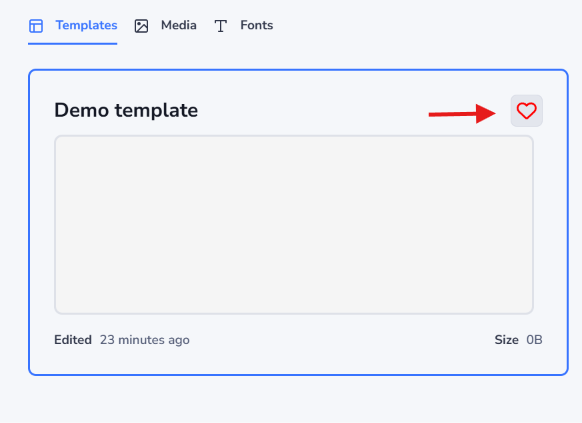
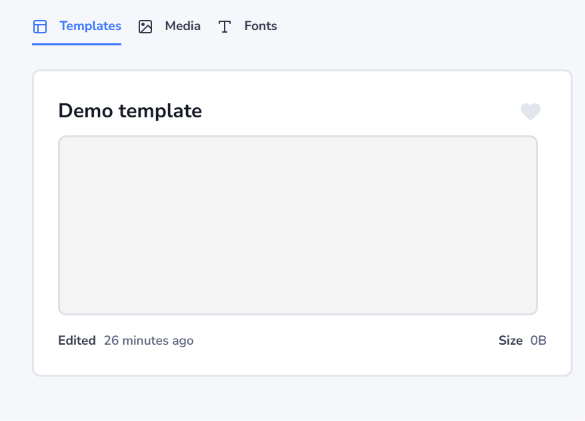
A filled heart means it's in your favorites; click it again to remove it.
Favoriting is per-user — favoriting something doesn't change what your teammates see.
Removing a Favorite
Unfavorite a project or template from its own card, wherever you find it:
-
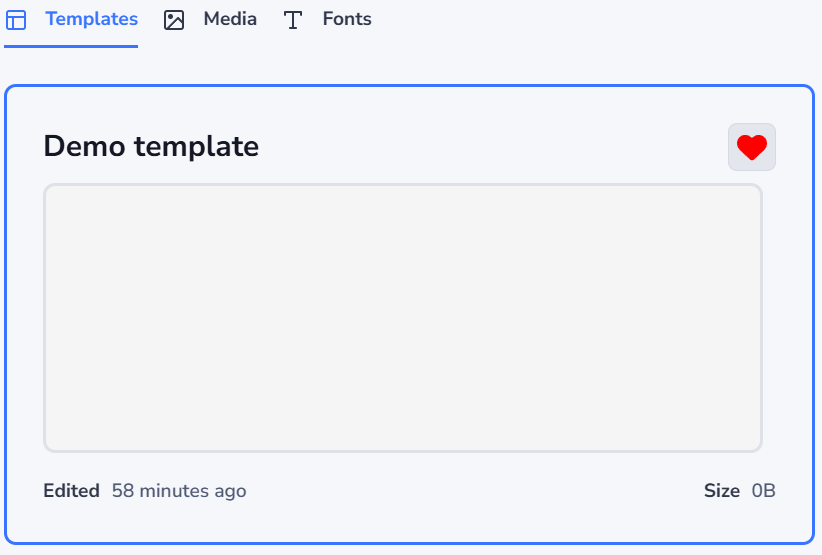
Via the template — open its project, go to the Templates tab, and click the filled heart icon on the template's card.
-
Via the project — open its team, and click the filled heart icon on the project's card.
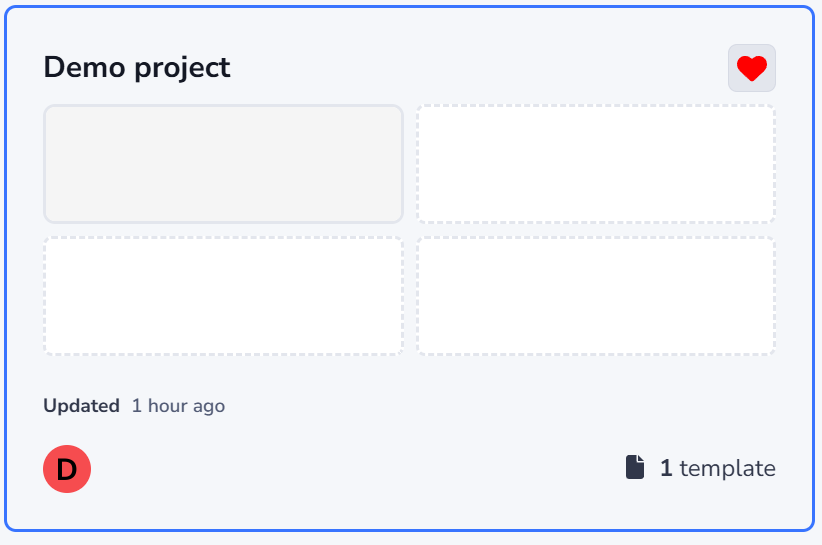
Either way, it disappears from Favorites in the sidebar right away.
Finding Your Favorites
- Open the Favorites section in the sidebar.
Every project and template you've favorited shows up here, regardless of which team or project it belongs to — alongside Recents and Shared with me, the sidebar's other quick-access sections.
Related
- Portal Overview — Favorites, Recents, and Shared with me as sidebar sections