Signing In
Before you can use Typograph, you need to sign in to your account. Pick whichever login method matches your setup — Google, Microsoft, or email — and follow the steps below to reach the Portal.
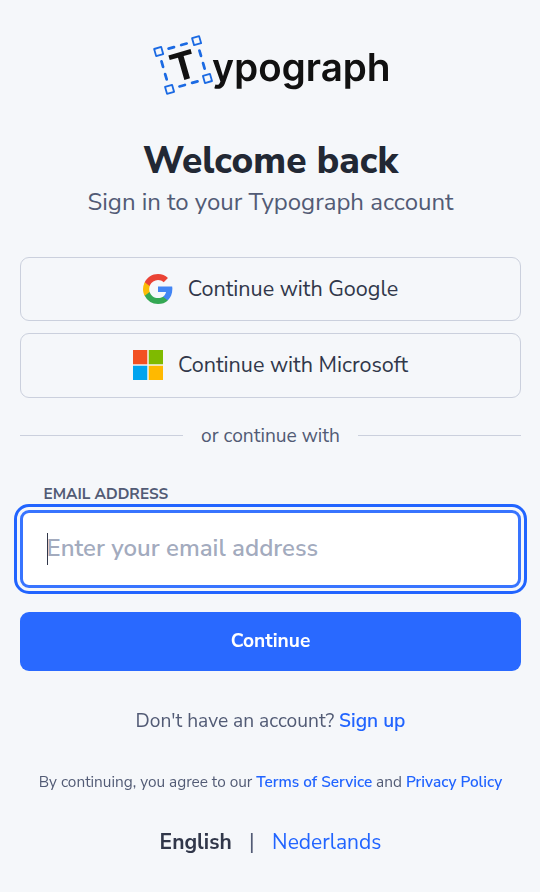
Choose a login method
Google
Select Continue with Google, then enter the credentials for your personal or business Google account when prompted.
Microsoft
Select Continue with Microsoft, then enter the credentials for your personal or business Microsoft account when prompted.
Email
Enter your account's email address — the one you signed up with, or the one you changed it to — and select Continue. Typograph sends a 6-digit verification code to that address — enter the code to continue.
Choosing your language
The sign-in screens are in English or Dutch. Typograph starts in your browser's language when it is one of the two, and in English otherwise. To change it, select English or Nederlands at the bottom of the screen: the screen switches straight away and stays in that language while you sign in.
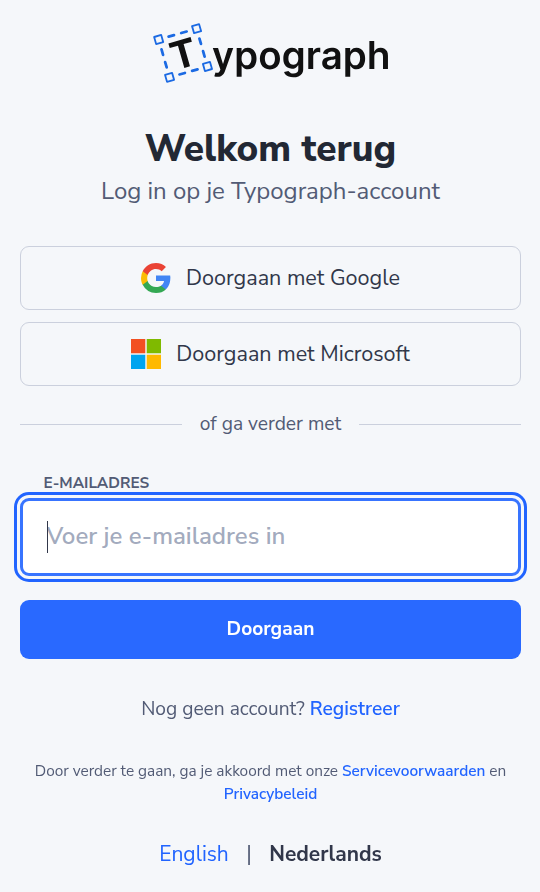
The language you pick also decides:
- the language of the email with your verification code;
- the language of a new account, when you sign up: the Portal and your Typograph emails, the welcome email included, use it from then on. You can change it later under Language in your profile.
Once you are signed in, the language of your account counts.
Signing in with Google or Microsoft
Typograph remembers the Google or Microsoft account you signed in with, not just its email address. If that account's address changes later, Continue with Google or Continue with Microsoft still takes you to the same Typograph account.
When Google or Microsoft hasn't confirmed your address
Typograph only lets you in through Google or Microsoft with an email address the provider has confirmed belongs to you. When it hasn't, you see We couldn't sign you in with Google (or Microsoft), with your address filled in:
- Select Email me a code. Typograph sends a 6-digit code to that address.
- Enter the code from the email.
You only do this once. After that, Continue with Google or Continue with Microsoft signs you in straight away, without a code.
When the provider didn't share an email address at all, the same screen asks you to enter it first. Entering a wrong code five times locks sign-in codes for that account for 15 minutes; the screen says how long to wait.
When your address moved to another Typograph account
After an account changes its email address, the old address stays with that account for 7 days, as long as the Undo the change link works. Signing in with Google or Microsoft with the old address in that time shows This email address moved to another Typograph account. The screen says from which moment the address is free for an account of its own. Until then:
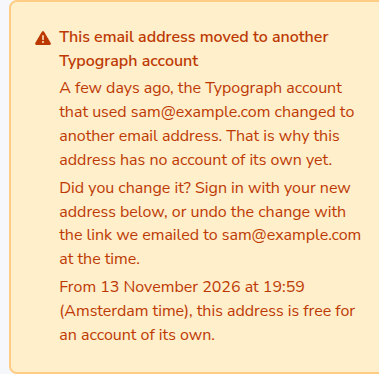
- Changed it yourself? Enter your new address below the message and select Continue, or sign in with Google or Microsoft with the new address.
- Didn't change it yourself? Use the Undo the change link in the email sent to this address at the time; see Didn't change it yourself?.
Typograph shows this only when Google or Microsoft confirmed that the address is yours. Anyone else who tries the old address learns nothing from the screen; the address itself gets an email that says the same.
Adding your name
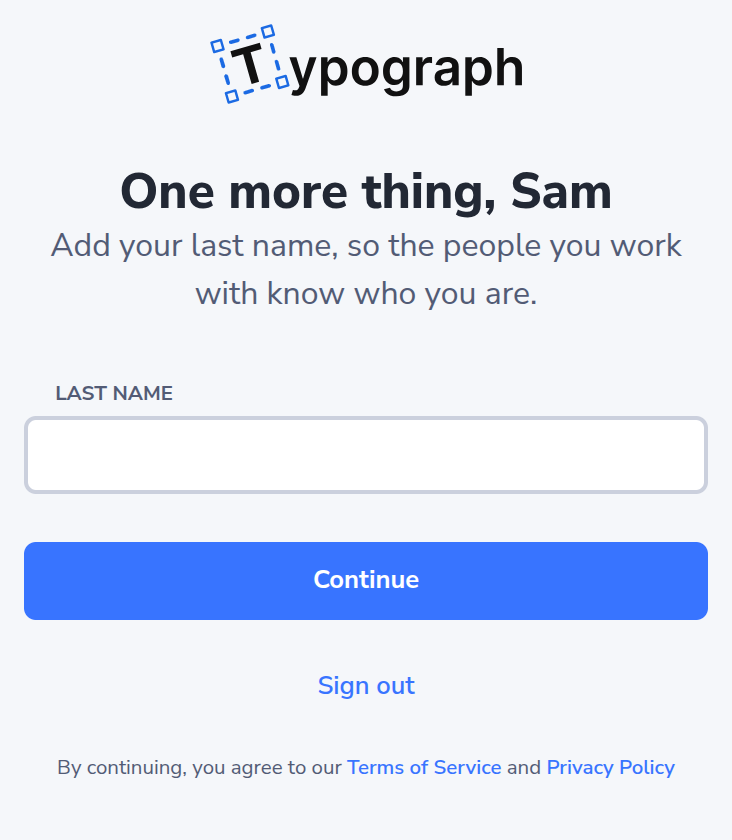
Every Typograph account has a first and a last name, so the people you work with know who you are. When Google or Microsoft didn't share one of them, Typograph asks for the missing part right after you sign in, and for your whole name when it has neither. Enter it and select Continue to go on. Not the right account? Sign out takes you back.
Granting Portal UI access
Whichever method you use, you'll be asked to approve access once your credentials are verified: a prompt lists the permissions Portal UI needs to connect to your Typograph account. Read through them before continuing.
Not comfortable granting these permissions? Check our Terms of Service and Privacy Policy to see how your information is used and protected, then decide whether to proceed.
Once you approve, you're signed in and taken straight to the Portal.