Notifications
Typograph notifies you about activity relevant to you — mentions, invites, requests for access and their answers, and other updates on things you have access to.
Checking Your Notifications
-
Click the notifications icon in the top nav for a quick dropdown, or click Notifications for the full list. Unread notifications show a badge on the icon.

-
Click a notification to jump to what it's about.
Marking Notifications as Read
-
Open your notifications.
-
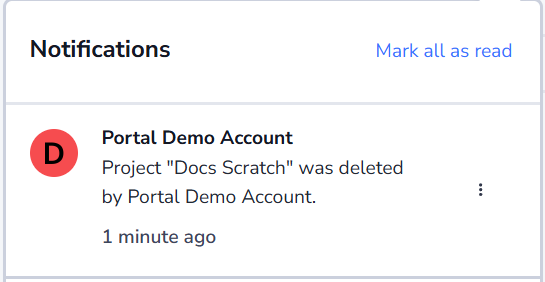
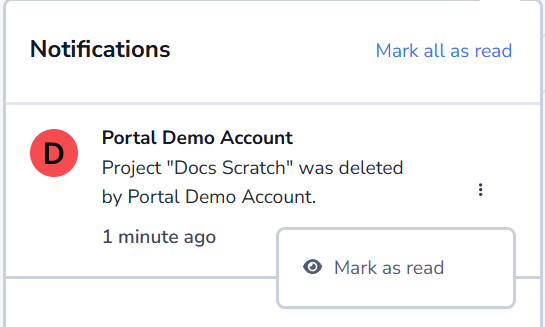
Use the ⋮ menu on a single notification to mark it read (or unread) again, or click Mark all as read at the top of the dropdown (in the screenshot above) to clear every unread notification at once.
Turning Off Notification Emails
By default, notifications are also emailed to you. To stop that and only see them in the Portal:
-
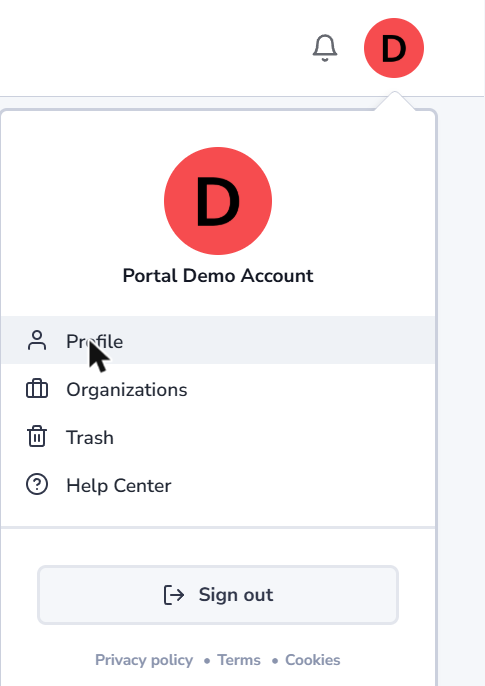
Click your avatar in the top-right, then Profile.
-
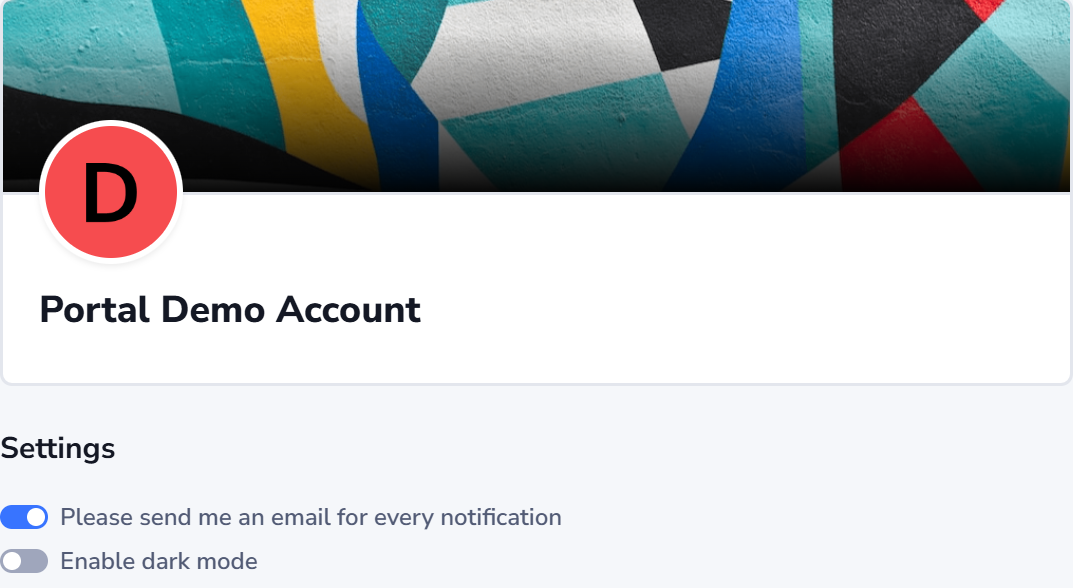
Under Settings, turn off Please send me an email for every notification.
See Account Settings for the rest of your preferences.
Related
- Account Settings — turning off notification emails
- Invites — invites to a team, project or template generate a notification; an invitation into an organization comes by email and waits on your home page
- Asking for access — the admins are notified of a request for a higher role, and whoever asked of the answer, or when the request lapses after 30 days