Saving, Undo/Redo, and Exporting
The last things to know before you're comfortable in the Editor day-to-day: how your work is saved, how to undo mistakes, and how to get your finished design out as a file.
Autosave
-
Just keep working — there's nothing to click. The Editor saves your changes automatically as you go.
-
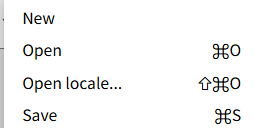
If you want to check your work is current, open the File menu — Save is available if you ever want to trigger a save manually, but it's not required for normal editing.
Undo and Redo
-
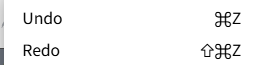
Made a mistake? Open the Edit menu and choose Undo, or use the keyboard shortcut shown next to it.
-
Changed your mind about the undo? Choose Redo from the same menu to reapply it.
-
Undo and Redo step through your recent changes one at a time, so you can safely experiment and step back if something doesn't work out.
Saving a Copy
Sometimes you want to keep your current work as a starting point for something else, rather than continuing to edit the same template:
- Open the File menu and choose Save as… to download the current document to your computer as a Typograph file.
- Choose Save as Clip to save a selection of elements (a logo block, a footer, a repeated design piece) so you can reuse just that piece in other templates via the Clips tab.
To start a new template in the Portal instead, click New template on the project's Templates tab and choose how to start in the Gallery (see Creating a Template).
Exporting Your Design
When your template is ready to share or print, export it as a PDF or image rather than sending the editable template itself. This is the same Export feature described in the Portal guide's Managing Templates page — open that page's Publishing (Export to PDF / Image) section for the full steps.
You're All Set
That covers the Editor's core tools. For everything about the Portal around the Editor — projects, sharing, comments, trash — see the Portal Overview.