Transferring Ownership
An organization has exactly one owner. Only the owner can manage the subscription and billing, and only the owner can delete the organization. When someone else should take that over, the owner hands the organization to another member. Ownership cannot be shared, and no admin can give it out: the owner is the only person who can transfer it.
What changes
| Before | After | |
|---|---|---|
| You | Owner | Admin |
| The member you choose | Admin or member | Owner |
As an admin, you keep managing members, apps, webhooks and settings. You can no longer:
- manage the subscription and billing;
- delete the organization;
- make yourself the owner again. Only the new owner can transfer the organization back to you.
Teams, projects, templates and everyone else's roles stay as they are.
Admins and members see under Settings → Ownership who the owner is, since only the owner can transfer the organization.
Transferring the organization to a member
The person must already be a member of the organization. To hand it to someone outside the organization, invite them first and wait until they have accepted. While nobody else is a member, Settings → Ownership says so instead of offering Choose the new owner.
-
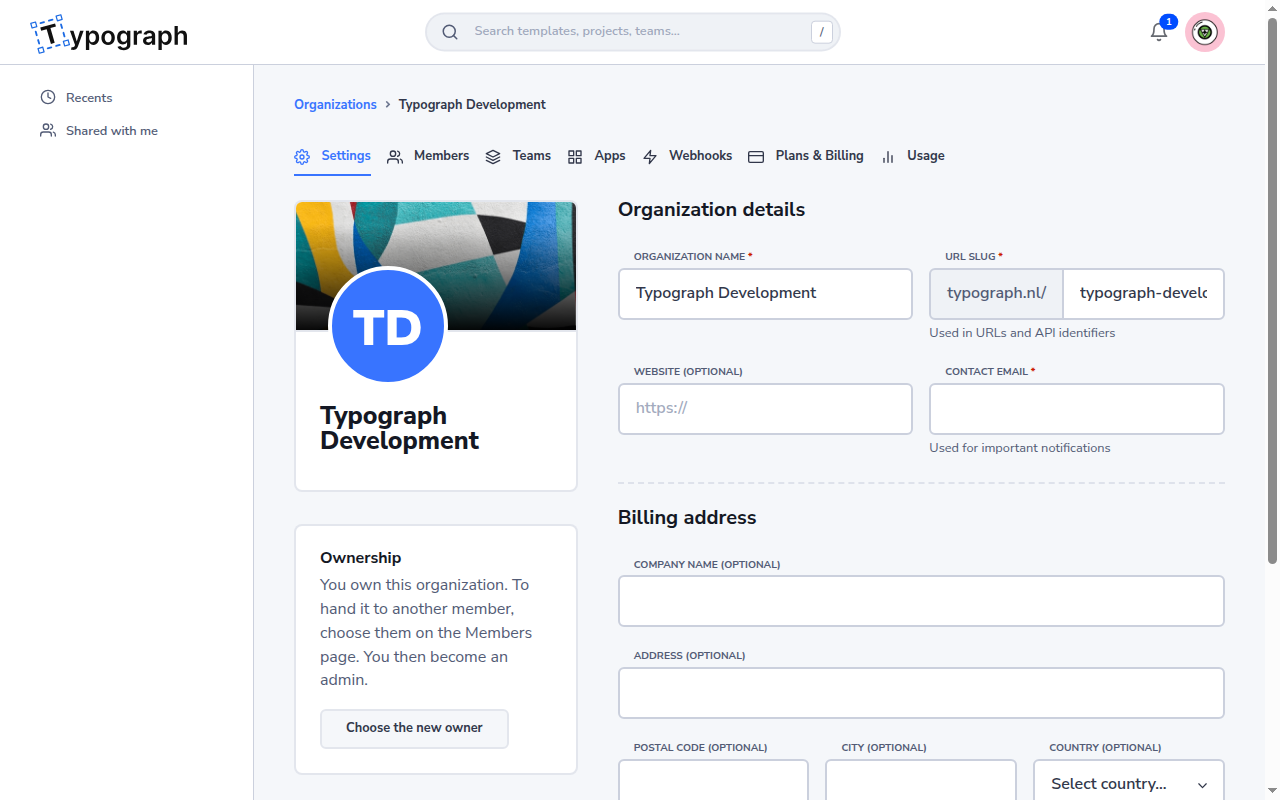
Go to Organizations → {Your Org} → Members. Or start from Organizations → {Your Org} → Settings: under Ownership, click Choose the new owner. The Members page then says how to pick the member.
-
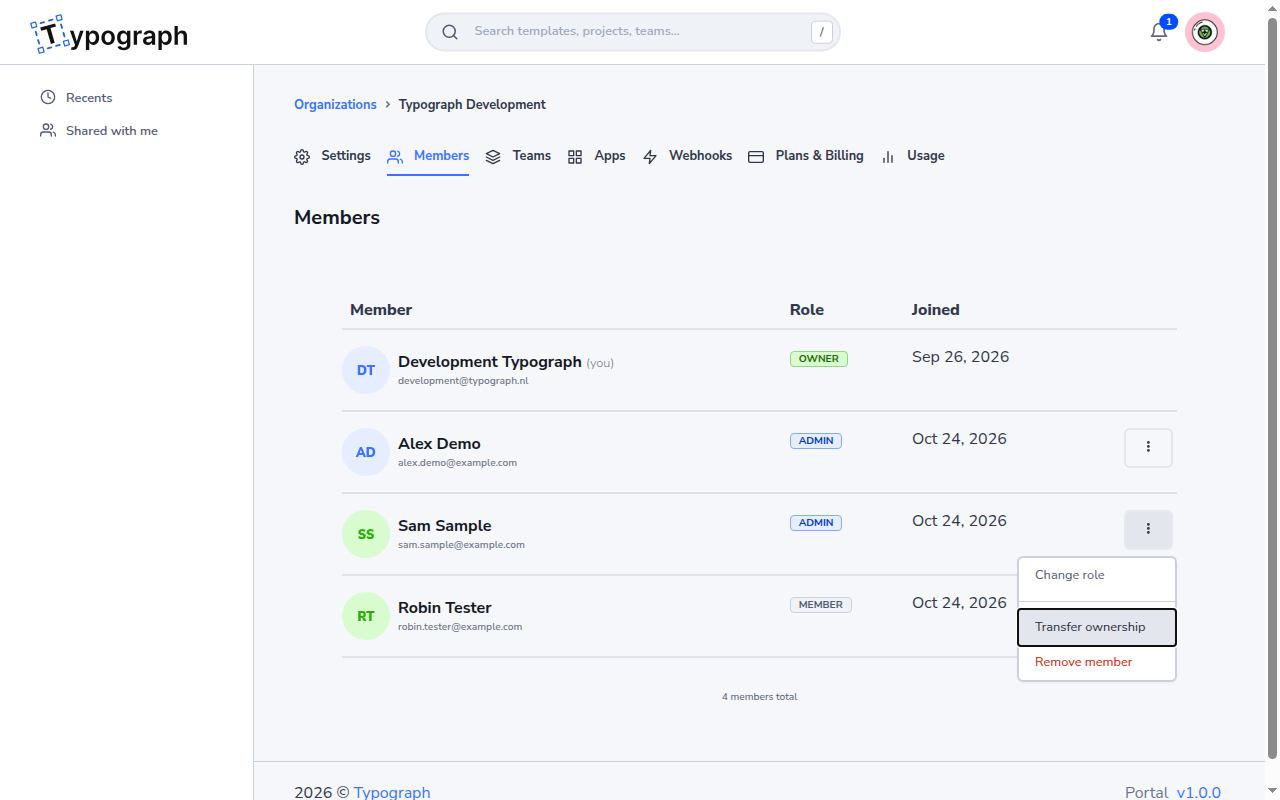
Open the actions menu (⋮) next to the member, and choose Transfer ownership. Only the owner sees this item.
-
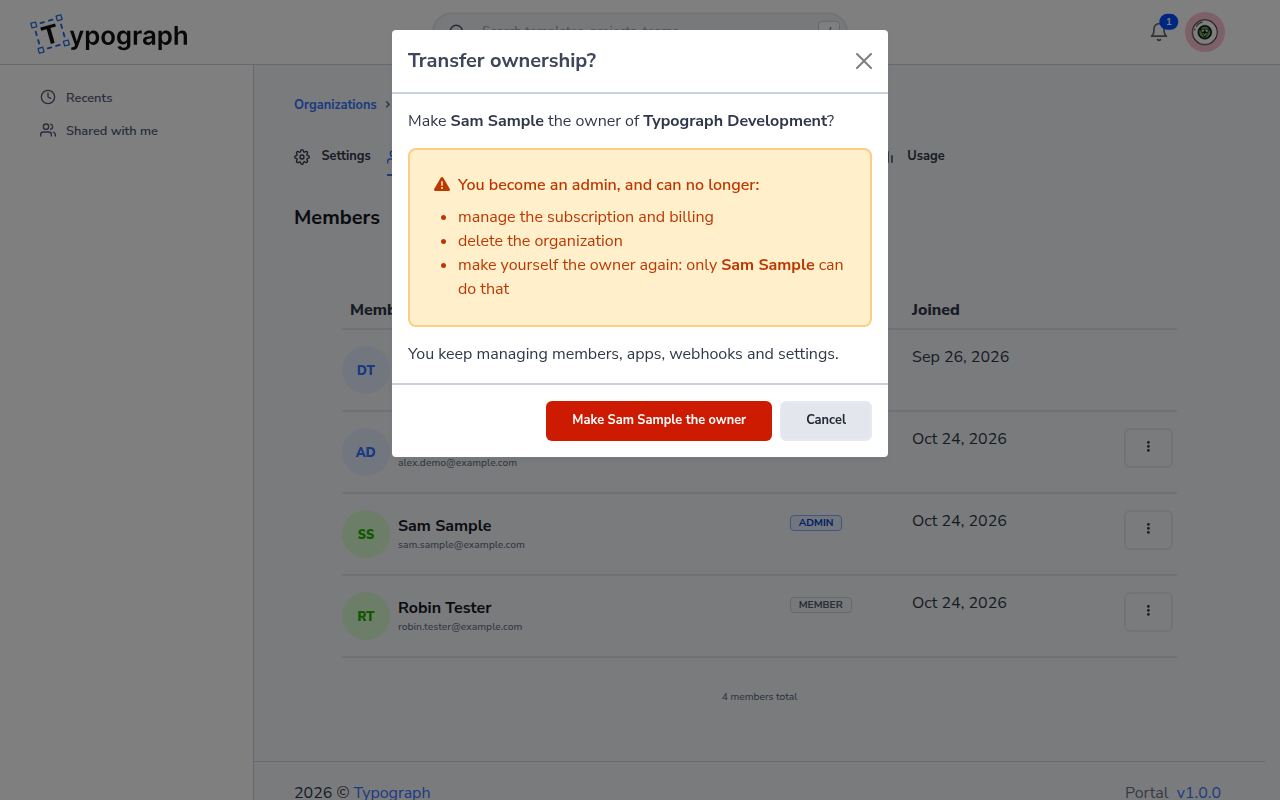
Read the confirmation. It names the member and the organization, and lists what you lose.
-
Click Make {name} the owner to transfer the organization, or Cancel to leave everything as it was.
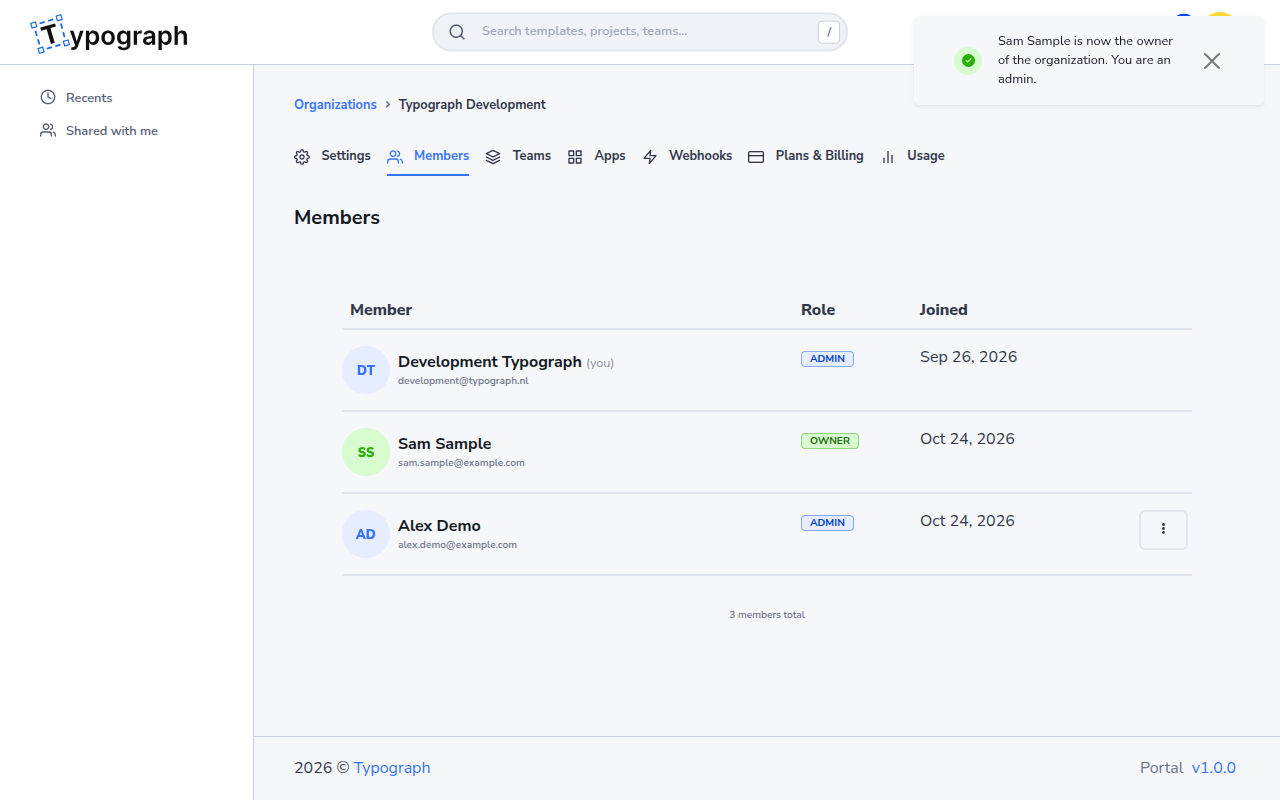
The members list reloads with the new roles, and a message confirms who the owner is now.
When the transfer is refused
Sometimes the portal cannot complete the transfer. When that happens, the confirmation tells you why and offers one way forward. Nothing has changed at that point.
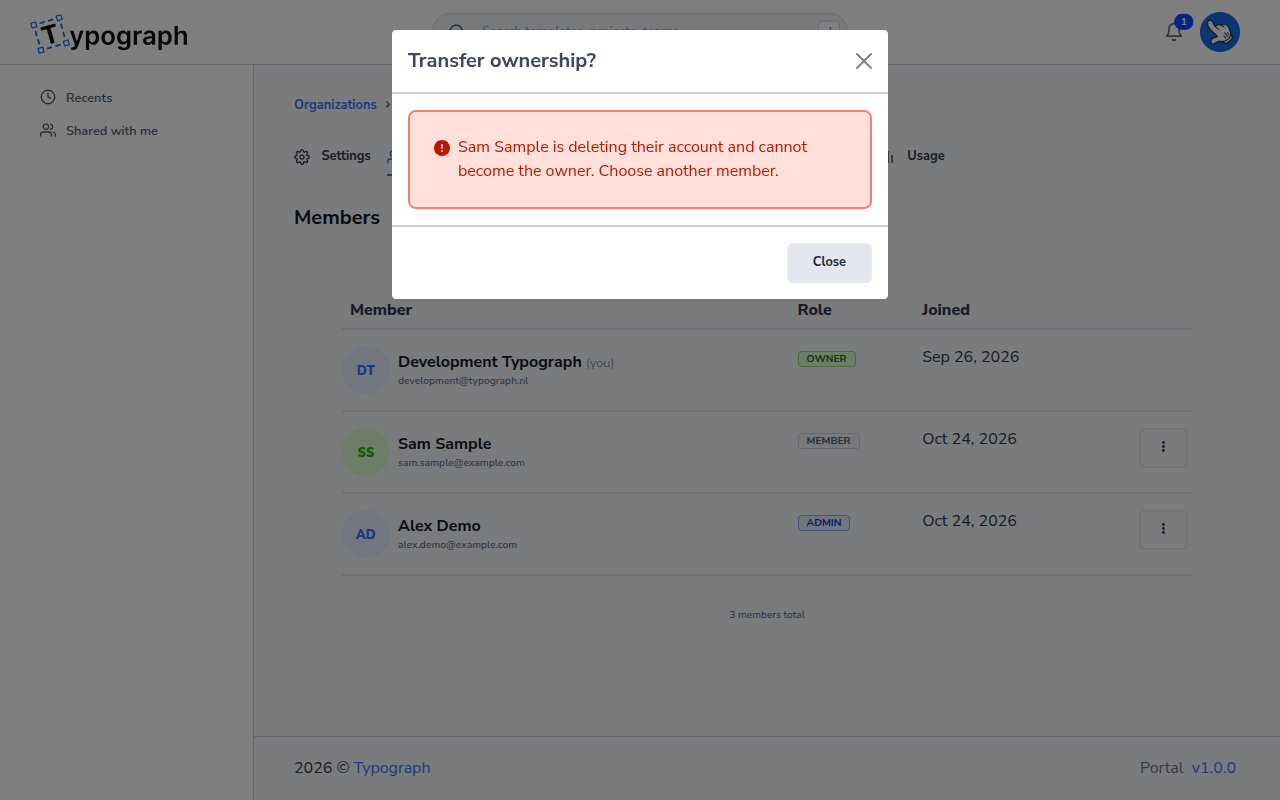
| Message | What happened | What to do |
|---|---|---|
| The member is deleting their account | Someone whose account is being deleted cannot take over the organization. | Choose another member. |
| The member is no longer a member, or is the owner already | Someone else removed the member, or transferred the organization, after you opened the page. | Click Reload the members to see the current list. |
| You are no longer the owner | Someone else became the owner after you opened the page. | Click Reload the members to see your current role. |
| The organization no longer exists | The organization was deleted after you opened the page. | Click Go to your organizations. |
Over the API and with an AI agent
The transfer works the same way outside the portal:
- API: call
POST /v1/identity/organizations/{organizationId}/members/transfer-ownership. See Identity Service → Transfer ownership. - AI agent: use the MCP server tool
organization_transfer_ownership.
In both cases, only the owner can transfer the organization.
Related
- User Roles — what an owner, admin and member can do
- Managing Members — changing a member's role, or removing them
- Invites — adding the person to your organization first
- Billing — what the new owner takes over
- Deleting an Organization — when the organization should go instead