Apps of Guests
People from other organizations can work in your teams. In Typograph they are guests: they have a role in one of your teams, but they are not members of your organization. The portal shows them your teams under your organization's name.
A guest can also connect an app, such as an AI assistant through the MCP server. That app is tied to the guest's own organization, so it does not see your teams. You decide whether it may.
The portal's own assistant is no such app: it works for the guest with their own rights, and follows your AI Assistant Settings instead of this page.
Letting the Apps of Guests Read
- Go to Organizations → {Your Org} → Settings.
- Under Apps of guests, turn on Let the apps of guests read.
From then on, an app a guest connects can read the teams, projects and templates that guest works on in your organization, and make PDFs of them. It never changes anything in your teams, whatever the guest's role there. Its PDFs and other jobs are billed to the guest's own organization, not to yours.
Turn the switch off again and those apps stop reading within a minute. It is off until you turn it on.
Only an owner or admin sees Apps of guests and can change it. See Permissions.
Seeing and Blocking the Apps That Read
Under the switch, Apps that read for a guest lists every app that was let read your teams, the latest first, with where it comes from and when it last read.
An app picks its own name, so two apps can both be called "Claude". Where it comes from tells them apart:
- From claude.ai: the app registered itself, and its details live at that address. Only the company behind that address can put an app there.
- Registered in Typograph: an organization created the app in Typograph.
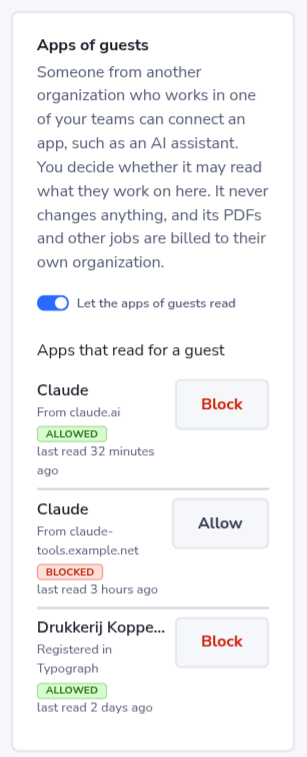
- Click Block to stop an app. Typograph asks you to confirm first, naming the app and where it comes from, because blocking an app also signs out the members of your organization who use that same app here.
- A blocked app shows Blocked. Click Allow to let it in again.
A blocked app reads nothing in your organization, also while the switch is on.