Deleting an Organization
The owner of an organization can delete it. You confirm it with a code we email you, so nobody deletes an organization without access to the owner's mailbox. You cannot undo it yourself. Deleted it by mistake? Support can restore it within 30 days; after that its teams, projects, templates and files are deleted for good.
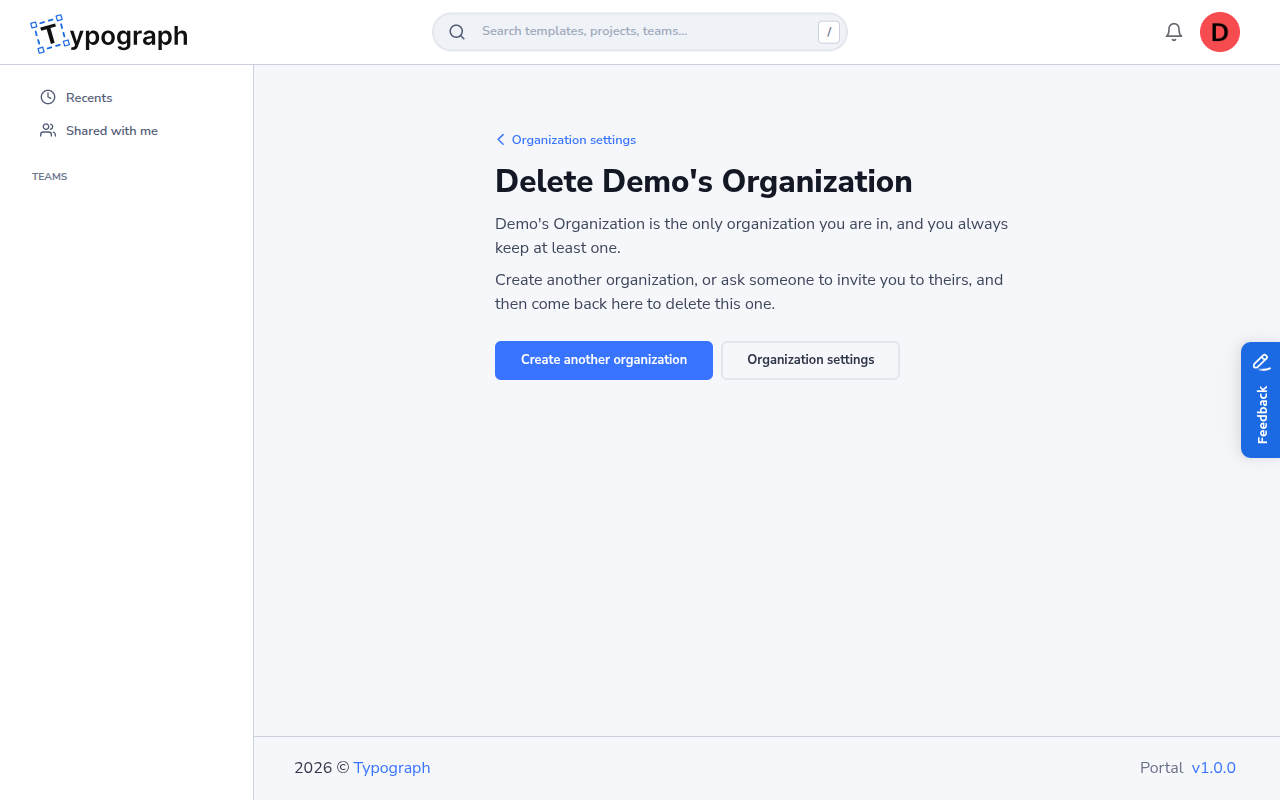
You always keep at least one organization. Your only organization cannot be deleted: create another one first, or ask someone to invite you to theirs.
What happens when you delete it
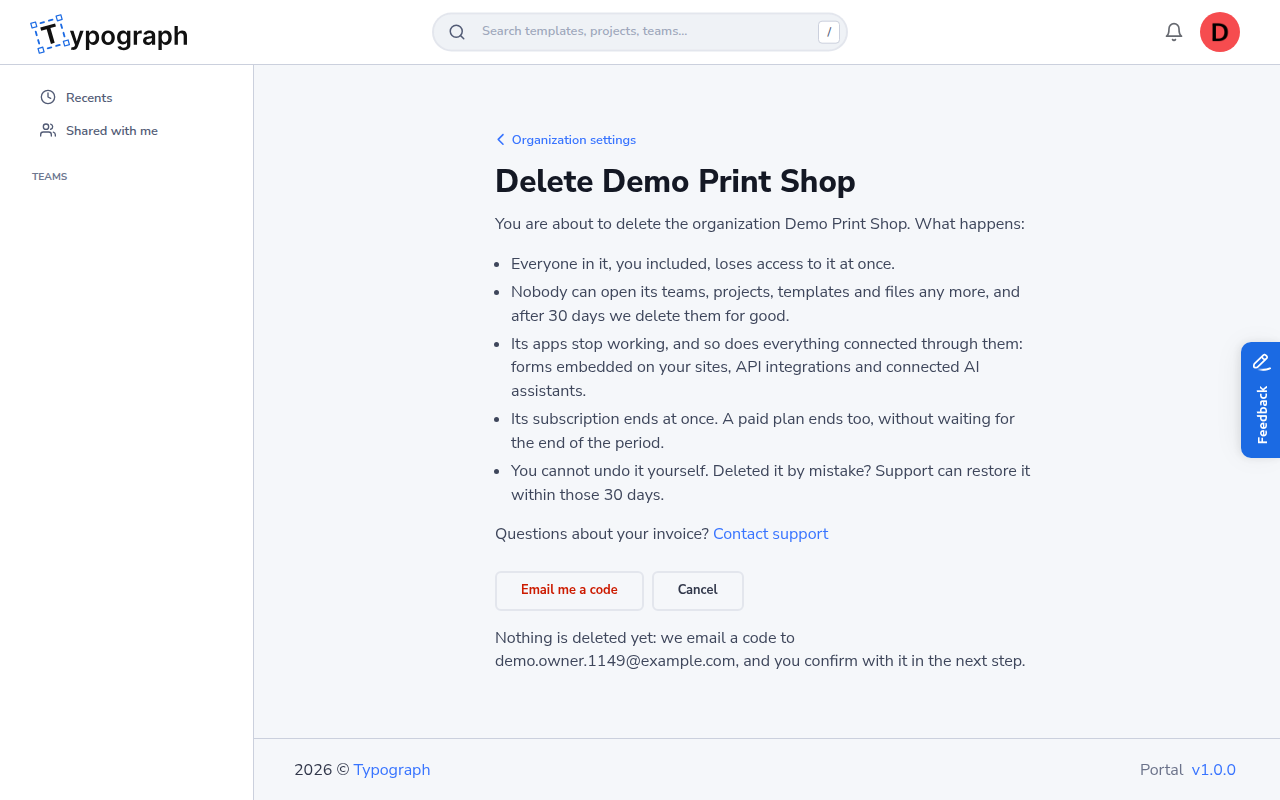
- Everyone in the organization, you included, loses access to it at once.
- Nobody can open its teams, projects, templates, forms and files any more. They are not in anyone's Trash, and 30 days later they are deleted for good, the files and the answers entered in the forms included.
- Its apps stop working, and so does everything connected through them: forms embedded on your sites, API integrations and connected AI assistants. Its webhooks are deleted.
- Its subscription ends at once. A paid plan ends too, without waiting for the end of the period. Questions about your invoice? Contact support.
Your other organizations, and your account, stay as they are. Want someone else to carry on with the organization instead? Transfer the ownership to them.
Deleting the organization
-
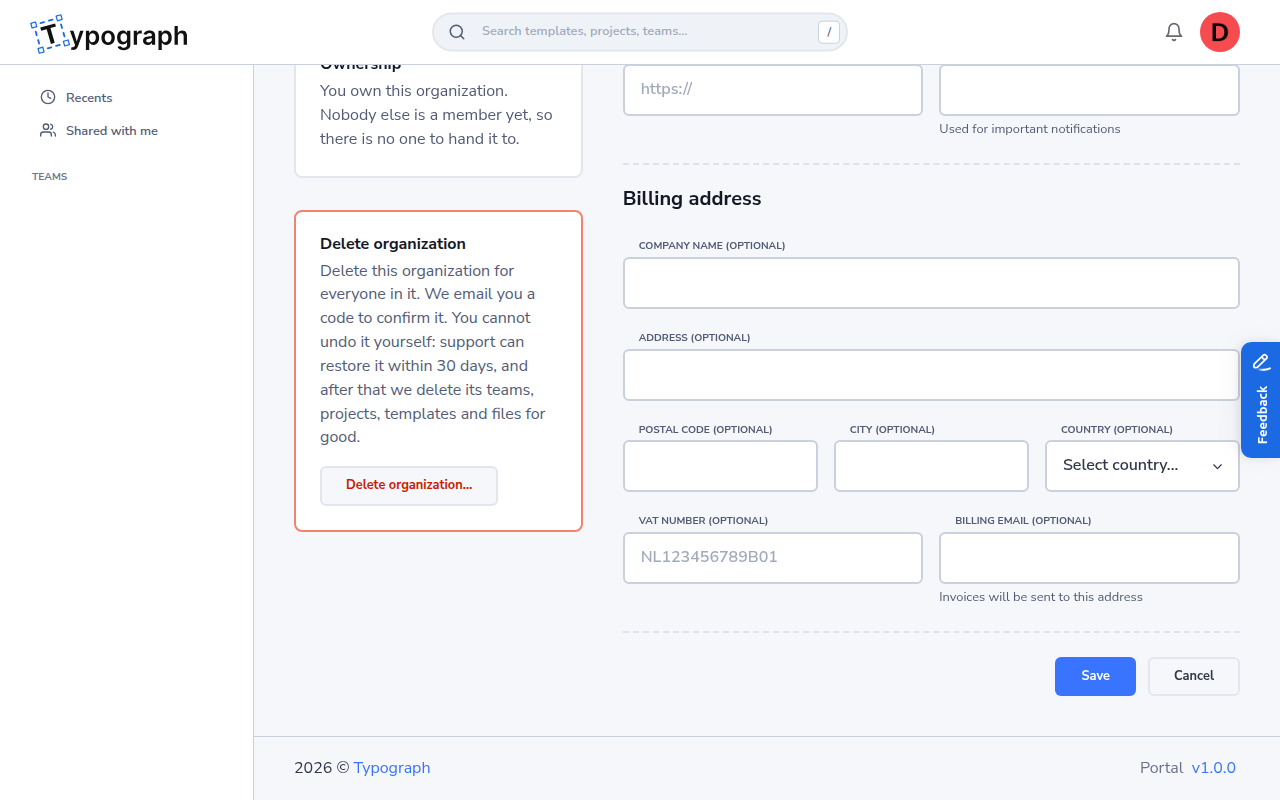
Go to Organizations → {Your Org} → Settings. Under Delete organization, click Delete organization…. Only the owner sees this card.
-
Read what happens, and click Email me a code. Nothing is deleted yet.
-
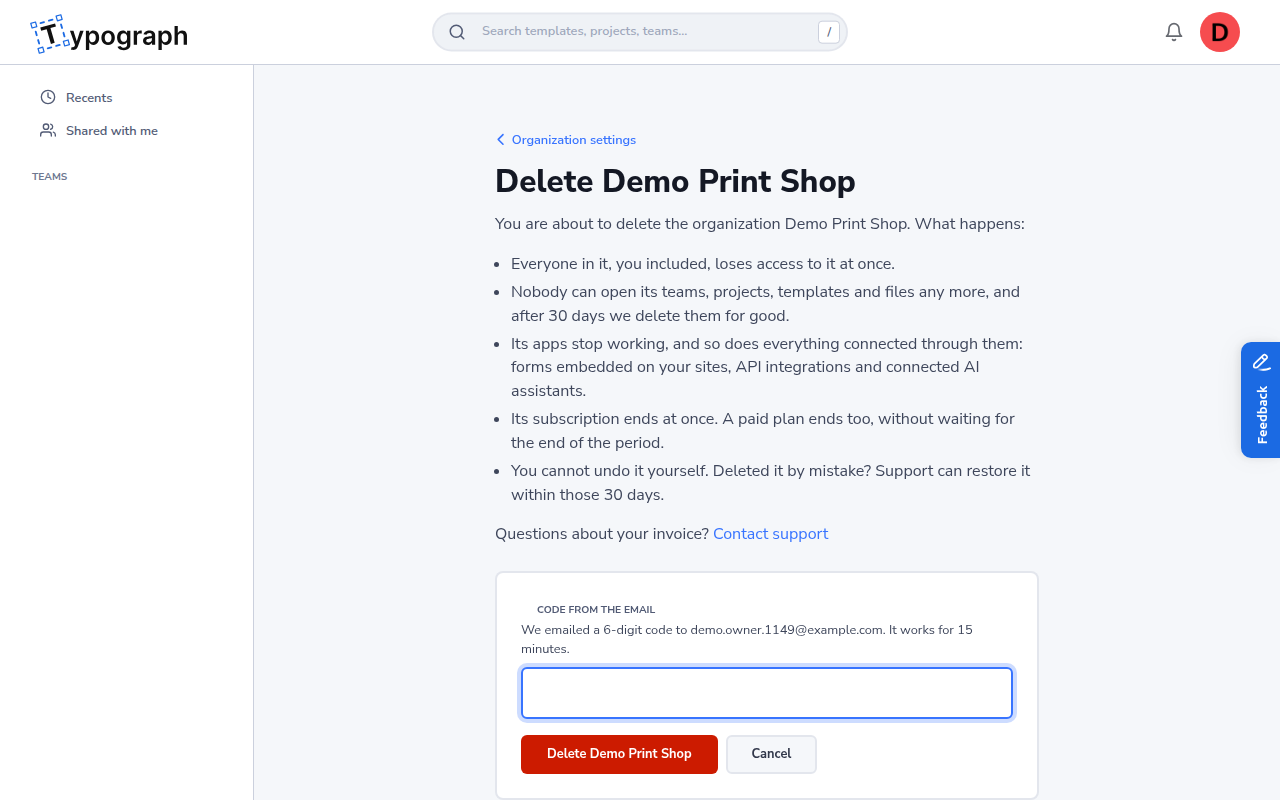
Open the email, titled Your code to delete the organization {name}. Enter the 6-digit code from it, and click Delete {name}. The code works for 15 minutes, and for this organization only.
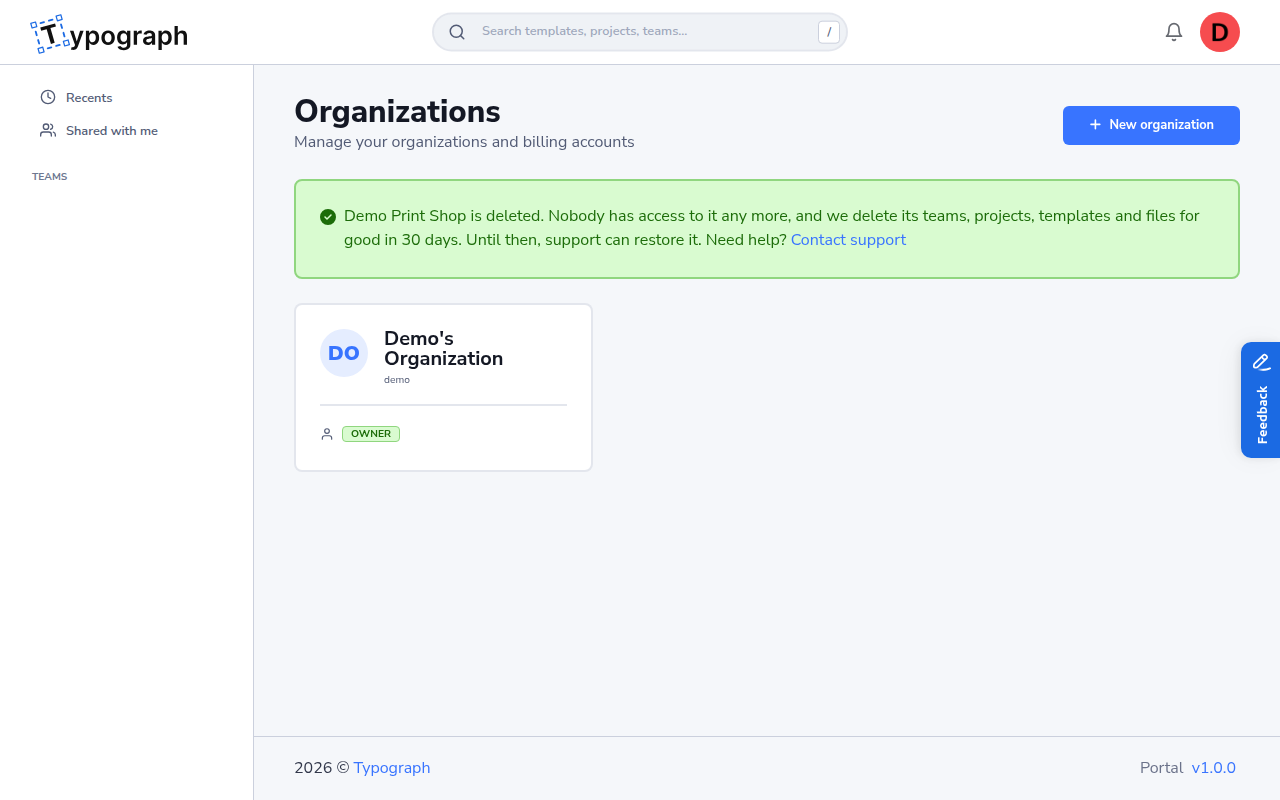
The organization is deleted, and your organizations are listed with a message that says which one went, that its teams, projects, templates and files are deleted for good in 30 days, and that support can restore it until then.
When it cannot be deleted
| What you see | Why | What to do |
|---|---|---|
| The card offers Create another organization instead of a delete button | It is the only organization you are in. | Create another organization, or ask someone to invite you to theirs, and come back. |
| No Delete organization card in the settings | Only the owner can delete an organization. | Ask the owner, who is named under Ownership. |
| That code is wrong, or it has expired | The code was mistyped, is older than 15 minutes, or a newer code replaced it. | Check the latest email, or click Send a new code. |
| Too many wrong codes | After several wrong codes, entering a code is paused. | Wait a few minutes, then send a new code. |
| To delete this organization, sign in again first | You signed in before deleting organizations was possible. | Click Sign in again. You come back to the same page. |
Deleted it by mistake?
Within 30 days, support can restore the organization. The owner writes to support@typograph.nl from the owner's email address, naming the organization. When it is restored:
- Its members, teams, projects, templates and files are back, with everyone's access as it was.
- Its subscription is back as it was, the same plan.
- Everyone signs in again, and its apps have to be connected again, with their webhooks.
- Invitations that were still open are gone: send them again.
After 30 days the content is deleted for good, and the organization can no longer be restored. Neither you nor an AI agent can restore an organization yourselves: only support can.
Over the API and with an AI agent
Deleting works the same way outside the portal, with the same code:
- API: call
POST /v1/identity/organizations/{organizationId}/deletion-code, thenDELETE /v1/identity/organizations/{organizationId}with the code. Both need theidentity:deletescope. See Identity Service → Delete an organization. - AI agent: the MCP server tools
organization_deletion_codeandorganization_delete. The agent asks you for the code from the email.
Related
- Transferring Ownership — handing the organization to another member instead
- Billing — the subscription that ends with the organization
- User Roles — what an owner, admin and member can do