Creating an Organization
You get an organization when you sign up. Create another when work belongs apart: another company, a client, a brand of its own. Each organization has its own members, teams, apps, webhooks, subscription and billing, and its own usage limits, apart from your other organizations.
Creating one
-
Open your avatar menu at the top right and choose Organizations.
-
Click New organization.
-
Enter the Organization name: the company or client it is for. You can change it later in the settings.
-
Leave the URL slug empty to have one made from the name. Under the field the portal shows the slug it will become, such as
studio-noord. Fill it in only when you want another: at least 3 lowercase letters, digits and single hyphens.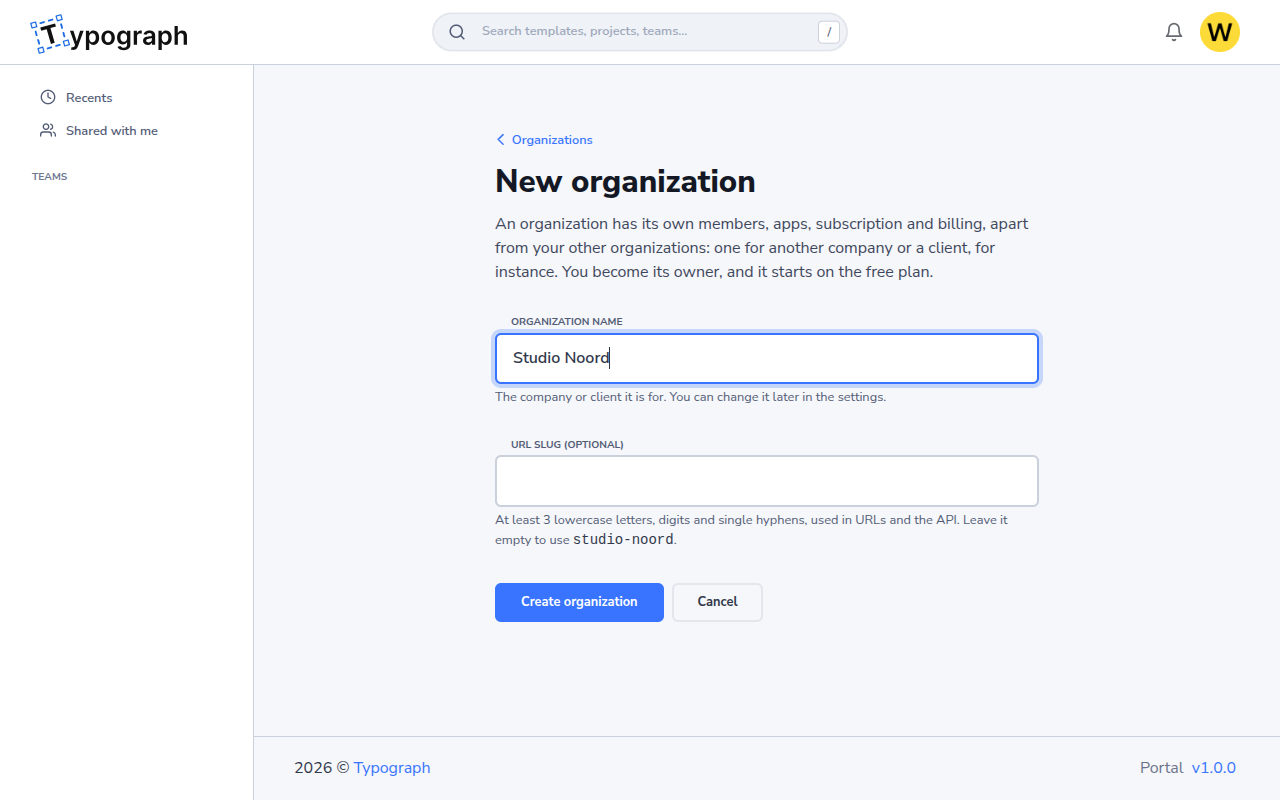
-
Click Create organization.
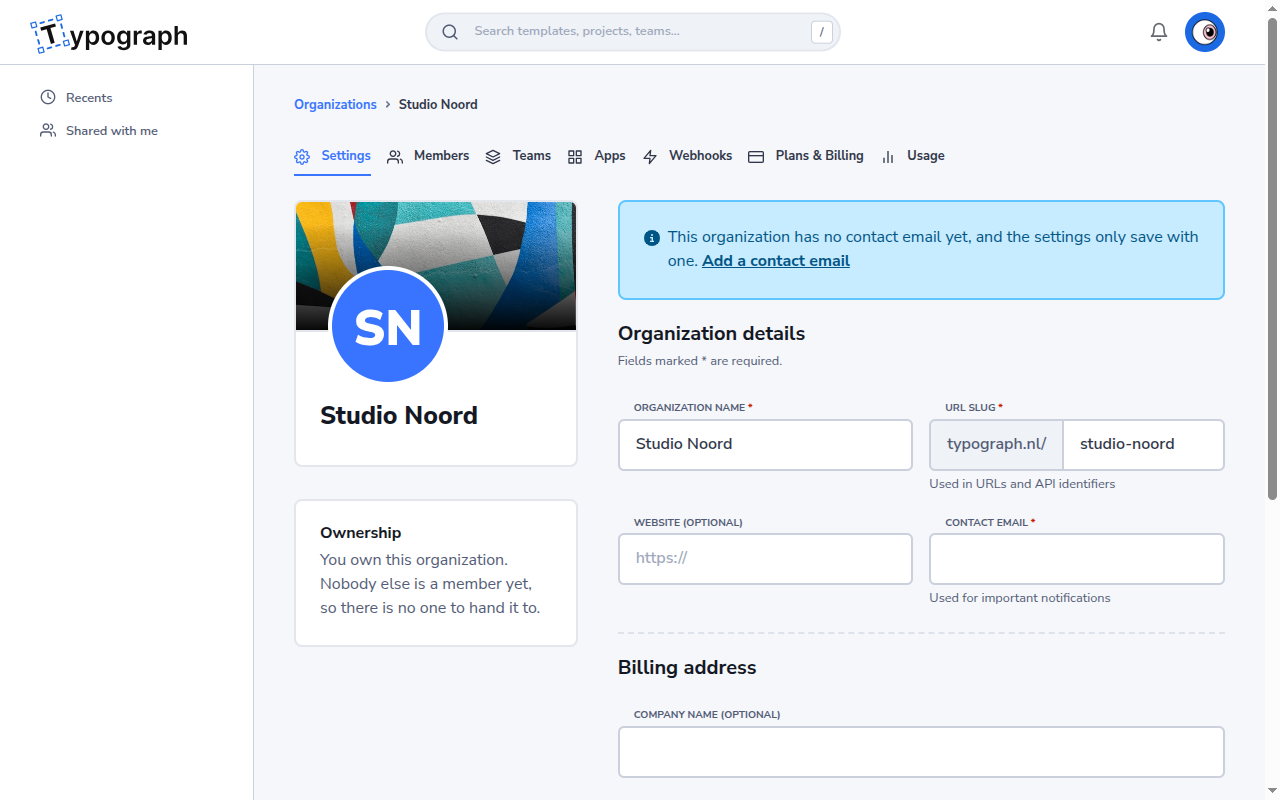
The new organization opens on its Settings, and a message says you are its owner. It starts on the free plan: see Plans & Billing to change that.
A new organization has no contact email yet, and its settings save only with one: a notice above the form says so. Click Add a contact email, enter the address that should get important notices about the organization, and click Save. Fields marked with an asterisk are required.
Next, invite people or create a team.
When the portal says no
- Another organization already uses this URL slug. Choose another, or empty the field to have one made from the name; a slug made from the name never clashes. When you change the slug later in the Settings, the message is under the field: choose another and click Save again.
- A field is marked. The organization needs a name, and a slug you type needs at least 3 characters: lowercase letters, digits and single hyphens.
- Something went wrong while creating the organization. Look at your organizations first: if the new one is listed, it was created after all. If not, try again. Still stuck? Contact support.
When you are in no organization
When the last organization you belonged to is deleted, the Organizations page says you are not in an organization and offers Create an organization. Create one to carry on, or ask someone to invite you to theirs. Your account stays as it is.
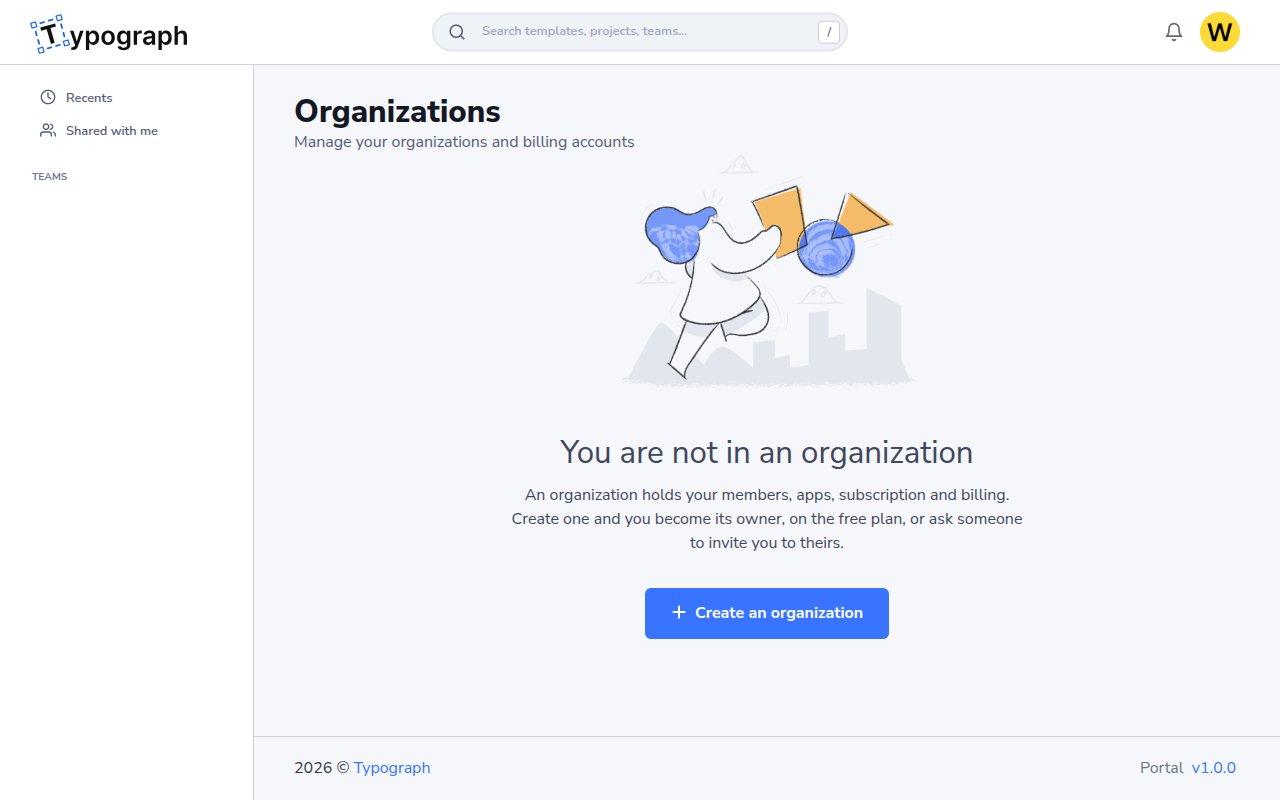
A page of an organization that no longer exists, such as a bookmark to its settings, brings you to Organizations with a message that the organization is gone.
From an agent or the API
An agent can create an organization with the MCP tool organization_create, and an integration with POST /v1/identity/organizations. Both need the identity or identity:write scope. An AI client that connected to Typograph on its own, such as Claude Desktop, does not get that scope, so it sends you here instead. See the MCP server and Identity Service references.