Adding Shapes and Images
Shapes and images give your template visual structure — backgrounds, dividers, photos, and icons. This page covers adding and styling both.
Adding a Shape
-
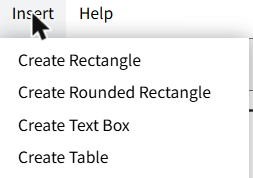
Open the Insert menu and choose Create Rectangle or Create Rounded Rectangle.
-
Click and drag on the canvas to draw the shape at the size you want.
-
The shape appears, selected and ready to style.
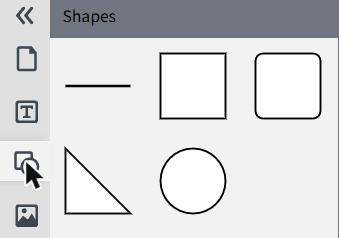
You can also open the Shapes tab in the left panel to browse a wider set of ready-made shapes and click one to add it to the page.
Styling a Shape
-
With the shape selected, use the fill color swatch in the toolbar above the canvas to set its fill color.
-
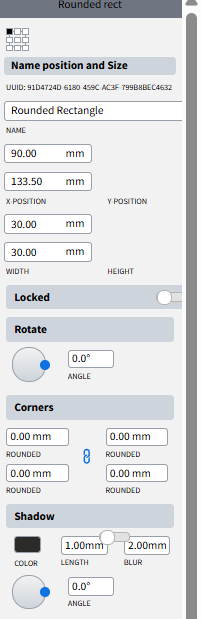
If it's a rounded rectangle, adjust the Corners fields in the right panel to make each corner more or less rounded.
-
In the Shadow section of the right panel, set the shadow's color, length, blur, and angle.
Adding an Image
-
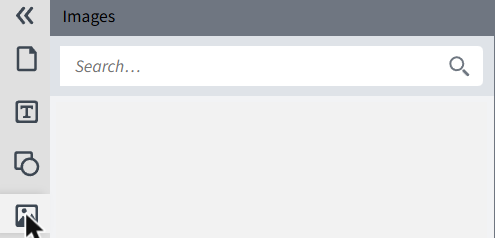
Open the Images tab in the left panel.
-
Upload a new image, or click one already available in your project's media library.
-
Click the image to add it to the current page — it appears in the center of the canvas.
Positioning and Resizing an Image
- Click the image once to select it.
- Drag it to reposition, or drag a corner handle to resize it — hold the shape's aspect ratio by dragging from a corner rather than an edge.
- For precise placement, use the X/Y position and width/height fields in the right panel instead of dragging.
(Positioning fields work the same way as for shapes and text boxes — see the position/size panel in Adding and Styling Text for what that looks like.)
Wrapping Text Around a Shape or Image
If you have a text box overlapping a shape or image and want the text to flow around it instead of behind or in front of it:
-
Select the shape or image the text should wrap around.
-
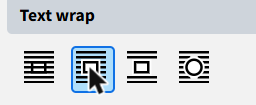
In the right panel, open the Text wrap section.
-
Choose one of the four wrap modes: no wrap, around the bounding box, jump past the object to the next available space, or following the object's shape.
-
Set the standoff for each side (top, left, bottom, right) to control how much space is left between the text and the object's edge.
Next Steps
Continue with Managing Pages and Layers.