Your Account and Roles
Everybody who works in the shop has their own account, and a role that decides what they see. The shop keeps its own accounts: you do not need a Typograph account to work in the back office.
Getting in
- Create an account. Go to your shop's address followed by
/register, for the demo shophttps://shop-api.typograph.nl/register, and fill in your e-mail address, a password of at least 8 characters and, if you like, your name. - Ask the owner for a role. A new account can do nothing in the back office until the owner gives it a role under Settings → Team (see below).
- Sign in at
/login. You land on the screen your role is for: the catalogue, or the orders if that is all you handle.
Forgotten your password? The Forgotten your password? link on the sign-in page tells you whom to e-mail; the shop does not send recovery e-mails yet.
Roles are handed out on the Team screen, and only an owner can open it. So the very first owner of a new shop is made on the server, once that person has created their account:
php bin/console shop:grant-role owner@example.com owner
The role is owner, manager, catalogue or orders, and owner when left out. After the
first owner, use the Team screen.
The roles
Four roles, drawn along the two lines that matter in a shop: who touches the prices, and who sees a customer's address.
| Role | In short | Can | Cannot |
|---|---|---|---|
| Owner | Everything, plus the connection with Typograph and who is in the team | Put the catalogue together and set prices · manage the connection with Typograph · grant and revoke roles · view orders and customer data | — |
| Manager | The catalogue and the prices. Sees orders and customer data | Put the catalogue together · make products visible and set prices · view orders and customer data | Manage the connection with Typograph · grant roles |
| Catalogue management | Fills the catalogue with designs | Prepare designs from Typograph as drafts · update names, categories and images | Set prices or make anything visible · view orders or customer data |
| Customer support | Handles orders and sees customer data | Handle orders and update their status · view customer data and addresses | Touch the catalogue or the prices |
Some things that follow from the table:
- An owner holds every other role as well.
- A manager also does everything Catalogue management does, and reads orders, but only Customer support (or the owner) changes an order's status.
- Only a manager or the owner takes a product out of the catalogue, approves a new version of a design, or reads the Logbook.
- Notifications are readable by everyone in the back office: a design that broke is a product that cannot be made, which is news for whoever promised it to a customer.
The same list is on the Team screen, under What the roles may do.
The team (owner only)
Settings → Team lists everyone with a role, with their roles beside them.
Give someone a role. In the Give someone a role card, enter the e-mail address of their account, choose a Role and press Add. They have to have created their account first; otherwise the screen says there is no account with that address.
Change a role with the role list in the person's row; the change is saved straight away. Choose No access to take them out of the back office. Their account stays, and they keep it as a customer of the shop.
You cannot remove the last owner. If you are the only owner, make someone else an owner first: a shop without an owner has nobody left who can hand out roles.
Projects per colleague
By default everyone works with every Typograph project the shop uses: their row says All projects. Press that button to choose the projects they work with instead. They then see, and can add, only the designs in those projects. Ticking every project gives them all projects again, including ones the shop starts using later; ticking none is not possible.
The logbook
Every decision about what the shop sells and who works in it is written down: products added, edited, published, hidden, moved to the trash and restored, price changes, design updates approved, kept or undone, notifications handled, categories and filters, order status changes, roles and projects, and changes to the connection. Settings → Logbook shows who did what and when, newest first. Managers find it in the left-hand menu as Logbook, and a product's own history is on its page in the catalogue.
Usage analytics
Typograph measures how the back office and the storefront are used, to see where they can be clearer. Nothing is recorded until you, or a visitor of the shop, say yes. The details are in the privacy statement.
In the back office
The first time you open a back-office page after signing in, a dialog asks whether we may see how you use the back office.
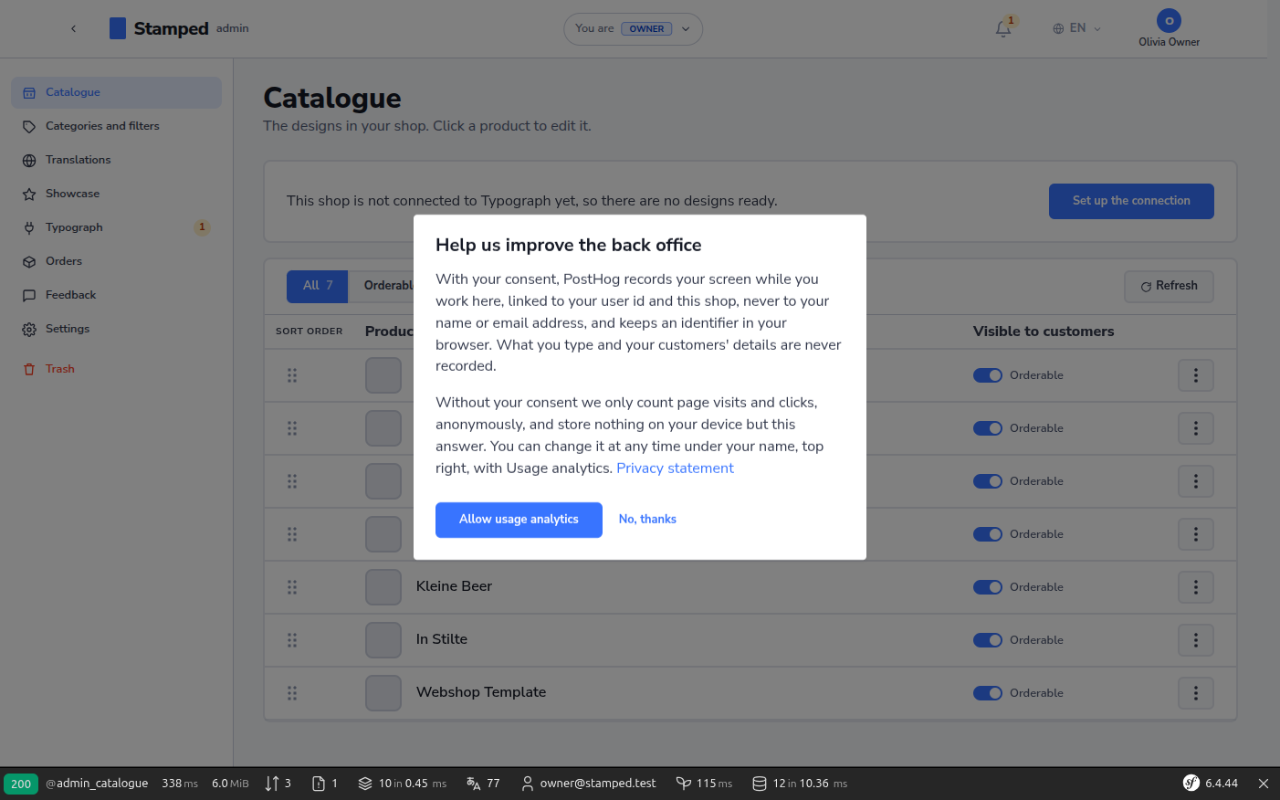
- Allow usage analytics records your screen while you work in the back office, linked to your user id and the shop, never to your name or email address, and keeps an identifier in your browser. What you type is never recorded, and the text of pages about people (orders, the team, the logbook, feedback and the connection) is hidden in a recording.
- No, thanks keeps it anonymous: page visits and clicks are counted without anything being stored on your device, apart from your answer.
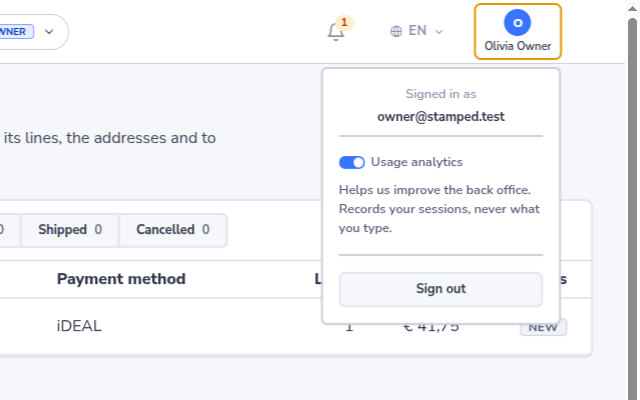
The dialog asks once: your answer is kept with your account, so it follows you to every browser. To change it, open the menu under your name in the top right and turn Usage analytics on or off. The change applies straight away: you stay on the same page, and a message confirms it.
On the storefront
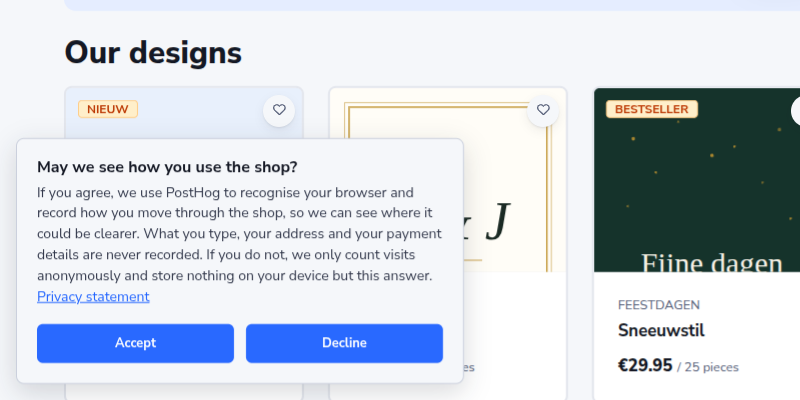
Visitors of the storefront see a banner at the bottom of the page the first time they visit. Accept and Decline are the same size and weight. Until a visitor accepts, visits are only counted anonymously. After accepting, their visit is recorded, without what they type, their address, their payment details or the text they put on a card. The banner remembers the answer in the visitor's browser; Cookie settings in the footer opens it again to change it.